How do I change my name or language?
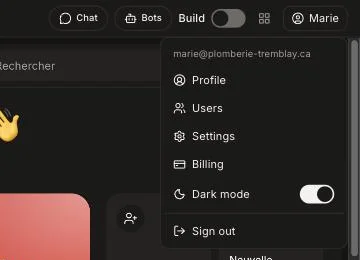
Click your name at the top right, then Profile. Change your name, language, dark mode or password there, for Alori and your CRM at once.
Your Profile is your Alori account: your name, your language, dark mode and your password. It opens over your CRM, like Settings, and a change there shows in Alori and in your CRM.
Also called: my profile, my account, user settings, change language, switch to French, rename myself, change password, profil, mon compte, changer de langue, passer en français, mot de passe
Step 1: Open Profile
Click your name at the top right of Alori, then Profile.
Click: your name › Profile
Step 2: Change what you need
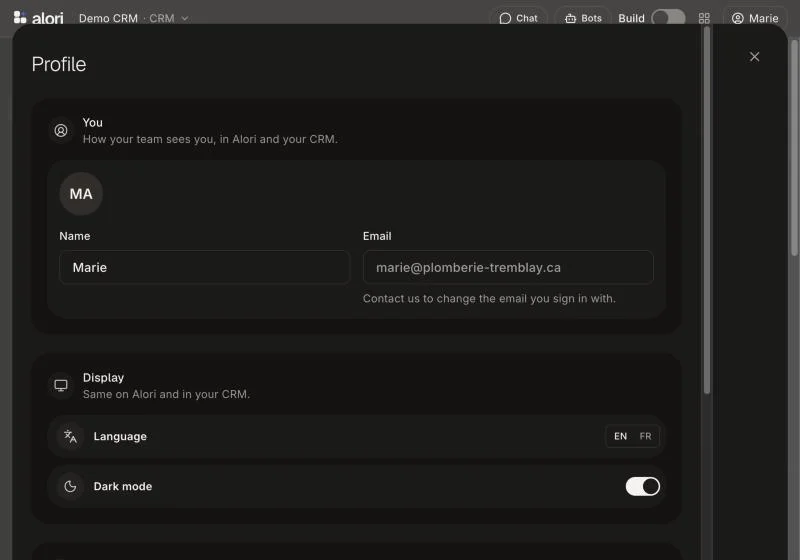
Name: type your name and click outside the box. It saves on its own. Your team sees this name in your CRM.
Language: under Display, click EN or FR. Alori and your CRM switch right away, on every device.
Dark mode: under Display, turn on the switch.
Password: under Sign in, click Change. Type your current password, then the new one (at least 8 characters).
Click: Profile › Display › FR
Good to know
Your photo, email signature and employee details live in your CRM: in Profile, under In your CRM, click Open to go to My account. If you have an employee file, see How can employees update their own information?
You can also ask Alori: "Call me Marie Tremblay" or "Switch me to French."
The emails Alori sends you (Getting started, Referrals) are under Emails in Alori's Settings.
A teammate who can't build has no Alori account of their own: their Profile opens My account in the CRM.
If it doesn't work
You can't change your email. The email you sign in with is fixed. Contact Alori support to change it.
Your new name doesn't show in your CRM. Your app may be on an older version. Open Build and ask Alori to update your app to the latest version, then publish.
"This account signs in with Google." You sign in with Google, so there is no Alori password to change.
No Sign in card. You're trying Alori without an account. Save your app with an account to get a password.
You're looking for your company name or brand color. Those are in Alori's Settings, under Your business.