How do I change my payment terms?
Go to Settings › Business and change Payment terms (days). New invoices are due that many days after they're made. It starts at 30.
Your payment terms are how many days a customer has to pay. Change Payment terms (days) in Settings › Business. Every new invoice is due that many days after it's made; unpaid past that, it turns Overdue.
Also called: net 30, due date, payment due, invoice terms, conditions de paiement, délai de paiement, date d'échéance, échéance de facture
Step 1: Open Business
Click Settings, then Business under Your business. Only the owner sees it.
Click: Settings › Business
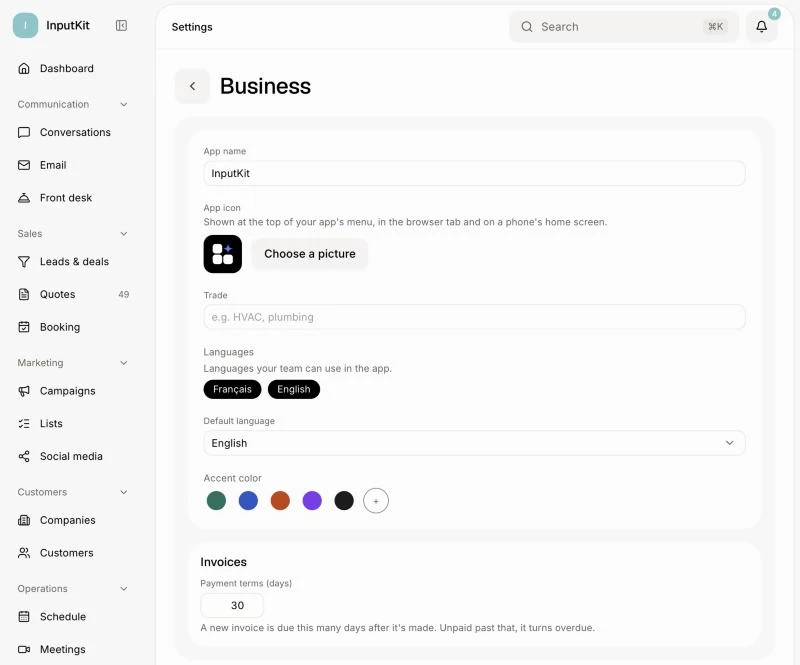
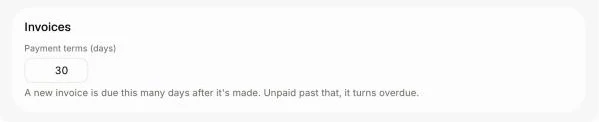
Step 2: Change Payment terms (days)
In the Invoices card, find Payment terms (days). It starts at 30. Type a number from 1 to 60, for example 15, then click outside the box. You see Saved.
Click: Payment terms (days)
Good to know
The new terms apply to invoices made from now on. Invoices you already made keep their due date.
The Unpaid invoice reminder counts its days from the due date. With 30-day terms and 7-day reminders, the first reminder goes 37 days after the invoice is made.
The business's time zone moved to Alori's Settings › Your business. See How do I set my time zone?
To change the due date of one invoice, ask Ask Alori, for example "Move the due date of invoice 2004 to November 30."
If it doesn't work
The number goes back to what it was. Only whole numbers from 1 to 60 are kept. Type one in that range.
"That didn't work. Try again." Your change didn't save. Try again in a moment.
You don't see Business in Settings. Only the owner can change payment terms. Ask the owner.