How do I manage companies?
Open Companies to add a company, see its contacts and deals, and merge or delete it. A customer joins a company when you type it in their Company line.
A company is a business your customers work for, like a property manager or a restaurant chain. Open Companies in the menu to add one, see its contacts, deals and activity, or merge and delete it.
Also called: businesses, accounts, organizations, B2B, commercial clients, entreprises, compagnies, sociétés, comptes
Step 1: Open Companies
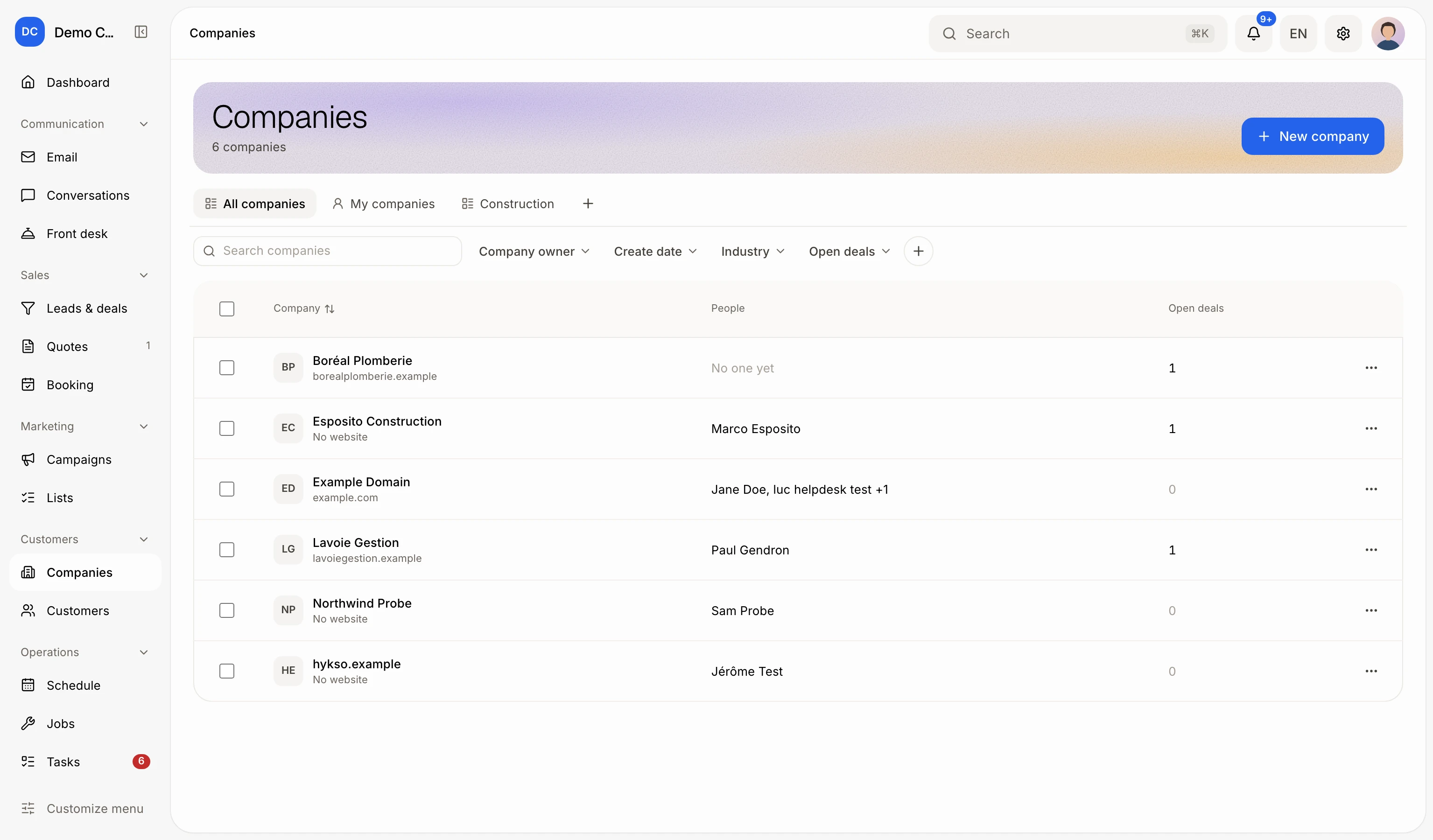
In the menu, under Customers, click Companies. You see every company with its logo, its contacts and its open deals. Type in Search companies to find one by name.
Click: Customers › Companies
Step 2: Add a company
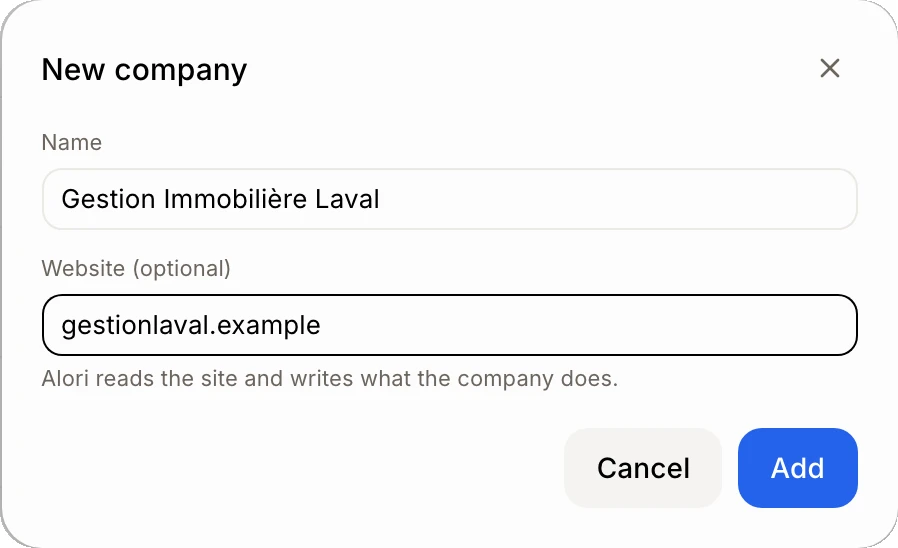
Click New company (the + on a phone). Type its Name and, if you know it, its Website (optional). Alori reads the site and writes what the company does, and shows the site's logo. Click Add.
Click: New company › Add
Step 3: Put contacts at the company
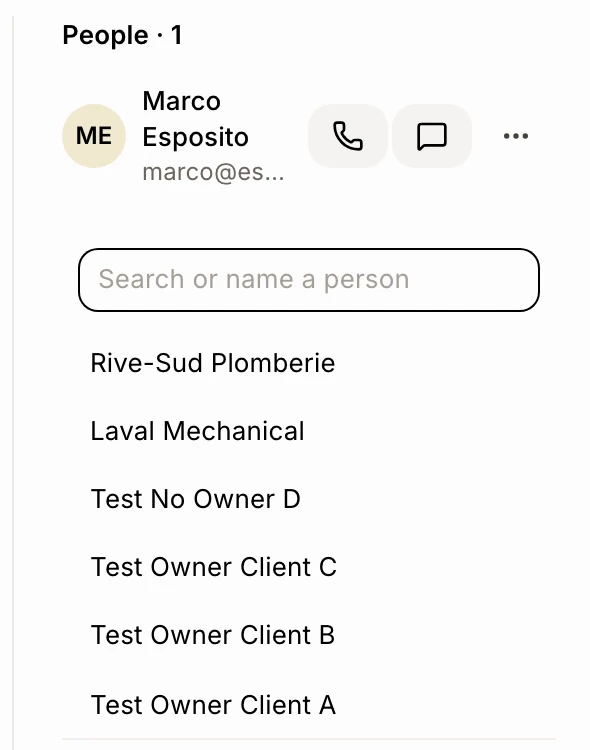
Open the company. On a computer, the contacts are in the side column; on a phone, tap Contacts. Click Add a contact, then search or type a name. You can also open a customer and click Add (or Change) on their Company card, then pick or type the company.
Click: the company › Add a contact
Step 4: Fill in its details
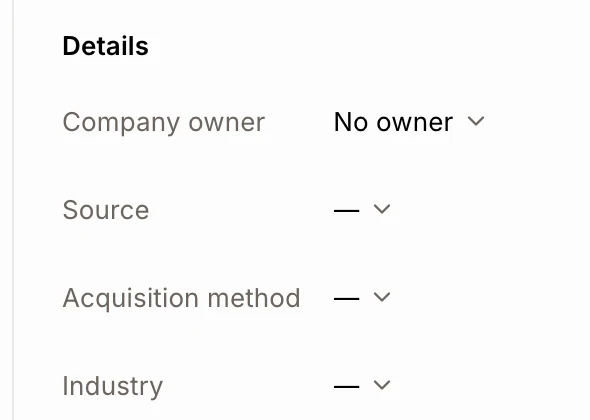
On the company's page, under Details (the Fiche tab on a phone), pick its Company owner (the teammate in charge), its Source, its Acquisition method and its Industry. Each one saves as soon as you pick it. Pick — to clear it.
Click: Companies › a company › Details › Industry
On the Companies list, filter by any of them with the quick filters. See How do I filter and save views of deals, customers and companies?
Step 5: Merge or delete
On Companies, click Merge, pick the two companies that are one, click Next, then choose the one to keep (the one with more contacts is chosen for you) and click Merge.
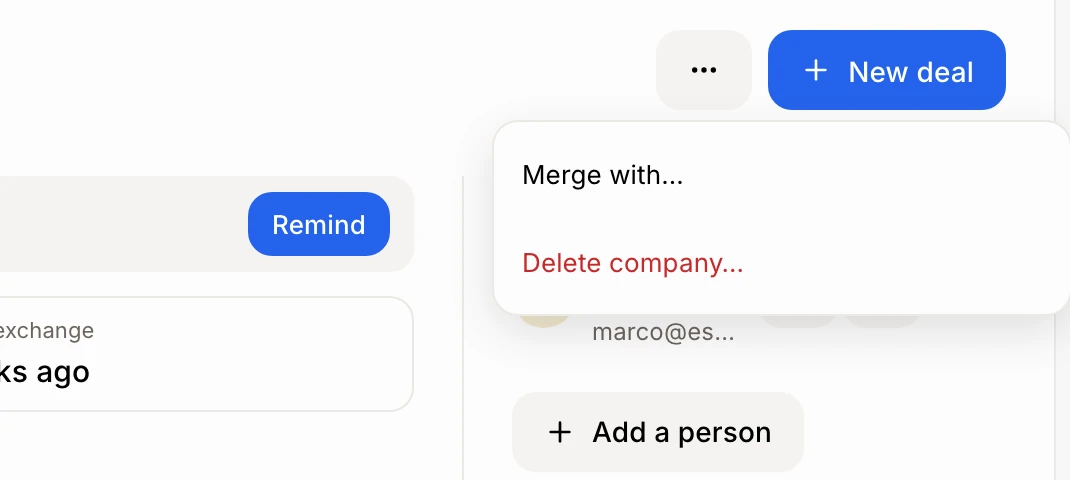
Or, on the company, click ⋯ (More actions):
Merge with…: pick a duplicate company. Its contacts, deals and messages move here, then it goes away.
Delete company…: its contacts and deals stay, with no company.
Click: More actions › Merge with… or Delete company…
Good to know
Companies shows in the menu once your app has at least one company.
The company page has Activity, Deals and Work and invoices, with what you billed this year and the balance due.
Click New deal on a company to start a deal for it.
On Companies, you can also tick 2 companies (tap Select on a phone) and click Merge.
Ask Alori can add, rename or merge companies, and save their website.
If it doesn't work
"Enter a web address, like example.com." Type the site without spaces, like acme.com.
"Enter a name." A company always keeps a name.
"Merge up to 20 companies at a time." Merge them in smaller groups.
"No companies yet. Add one with New company, or from a customer's page." Click New company.