How do I set my booking hours and days off?
In Booking, open Hours, switch each day on or off and set its hours. Under Dates that differ, click Add a date for a day off. Then click Save.
Open Booking › Hours. Switch each day on or off and set its hours. For a day off or a holiday, click Add a date under Dates that differ. Then click Save in the bar at the bottom.
Also called: availability, working hours, opening hours, vacation, holiday, day off, time off, disponibilités, heures d'ouverture, congé, jour férié, vacances
Step 1: Open your hours
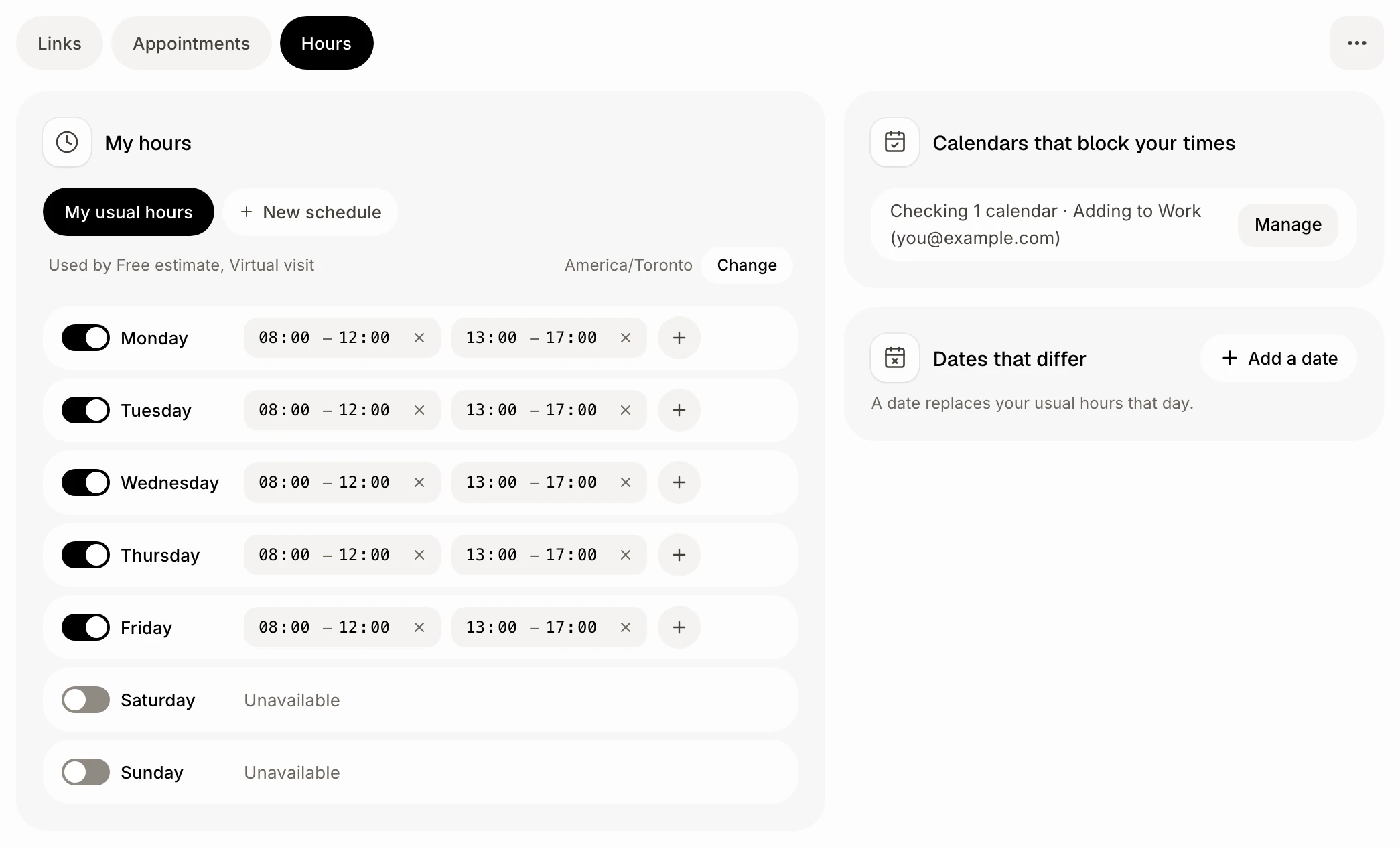
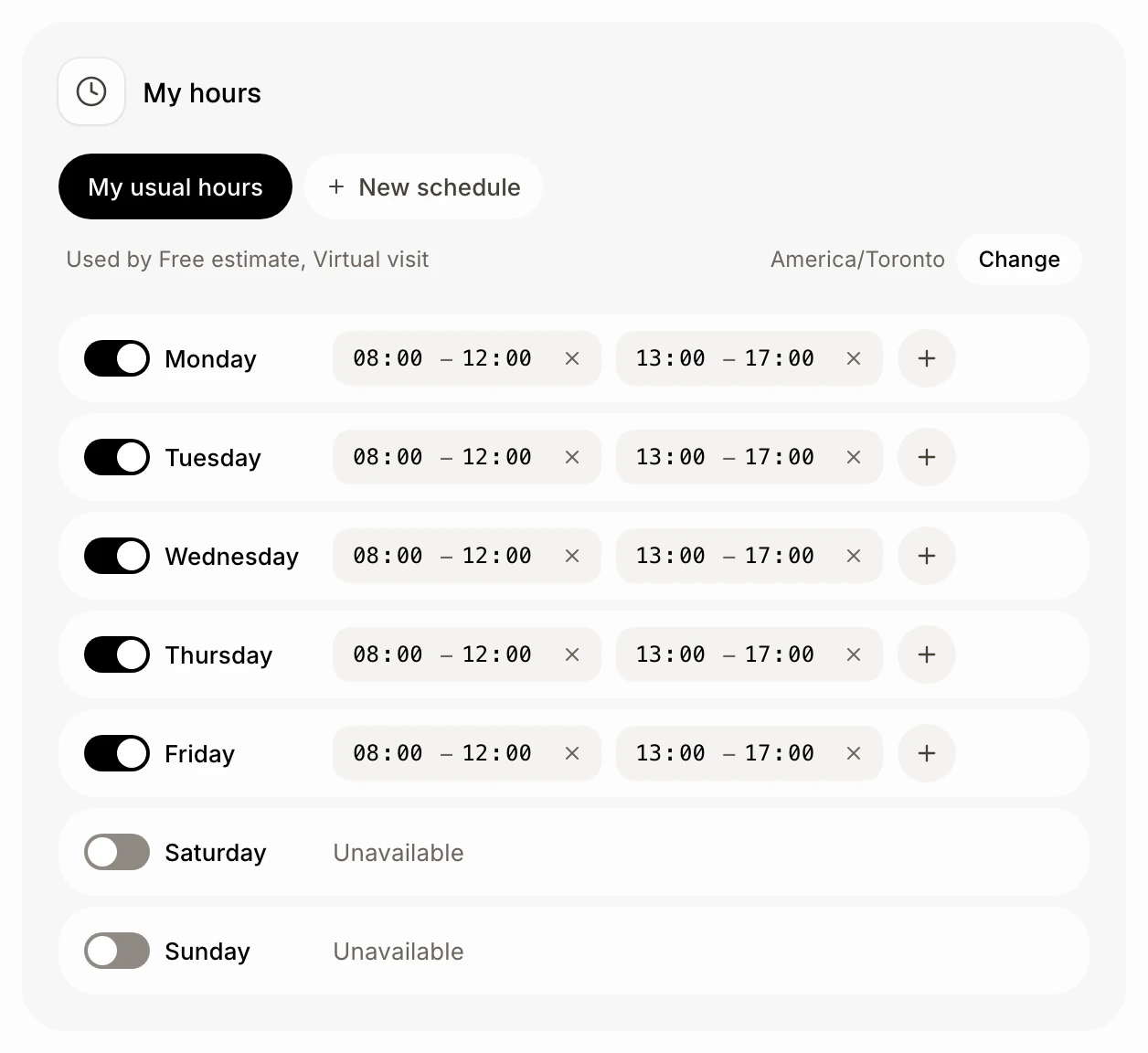
In Booking, click the Hours tab. Under My hours, your main hours are open. The line under them says which links use them.
Click: Booking › Hours
Step 2: Set each day
Switch a day on or off. A day that's off shows No hours. Click a time to change it, or + to add more hours the same day, like a lunch break in between.
Step 3: Add a day off
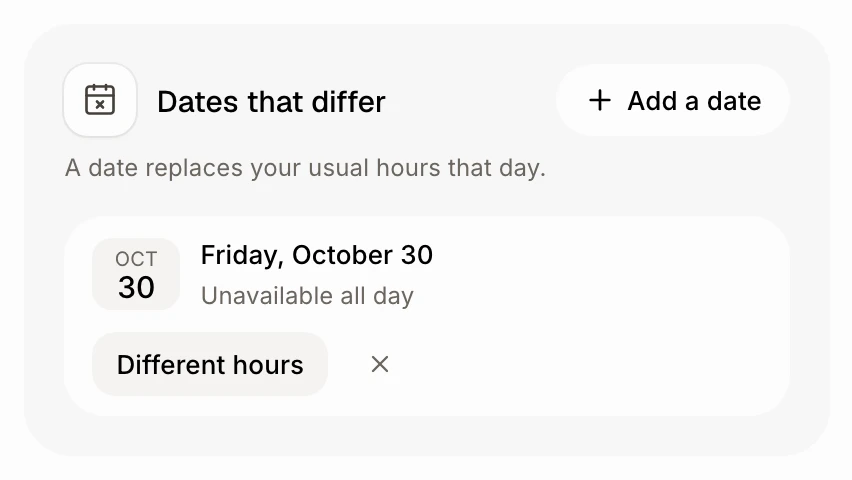
Under Dates that differ, click Add a date, pick the day and click Add a date again. It starts as No hours all day. Click Different hours to open it with other hours instead. A date replaces your hours that day.
Click: Add a date › the day › Add a date
Step 4: Save
The bar Unsaved changes shows at the bottom. Click Save, or Cancel to undo.
Click: Save

Good to know
Hours change here only. New hours, beside My hours, makes another set, for example summer hours. In a link, open When and pick them under Link hours: they show read-only, with Change in Hours to come back here. Or click Make them my main hours.
Under When in a link, you also choose how far ahead customers can book (7, 14, 30 or 60 days) and the minimum notice.
Limits and buffers, under Advanced in a link, adds a buffer before or after, and a limit per day or per week.
Your jobs and appointments block their times. Beside your hours, Calendar connections lists each connected account with the calendars it checks for conflicts: under Check for conflicts, tick the calendars that should block your times, or click Connect calendar account. Calendar to add events to picks where new appointments go.
If it doesn't work
"…: check the hours, each must end after it starts, without overlapping." Fix that day's hours.
"Each date can only be there once." That date is already in the list.
"These are your main hours: make other hours the main ones first." Open your other hours, click Make them my main hours, then delete these.
An account says Needs reconnecting. Click Re-connect under Calendar connections: until then, a customer could book a time already taken on that calendar.