How do I sign in with Google or Microsoft?
On the Sign in page, click Continue with Google or Continue with Microsoft, then choose your account. No password needed.
On the Sign in page, click Continue with Google or Continue with Microsoft, then choose your account. You don't need an Alori password: Google or Microsoft confirms it's you.
Also called: Google login, Microsoft login, Outlook, Office 365, SSO, connexion Google, connexion Microsoft, se connecter
Step 1: Open the Sign in page
On the Alori website, click Sign in.
Click: Sign in
Step 2: Pick Google or Microsoft
Click Continue with Google or Continue with Microsoft.
Click: Continue with Google (or Continue with Microsoft)
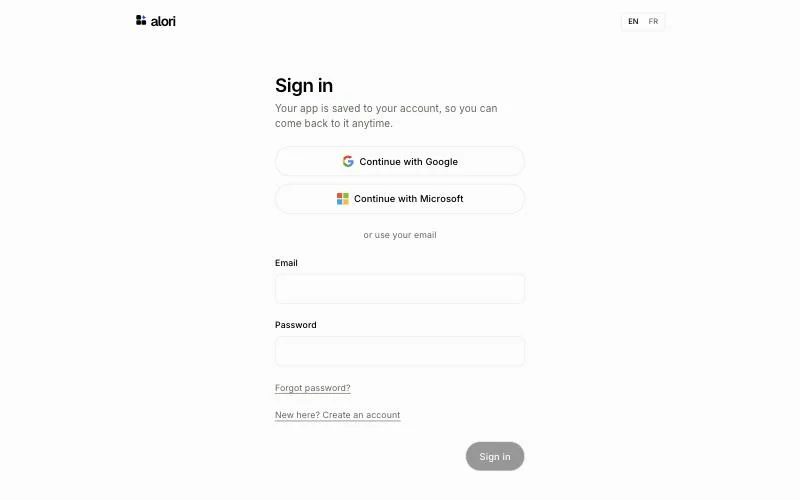
Step 3: Choose your account
Google or Microsoft opens. Choose the account you want to use, and you come back to Alori, signed in.
Click: your Google or Microsoft account
Good to know
First time? The same buttons create your Alori account. If you were trying Alori as a guest, your app is saved to the new account.
Already signed up with an email and password? Signing in with Google using that same email opens the same account.
Your team app uses this same sign-in. Opening your team app's address brings you to this page, then back to your app. Your teammates sign in here too, with the email they were invited with.
If it doesn't work
"Google sign-in didn't start. Try again, or use your email." Try again, or sign in with your email and password.
"Microsoft sign-in didn't start. Try again, or use your email." Try again, or sign in with your email and password.
"We couldn't reach Google. Try again in a moment." Wait a moment and try again.
"You're not on this team" after signing in: that Google or Microsoft account wasn't invited. Click Sign out, then sign in with the account you were invited with.