How do I find anything fast?
Click Search at the top of your team app, or press ⌘K (Ctrl K on Windows). Type a few letters to create something, go to a page, or find anything in your account, notes and meetings included.
Click Search at the top of your team app, or press ⌘K on a Mac (Ctrl K on Windows). One box lets you create something, go to a page, or find anything in your account: customers, companies, deals, quotes, invoices, jobs, tasks, tickets, employees, docs, notes, meetings and your emails.
Also called: search bar, global search, search everything, quick search, command bar, shortcut, find a record, go to page, recherche, rechercher, barre de recherche, raccourci
Step 1: Open the search
Click Search at the top of the page. On a phone, tap the magnifying glass. You can also press ⌘K (or Ctrl K) from any page.
Click: Search

Step 2: Pick what to do
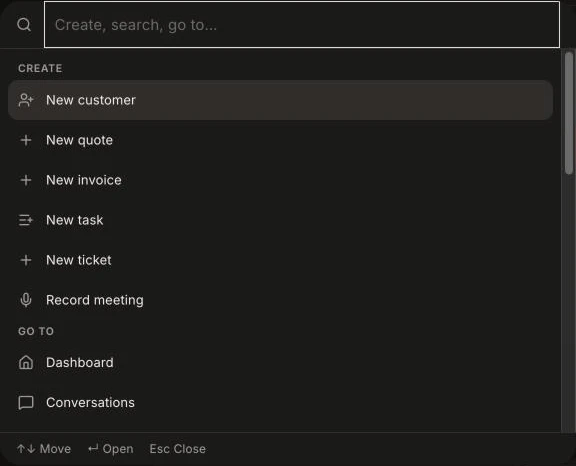
With nothing typed, you see two lists:
Create: New customer, New quote, New invoice, New task, New ticket or Record meeting (records a meeting happening now, in person). You only see the ones you're allowed to make.
Go to: every page in your menu, like Dashboard or Settings.
Step 3: Type to find a record
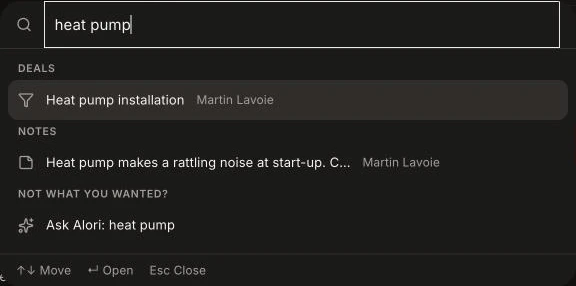
Type at least 2 letters. The search shows the best matches under Customers, Companies, Deals, Jobs, Tasks, Tickets, Employees, Docs, Notes, Meetings and Emails, each with its customer's name when it has one. A note opens its customer's page. A meeting is found by its title or by words said in it. Emails shows only your own emails. To find a quote or an invoice, type its number, like 1042 or #1042. To find a ticket, type words of its title or its number, like SUP-12. Use the arrow keys to move and Enter to open, or click a line. Esc closes the search.
Step 4: Ask Alori when it's not there
At the bottom, under Not what you wanted?, click Ask Alori: followed by what you typed. Alori opens with your words, ready to help.
Click: Ask Alori: …

Good to know
You only see what your role lets you see: a technician who sees only their own jobs finds only those, and Employees shows only to people who see the team.
You only find the meetings you were in or that were shared with you.
Ask Alori searches the same way: ask "find everything about the furnace" and it looks through all of it.
A customer line shows their email, phone or address under the name, so you can tell two people apart.
If it doesn't work
Nothing shows under Customers. Type a few more letters. One letter isn't enough.
A quote or invoice doesn't come up. Type only its number, without other words.
You don't see New quote or New invoice. Your role can't create them, or your app doesn't have that tool. Ask the owner.