How do I import my lemlist contacts and campaigns into Alori?
Bring your lemlist contacts, companies and campaigns into Alori.
This is the lemlist import page in Connectors.
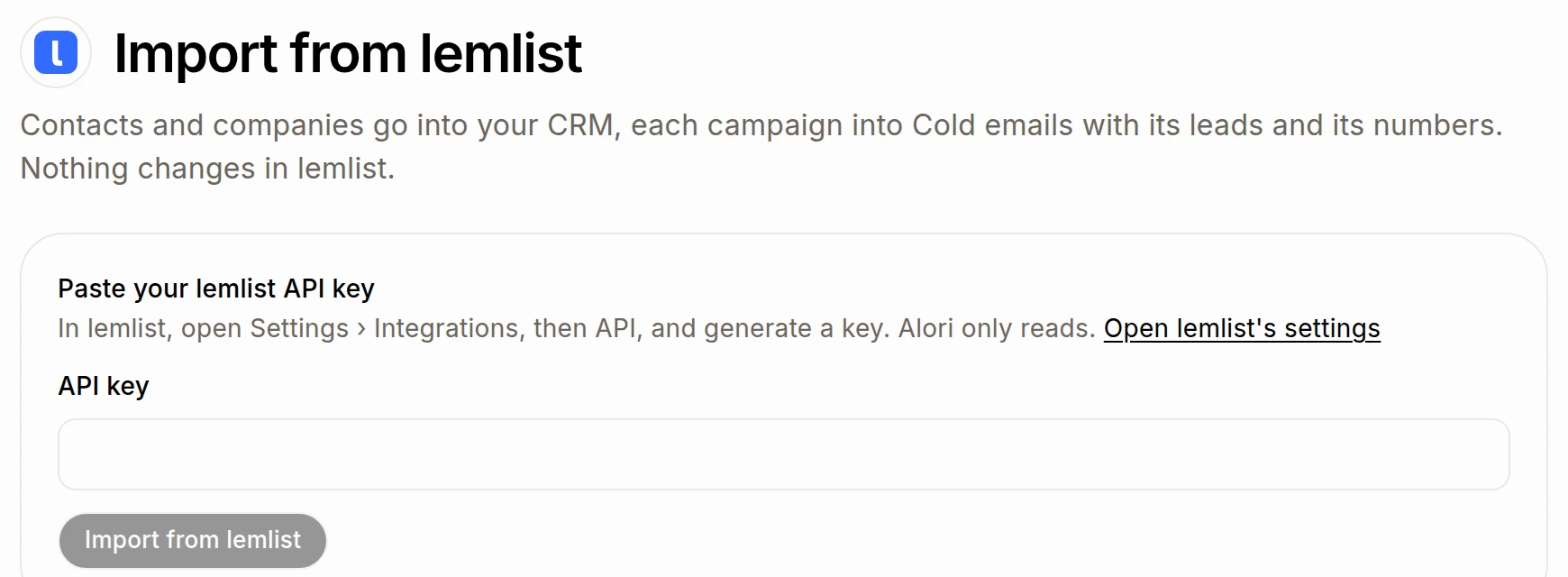
Paste your lemlist key into API key. In lemlist, you can make one under Settings › Integrations › API. Keep it private.
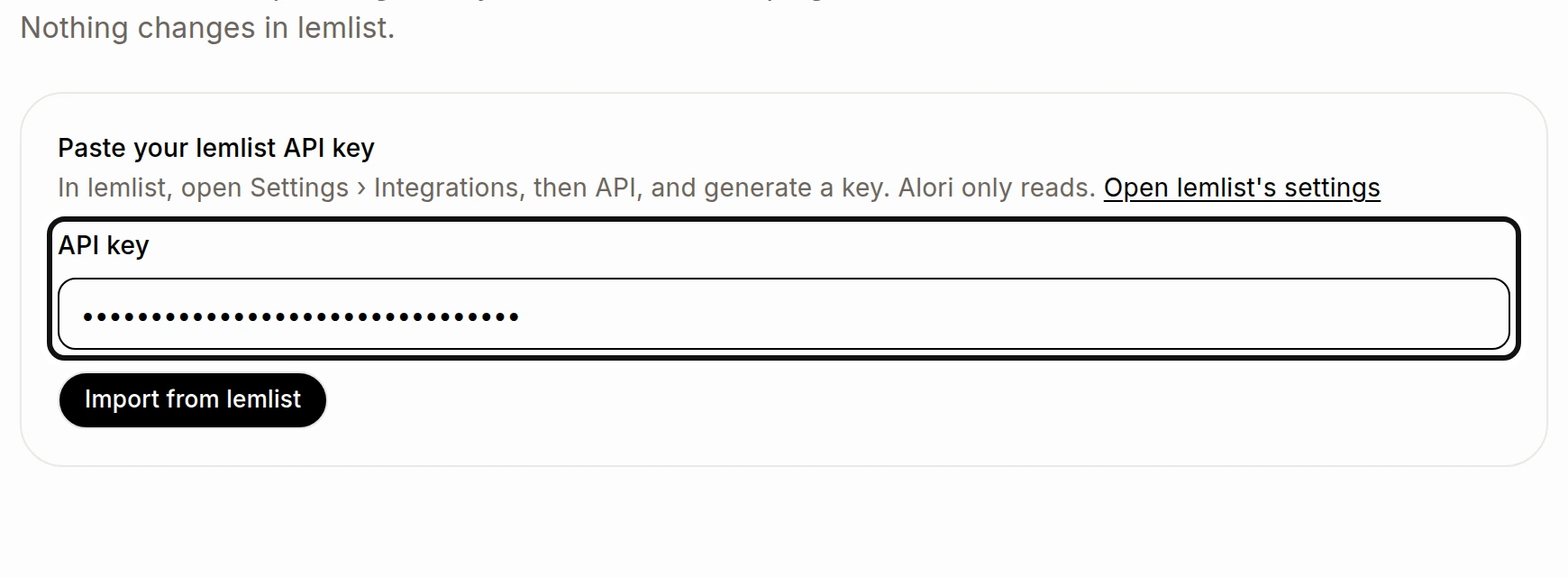
Click Import from lemlist.
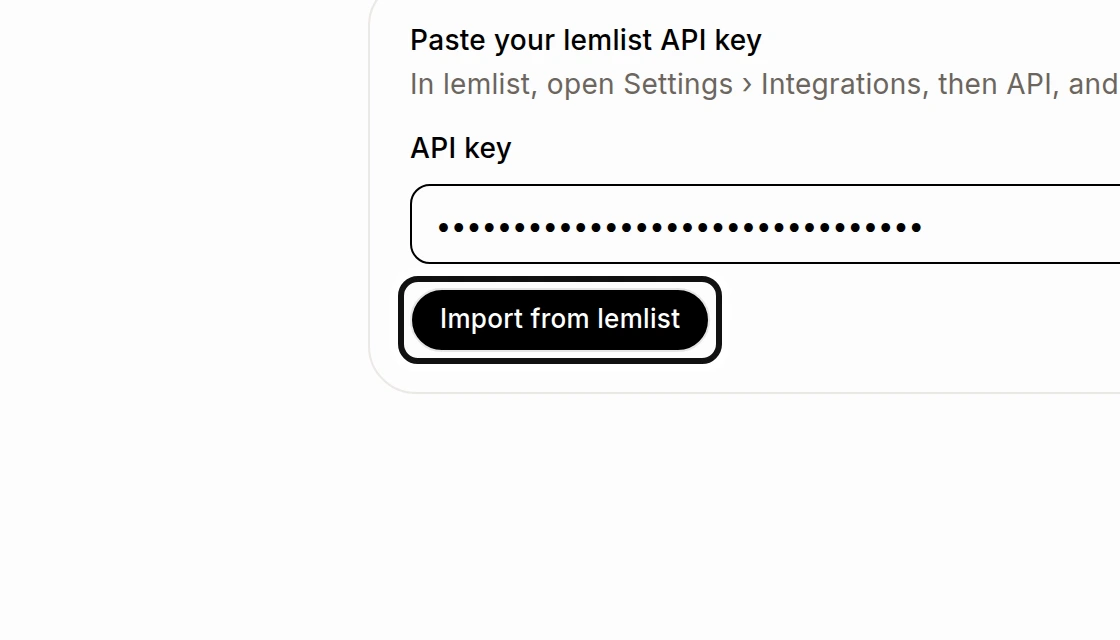
Watch the progress on this page. You can close it; the import keeps going.
When it finishes, check the summary for the campaigns, contacts and companies brought over. Check Import log for what came over, what was left out and any errors.
Find your campaigns in Cold emails. Imported campaigns arrive paused; drafts stay drafts and ended or archived campaigns stay archived. Stop a campaign in lemlist before starting it in Alori.
To bring over new leads, replies and numbers later, return to this page and click Import again. Later imports bring what changed since the last import. Nothing comes over twice, and your changes in Alori stay.
Contacts and companies go to your CRM. Contact lists become saved lists in Marketing, and their members get a tag with the list's name. Each campaign becomes a sequence in Cold emails. Email steps come over, and LinkedIn and call steps become to-dos. Branches stay in lemlist. Contacts without an email are left out.
Leads keep their place and opt-out status, but check the log for leads Alori could not place. Alori only reads lemlist; it changes nothing there.