How do I ring someone to join my voice room?
While you're in a voice room, click the add-person button at the top and pick a teammate. Their phone rings, and Accept puts them in the room.
When you're in a Team chat voice room, click the add-person button at the top and pick a teammate. Their screen rings like a phone, and when they click Accept they're in the room with you.
Also called: invite to a call, ring a teammate, call someone into the room, add someone to the call, pull someone in, Discord voice invite, inviter dans l'appel, faire sonner, ajouter à l'appel
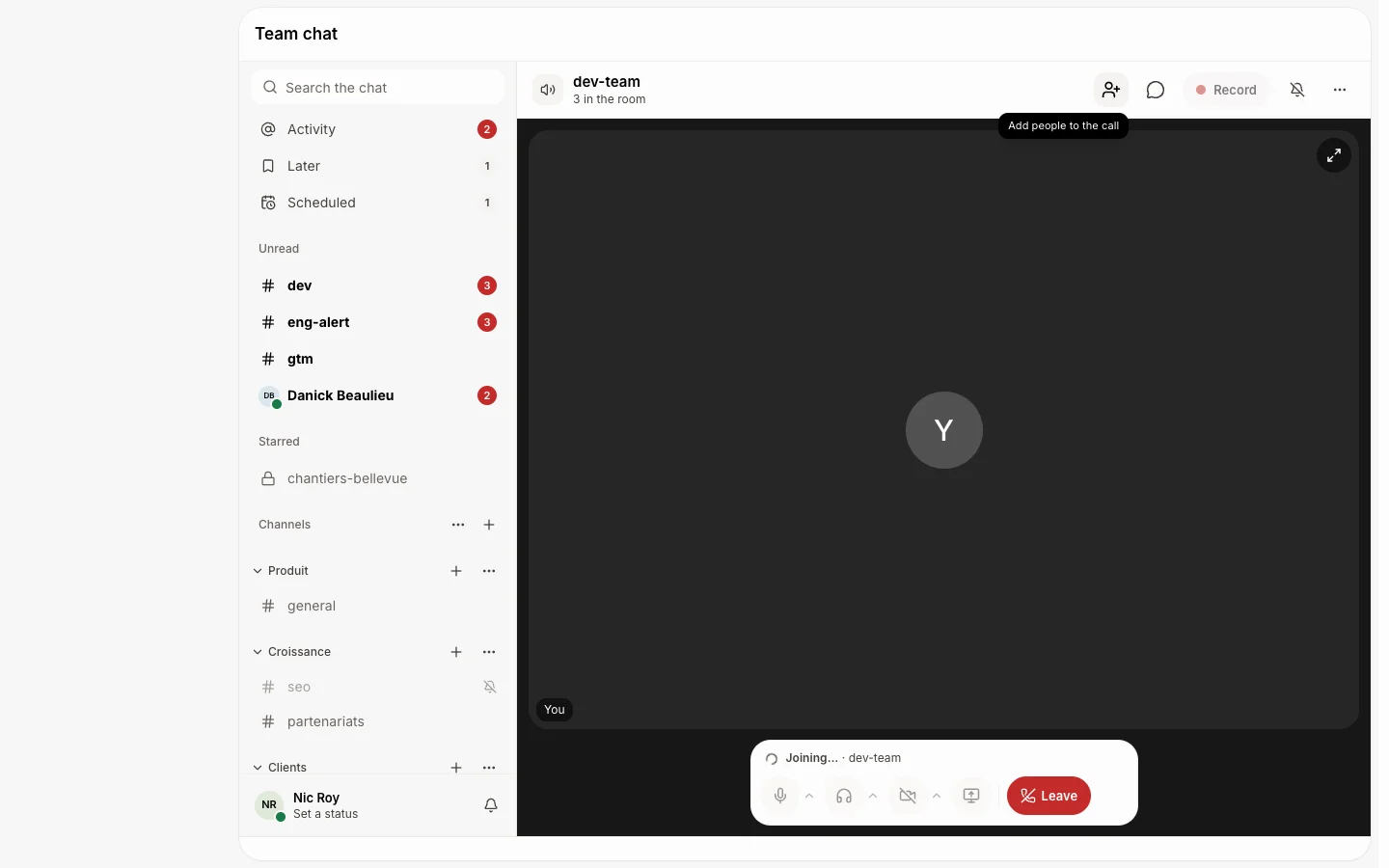
Step 1: Click the add-person button
Join the voice room first. At the top of the room, next to the chat button, click the add-person button (Add people to the call). It only shows while you're in the room.
Click: Team chat › your voice room › Join › Add people to the call
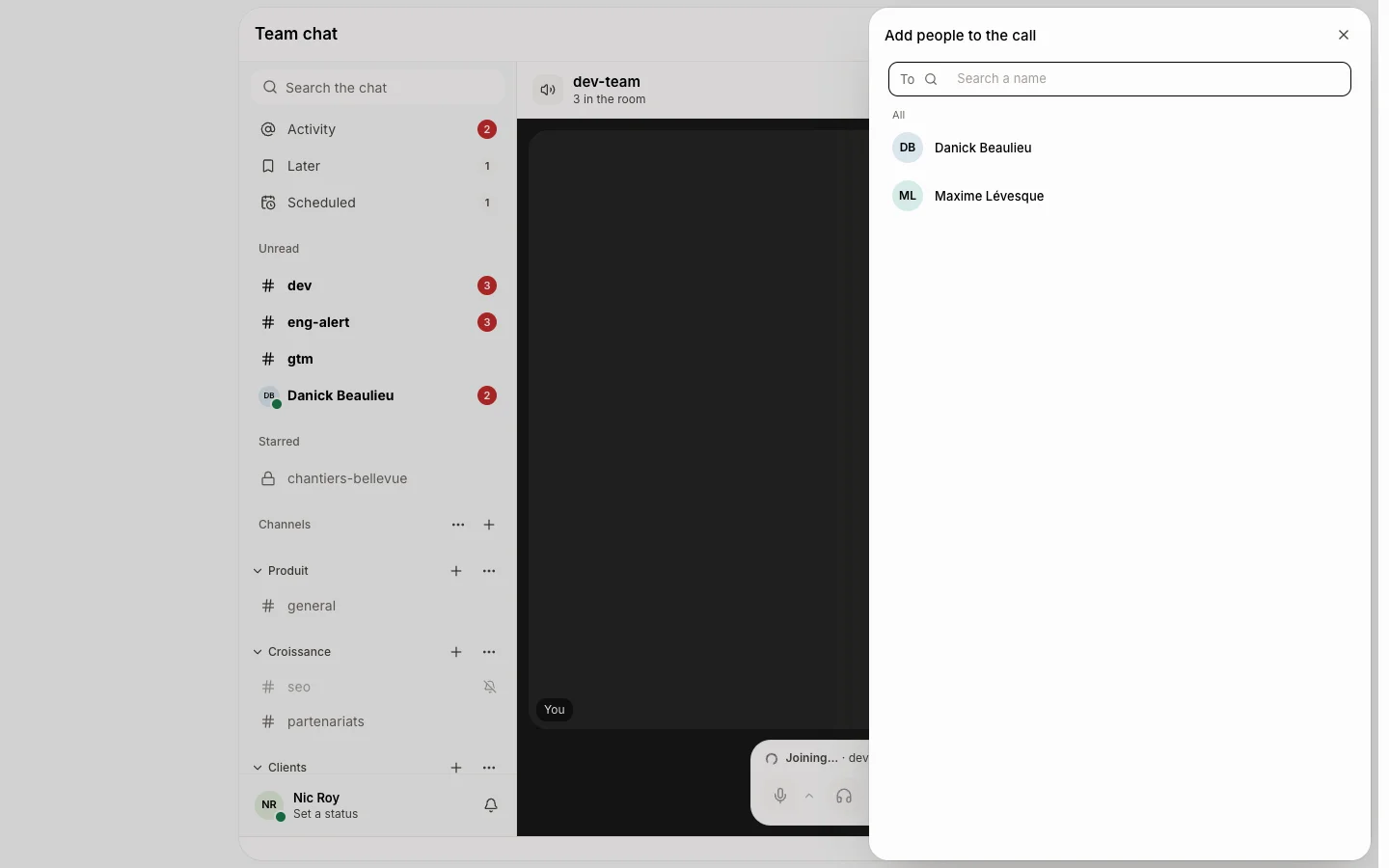
Step 2: Pick who to ring
The list shows your teammates who aren't in the room yet. Type a name to find someone faster, then click them. Their screen starts ringing right away.
Click: Add people to the call › their name
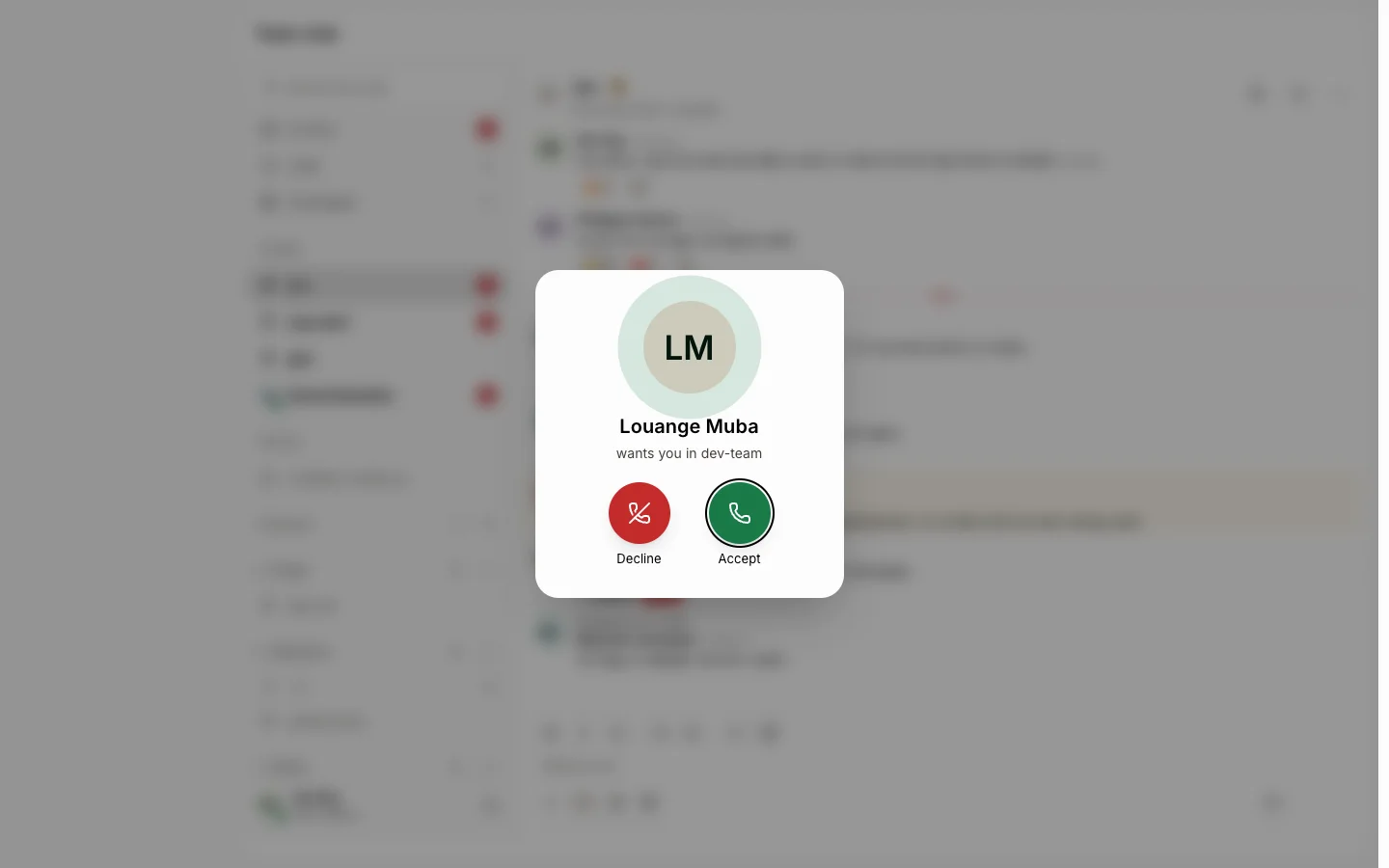
Step 3: They answer
They see your photo and name, with "wants you in" and the room's name, and hear a ring for up to 45 seconds. Accept puts them in the room with you. Decline stops the ring. Want to try again? Pick them again and it rings once more.
Ask Alori
You can also say it while you're in the room: "ring Julie into dev-team".
If it doesn't work
The add-person button isn't there. You have to be in the room: click Join first.
Someone isn't in the list. They're already in the room, or they're a guest from outside. Guests can't join the team's voice rooms: call them from their card instead.
It stopped ringing. After 45 seconds it stops on its own. Pick them again to ring once more.