What are projects?
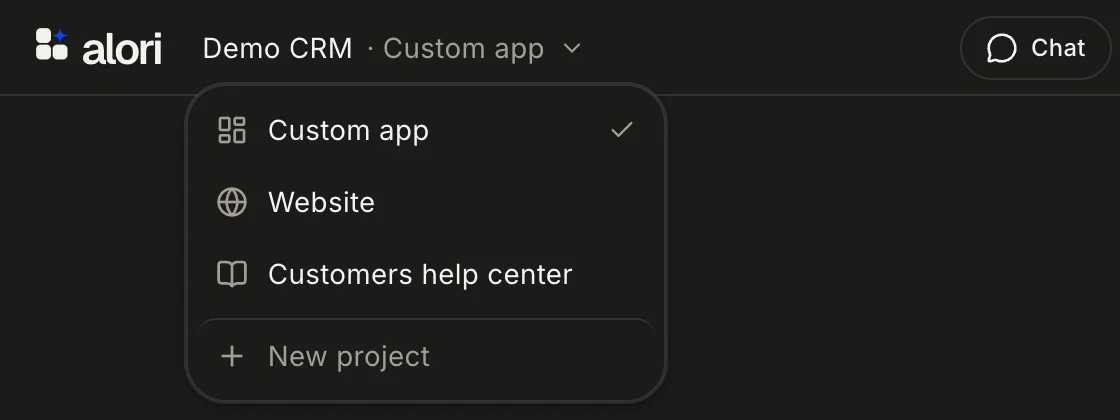
Projects are the parts of your app, in the menu beside your business name at the top: your Custom app, your Website and your Customers help center. They all share the same customers and data.
Projects are the parts of your app: your Custom app, your Website and, if you add it, your Customers help center. They all use the same customers, jobs and data.
Also called: parts of my app, sections, CRM, custom app, office, team app, back office, website, help center, projets, app sur mesure, site web, centre d'aide
What each project is
Custom app: the app your team signs in to, with your customers, quotes, schedule, jobs and invoices. It lives at
/appon your address, or on its own domain on Business, like app.yourcompany.com.Website: your public site, where customers find you and book. It lives at your main address.
Customers help center: answers your customers read on your website, at
/help, or on its own domain on Business, like help.yourcompany.com.
Each project has its own chat. When you click a project, the chat and the preview switch to it, so the changes you ask for land in the right place.
Step 1: Open a project
Click your business name at the top left. The menu lists your projects. Click the one you want.
It opens the way Build is set. With Build off, you see the project live, as your team or customers see it. With Build on, you see its chat and preview, ready for changes. Turning Build on or off keeps you on the same project.
Click: Your business name › Website
Step 2: Add a project
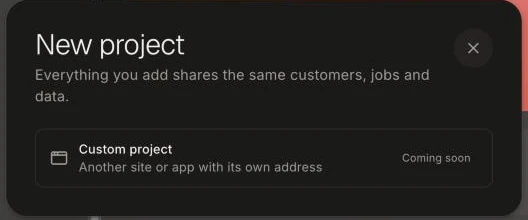
Click New project at the bottom of the menu. The window says: "Everything you add shares the same customers, jobs and data." Click Add beside the project you want. It only shows the ones you don't have yet.
Click: New project › Add
Good to know
One set of data. A customer who asks for a quote on your website shows up in your Custom app right away. Nothing needs to be copied.
One Publish. Publish puts live the changes in all your projects at once.
Before your first Publish, nothing is live yet, so a project opens with Build on.
Building… beside a project means Alori is working on it right now. Your other requests start right after.
If it doesn't work
The Website or Customers help center isn't in the menu. You skipped it or haven't turned it on yet. Click New project, then Add beside it.
"We couldn't add it. Try again." shows in the New project window. Click Add again in a moment.
"Working on your …" shows in the chat. Alori is busy on another project. Your request starts right after it finishes.