What is my bot and how do I talk to it?
Your bot is an AI teammate that knows your business. Click Bots at the top of the screen, open it, and tell it what to do or what to keep doing.
Your bot is an AI teammate that works for your business day and night. Click Bots at the top of the screen, open your bot, and type what you want: a question, a change in your app, or something to keep doing on its own.
Also called: AI assistant, AI employee, virtual assistant, robot, assistant IA, employé virtuel, agent
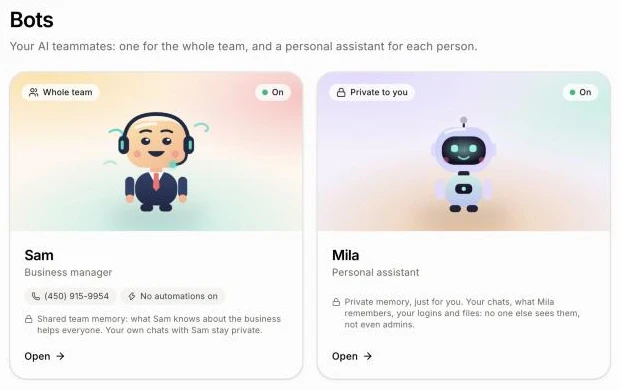
Your team's bot is called Sam, your business manager. It answers from your own data (customers, deals, jobs, quotes, invoices, tasks), makes changes in your app, and sets up automations. Each person can also have Mila, their personal assistant. You can rename either one.
Step 1: Open your bot
At the top of the screen, click Bots. Sam's card shows its name, its title (Business manager), its number and how many automations are on. Mila's card says Personal assistant. A bot that is on shows On. Click a card to open it.
Click: Bots › your bot
Step 2: Tell it what to do
Type in the box at the bottom ("Tell Sam what to do", with your bot's name) and send. Before your first message, you can tap a suggestion, like Text me tomorrow's jobs. You can also send pictures.
The bot shows Working on it… while it works. To stop it, click the stop button.
Click: Bots › your bot › type › send
Step 3: See what it did
The bot acts right away and says what it did. A card under its reply shows the change, with a link to the record. When it sets up an automation, the card has an on/off switch and Test it.
Good to know
One conversation everywhere. What you said by text, on the phone, in Slack or in Discord shows in the same thread, tagged By text, By phone, In Slack or In Discord. Things it did by itself say On its own.
The side panel shows What I do on my own (your automations) and Who can text and call me. On a small screen, tap Automations and team at the top.
Rename it. Click the pencil (Rename) next to its name, type the Bot's name and click Save.
It uses credits for each answer, like the rest of Alori's AI.
It asks before it sends anything to a customer, and before it deletes something. See What does the bot do on its own, and when does it ask first?
If it doesn't work
"Create your app first: your bot works inside it." Build your app first, then come back to Bots.
"Out of credits." Add credits, then send your message again.
"Only pictures can be sent here." The bot takes pictures only, not other files.
"That picture is too big." or "Too many pictures." Send a smaller picture, or fewer at once.
"That didn't go. Try again." Wait a moment and send it again.
"This bot isn't here anymore." The link is old. Click Bots to open your bot.