How do I see who joined with my link?
Open Settings and find Referrals. You see your totals, each friend who joined, the date, and whether they bought credits.
Open Settings from your account menu and find Referrals. Under your link, one line sums it up, then everyone who signed up with your link shows, newest first, with the date they joined and whether they've made their first purchase.
Also called: referrals, invited friends, referral stats, who signed up, parrainages, amis invités, filleuls, qui s'est inscrit
Step 1: Open Settings
Click your name at the top right, then Settings.
Click: your name › Settings
Step 2: Go to Referrals
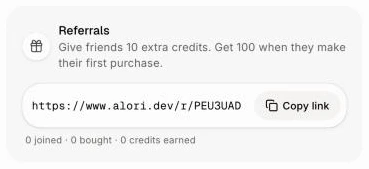
Find Referrals: your invite link, with Copy link beside it.
Click: Settings › Referrals
Step 3: Read your totals and your list
Under your link, one line gives your totals, for example 2 joined · 1 bought · 100 credits earned:
joined: how many people signed up with your link.
bought: how many of them bought credits.
credits earned: the referral credits you got, 100 per friend who bought.
Under it, each friend shows their name, email and the date they joined, with a tag:
Signed up: they joined but haven't bought credits yet.
First purchase: they bought credits, and you got your 100 credits.
If a friend has no name yet, they show as Friend.
Click: Referrals › your friends list
Quick check from the chat
The invite window in the chat also shows a short line, for example 2 friends joined · 100 credits earned.
If it doesn't work
"0 joined." No one has signed up with your link so far. Share it again.
A friend you invited isn't in the list. They signed up without your link, opened it on another browser, already had an account, or joined as a teammate. Only new business owners who sign up with your link show here.
A friend shows Signed up but says they paid. Only buying credits counts as a first purchase. Check Referrals again after they buy credits.