How do I use tags?
Click + Tag under a customer's name, tick customers in the list and click Tag, or ask Alori. A new tag is made on the spot. Click the × on a tag to take it off.
Tags are short labels you put on customers, like "Commercial" or "VIP". Click + Tag under a customer's name, tick several customers in the list and click Tag, or just ask Alori. A tag that doesn't exist yet is made on the spot.
Also called: labels, categories, groups, segments, remove a tag, étiquettes, catégories, groupes, étiqueter, retirer une étiquette
Step 1: Tag one customer
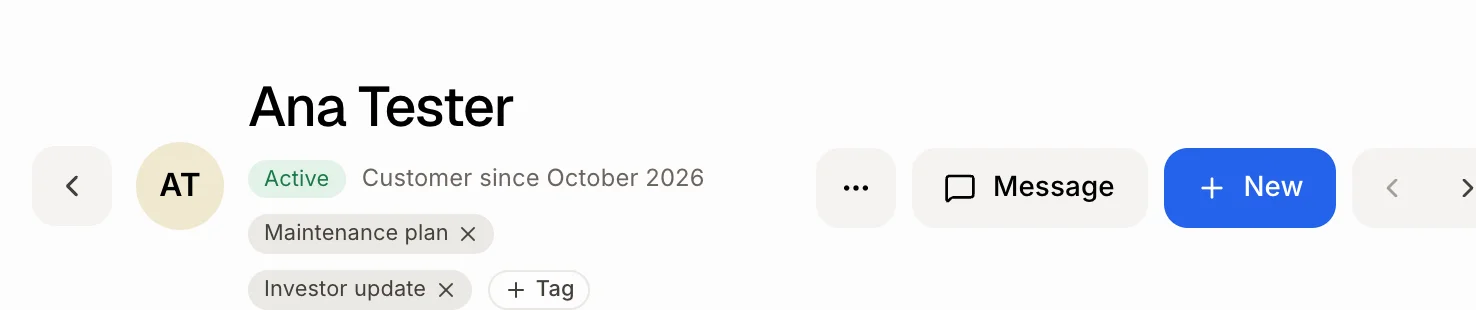
Open the customer. Under their name, click + Tag. Tick a tag to put it on, or untick it to take it off. To make a new one, type its name in New tag and press Enter. Their tags show right there, next to their status. To take one off, click the × on the tag.
Click: Customers › a customer › + Tag
Step 2: Tag many customers at once
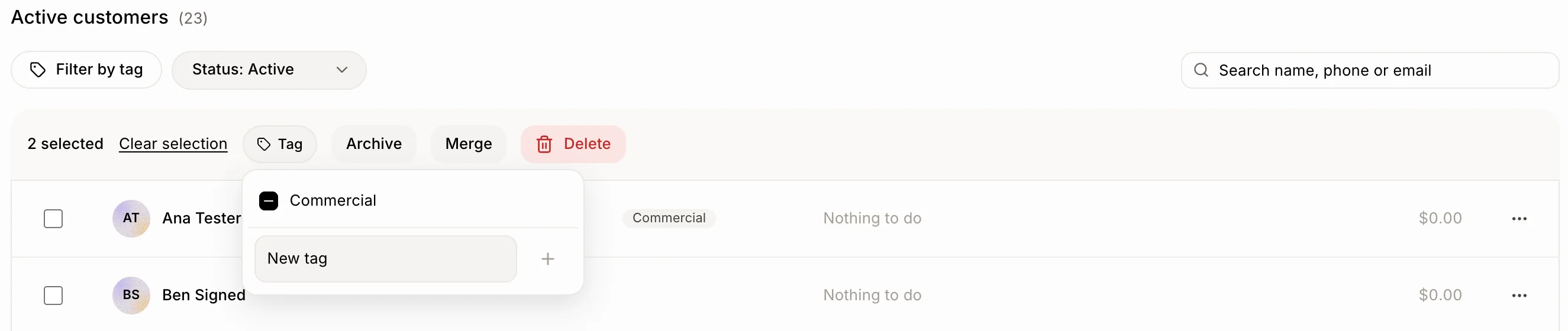
On Customers, tick the box at the start of each customer. On a phone, tap Select first. In the bar that appears, click Tag, then tick a tag or type a new one in New tag and click +. It goes on every customer you ticked.
Click: Customers › the boxes › Tag
Step 3: Or ask Alori
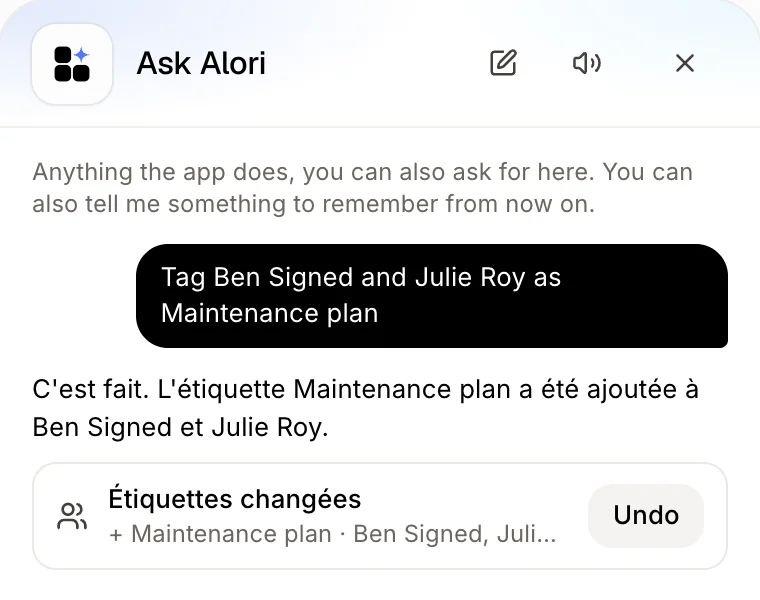
Open Ask Alori and say it in your own words, like "Tag Ben Signed and Julie Roy as Maintenance plan". Alori makes the tag if it's new and puts it on them. Click Undo to take it back. It also works in your Chat, with the bot and in Claude.
Click: Ask Alori › type or say what to tag
Step 4: Show only one tag
Above the list, click Filter by tag (Tags on a phone) and tick one or more tags. The button then says Tag: with their names. Click Clear the filter to see everyone again.
Click: Filter by tag › a tag

Step 5: Rename or delete a tag
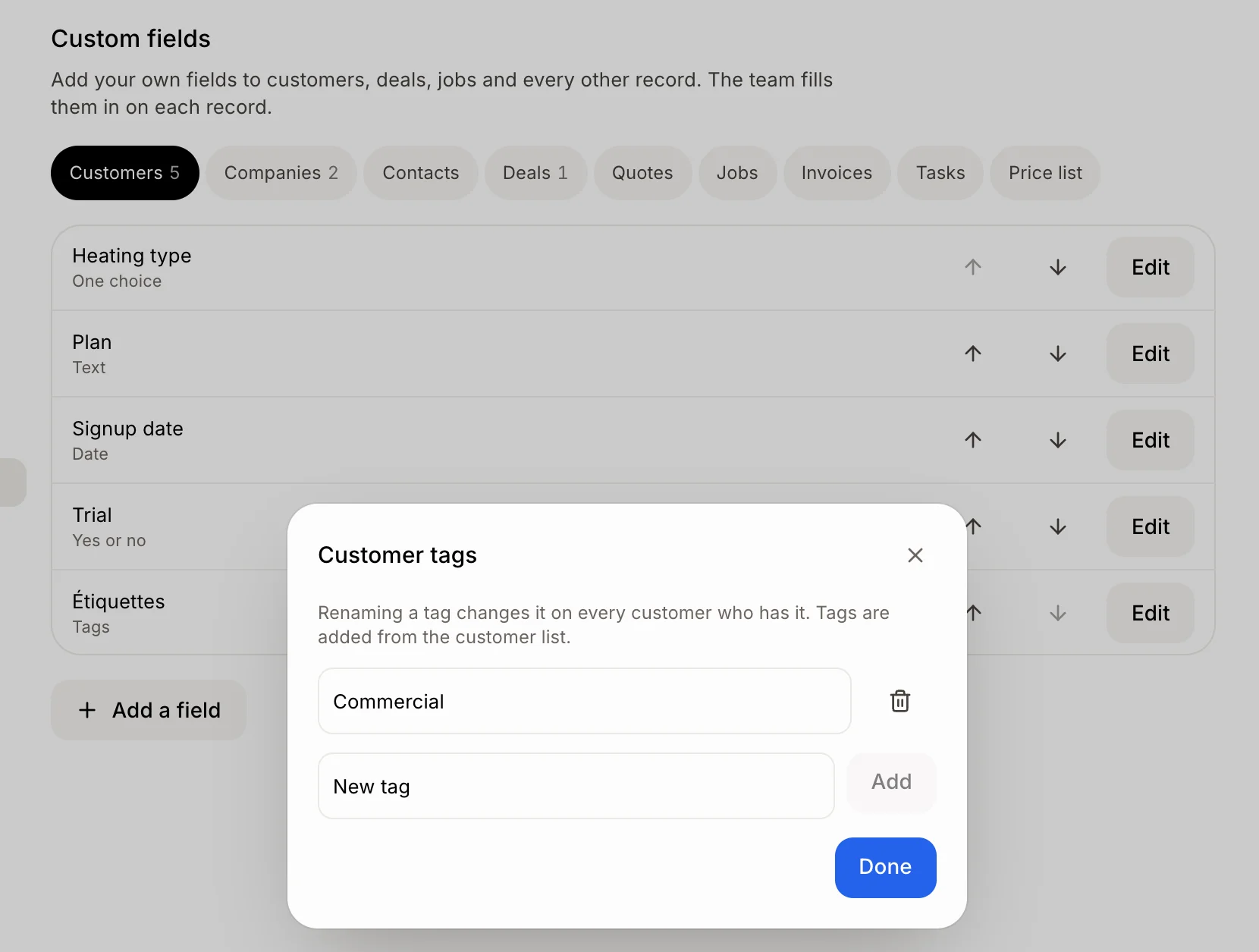
Click Filter by tag, then Manage tags in Settings. Next to Tags, click Edit. Change a name, or click the bin to delete a tag. Click Done. You can also ask Alori: "rename VIP to Gold".
Click: Filter by tag › Manage tags in Settings › Edit
Good to know
With 7 tags or more, the list has a search box on top: type part of a tag's name, then press Enter to tick the first match.
Renaming a tag changes it on every customer who has it.
Deleting a tag takes it off every customer. The question before it says how many have it.
Tags pick who gets a campaign: on its Recipients step, choose A list › New list by criteria, then the tags.
Anyone who can edit customers can add tags. Renaming and deleting need access to Settings.
If it doesn't work
"No tags yet. Type a name to add the first one." Type a name in New tag and press Enter.
"Another tag already has this name." Pick another name, or use the tag you already have.
No + Tag under the name, or no × on the tags. Your role can't edit customers. Ask the owner.
No Manage tags in Settings line. Your role can't change settings. Ask the owner.