How do I send an email campaign?
Go to Campaigns, click New campaign, write the email, click Next, choose who gets it (everyone, a list, or people you pick or paste), then click Send now.
Click Campaigns, then New campaign. Write the email, click Next: who gets it, choose the people, then click Send now or Schedule. Your draft saves as you type.
Also called: email campaign, newsletter, email blast, promo email, mass email, mailing list, Mailchimp, campagne courriel, infolettre, envoi de masse, liste d'envoi, merge tags, shortcodes, personalization fields
Step 1: Start a new campaign
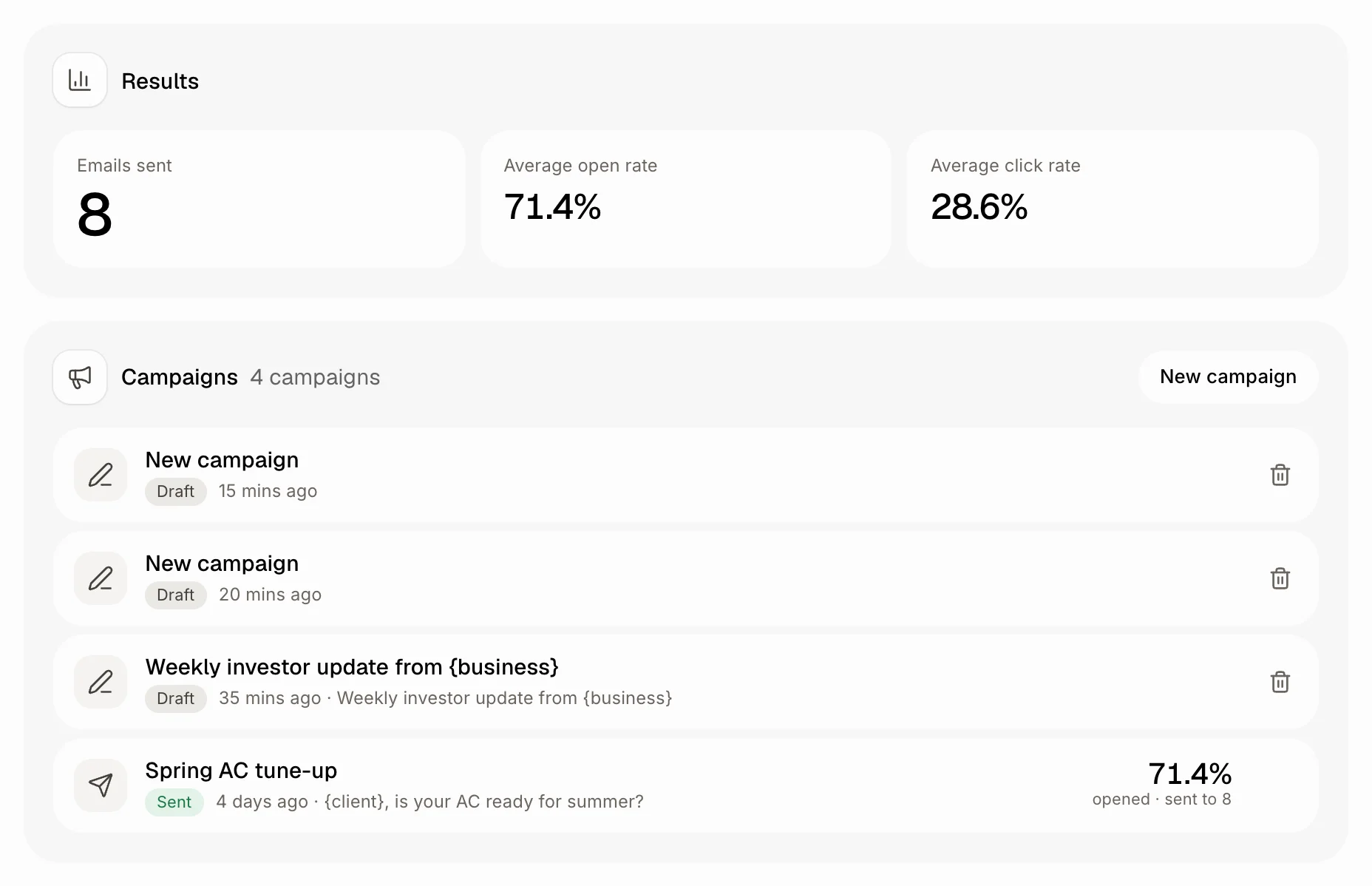
Click Campaigns (left menu, under Marketing), then New campaign. The bin at the end of a row deletes a campaign; a sent one can be archived instead, with its results, under … archived at the bottom.
Click: Campaigns › New campaign
Step 2: Pick a template, or let Alori write it
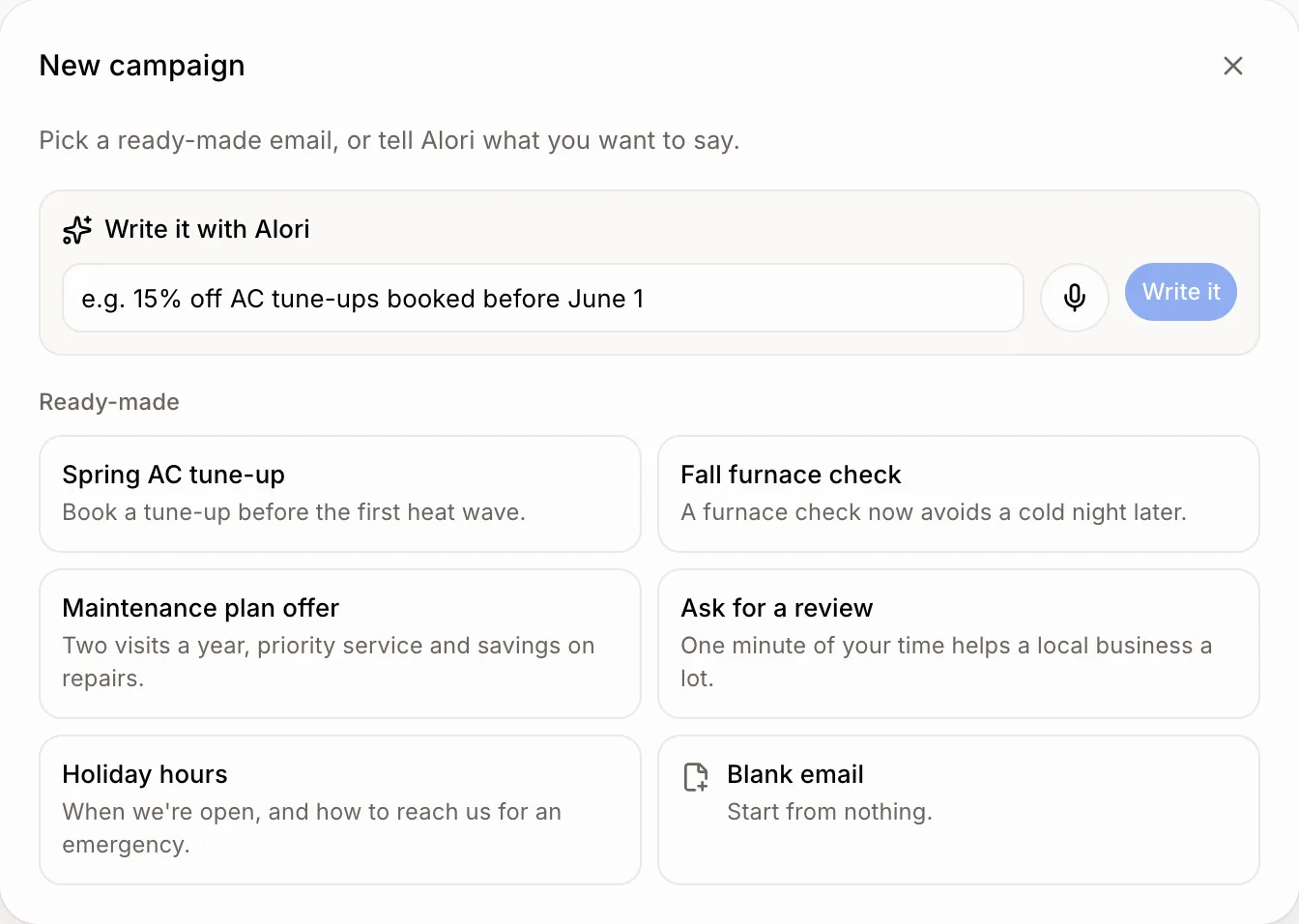
Under Templates, click one (Spring AC tune-up, Fall furnace check, Maintenance plan offer, Ask for a review, Holiday hours), or Blank email. Or type a few words in Write it with Alori (or say them) and click Write it.
Click: New campaign › Fall furnace check
Step 3: Write the email
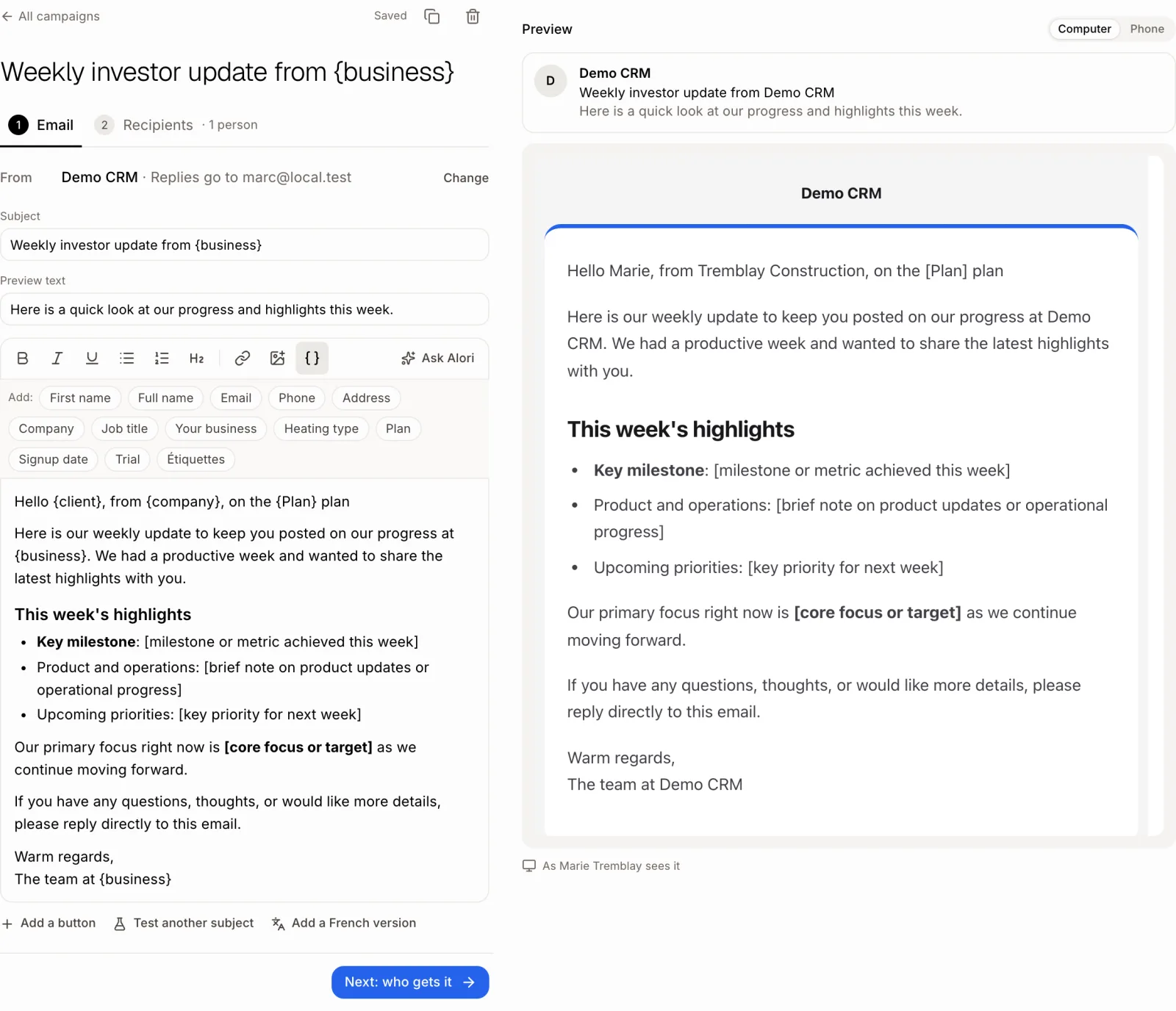
At the top of the page, type the campaign's name in place. Next to it you see its status and Saved. The back arrow goes to All campaigns, and ⋯ holds Duplicate and Delete.
On step 1 Email, edit the Subject, the Preview text and the email. To make it personal, click { } in the toolbar and pick a field, like First name, Company or one of your own customer fields. It fills in for each person. Ask Alori rewrites or translates it (type or speak). You can add pictures, a Button, Test another subject (an A/B test) and a second language. For your own code, click Edit the HTML (see How do I write a campaign in my own HTML?). Then click Next: who gets it: at the top right on a computer, in the bar at the bottom of the screen on a phone.
Click: { } › Company › Next: who gets it
Step 4: Choose who gets it
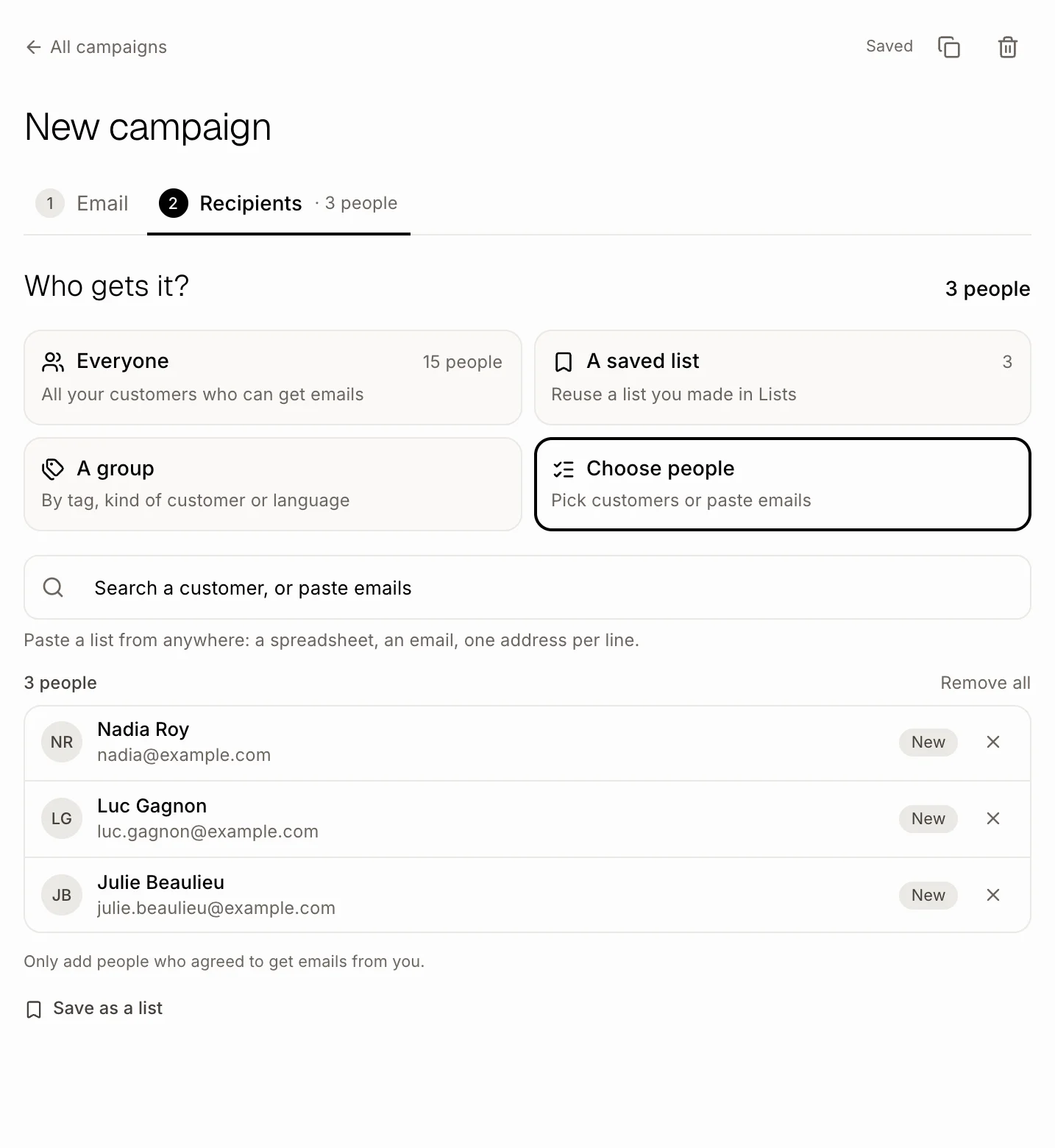
On step 2 Recipients, under Who gets it?, pick one:
Everyone: all your customers who can get emails.
A list: pick a list you made in Lists, or click New list by criteria. That makes a list named after your campaign right away: pick Customers (Any, Active, Past, Prospects), Tags or a Language just below. With custom fields, Add a field keeps only people whose field (or their company's or deal's) matches. The list updates itself as customers change, and you find it in Lists (see How do I save a list of people for my campaigns?).
Chosen people: type a few letters in Search a customer, or paste emails and click a name, or paste a list of emails (one per line). Emails that aren't customers yet say New and become customers when it goes out. Save as a list keeps your picks for next time.
People without an email, those who unsubscribed and your app's sample customers are always left out. Only add people who agreed to get your emails.
Click: Next: who gets it › A list › New list by criteria › Tags
Step 5: Test it, then send it
Under the recipients, click Send me a test to get it in your inbox, or Schedule to pick a day and time. When it's ready, click Send now · N (N is how many people get it) at the top right, or in the bar at the bottom on a phone. It asks once, then it goes out. The first time, add your Mailing address (Change next to From): the law requires it. Each email uses credits.
Replies to the campaign go to your email. To change that, click Change next to From and type one or more emails in Replies go to, separated by a comma (up to 10): everyone listed gets the replies.
Click: Send me a test › Send now

Step 6: Change your mind after scheduling
A scheduled campaign's main button is Unschedule: click it to bring it back to a draft. If sending stops on its own, the button is Resume sending.
Click: Campaigns › the campaign › Unschedule
If it doesn't work
Write a subject first. or Write the email first.: the subject or the email is empty.
Add your mailing address first.: click Change next to From and fill in Mailing address.
That email address doesn't look right. in Replies go to: check each email, and separate them with a comma.
Nobody matches this list.: on Recipients, pick fewer criteria under A list, or add people in Chosen people.
No email address found in what you pasted.: copy the column with the emails.
You're out of credits.: add credits, then send again.
Emails aren't set up on this app yet. Publish it, then try again.: publish your app once, then send.
A field shows empty: that customer has nothing in it; fill it in on their record or leave it out.