How do I see how my campaign did?
Open the campaign in Campaigns to see who opened it, which links they clicked and when, and the A/B winner. Each person's history shows the campaigns they got.
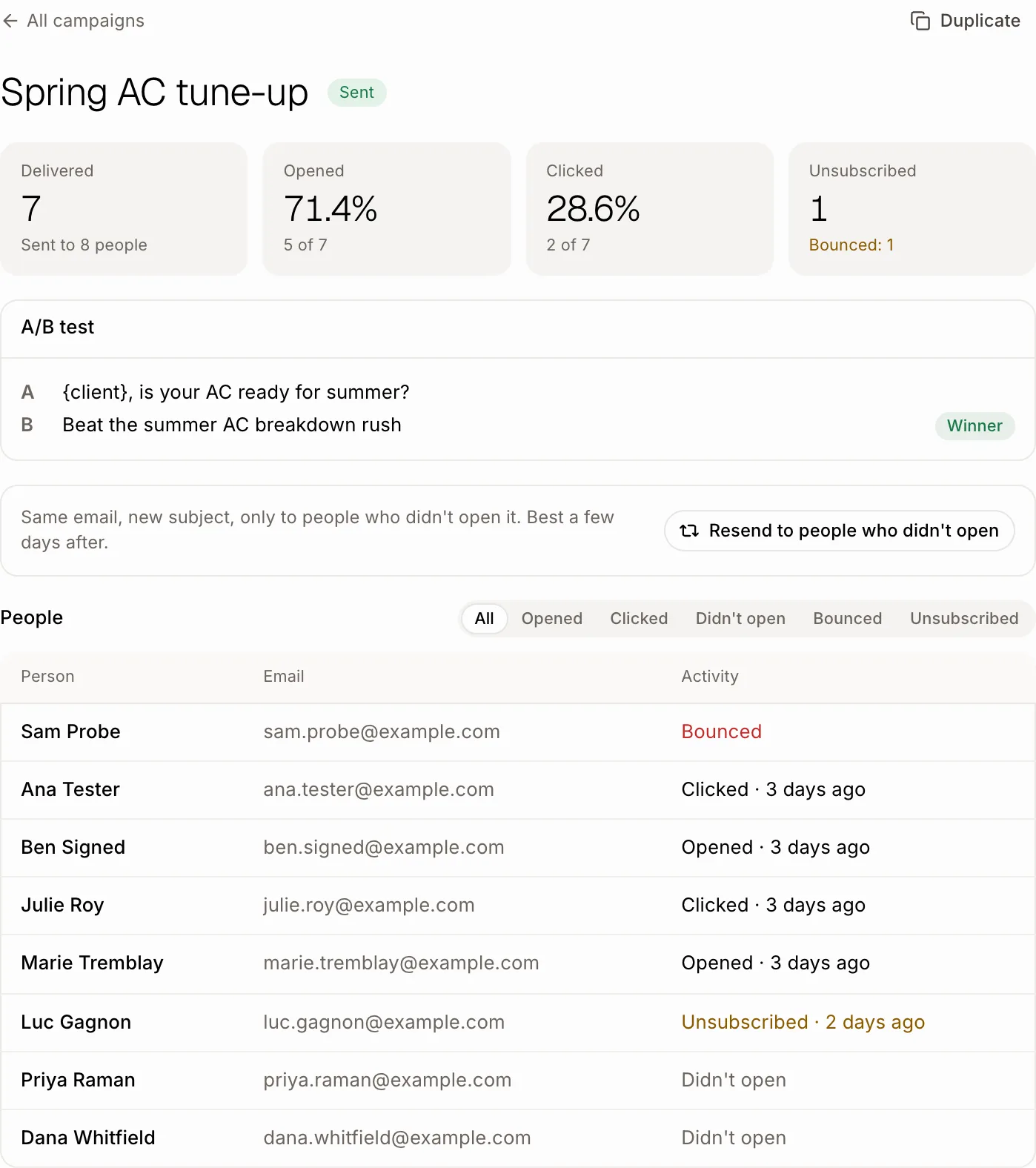
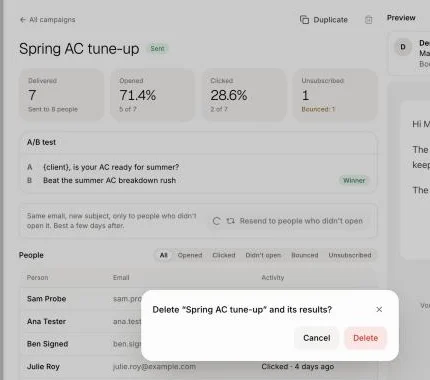
Click Campaigns, then click a sent campaign. Under Results you see how many people it was Delivered to, how many Opened it and Clicked, who Unsubscribed, under Links clicked which links people clicked, and under Recipients what each person did: each open and click, which link, when and on what phone or computer. Each customer's history also shows every campaign they got. From there you can make a list of who opened or clicked, resend it to the people who didn't open it or to the people you pick, send it to new people it didn't go to, archive it or delete it.
Also called: campaign report, open rate, click rate, link clicks, which link, click tracking, statistics, follow up, list of openers, resend to some people, send again, send to new people, add people to a sent campaign, campaign in customer history, who got which campaign, archive campaign, renvoyer à certaines personnes, envoyer à d'autres personnes, résultats de campagne, taux d'ouverture, clics sur les liens, archiver une campagne
Step 1: Open the campaign
Click Campaigns in the left menu, then the campaign. Results fills in as people open and click: Delivered, Opened, Clicked, and Unsubscribed with how many were Not delivered. With an A/B test, A/B test shows both subjects and the Winner: the one more people opened, which went to everyone else. While the test runs, Send subject A to everyone now ends it early: everyone not reached yet gets subject A right away, with no winner. Machines that open emails and check links on their own (Outlook, company firewalls) are left out of these numbers. Apple Mail can still open emails by itself, so clicks are the surest sign.
Click: Campaigns › the campaign
Step 2: See who did what
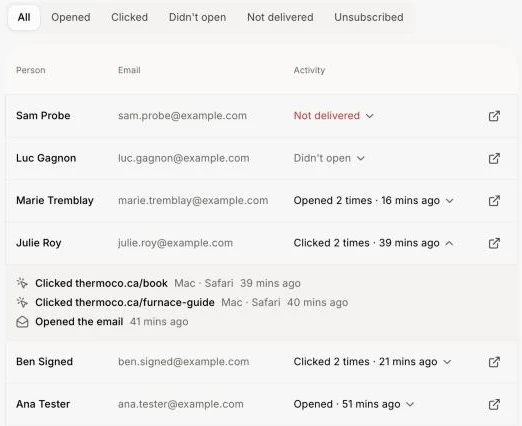
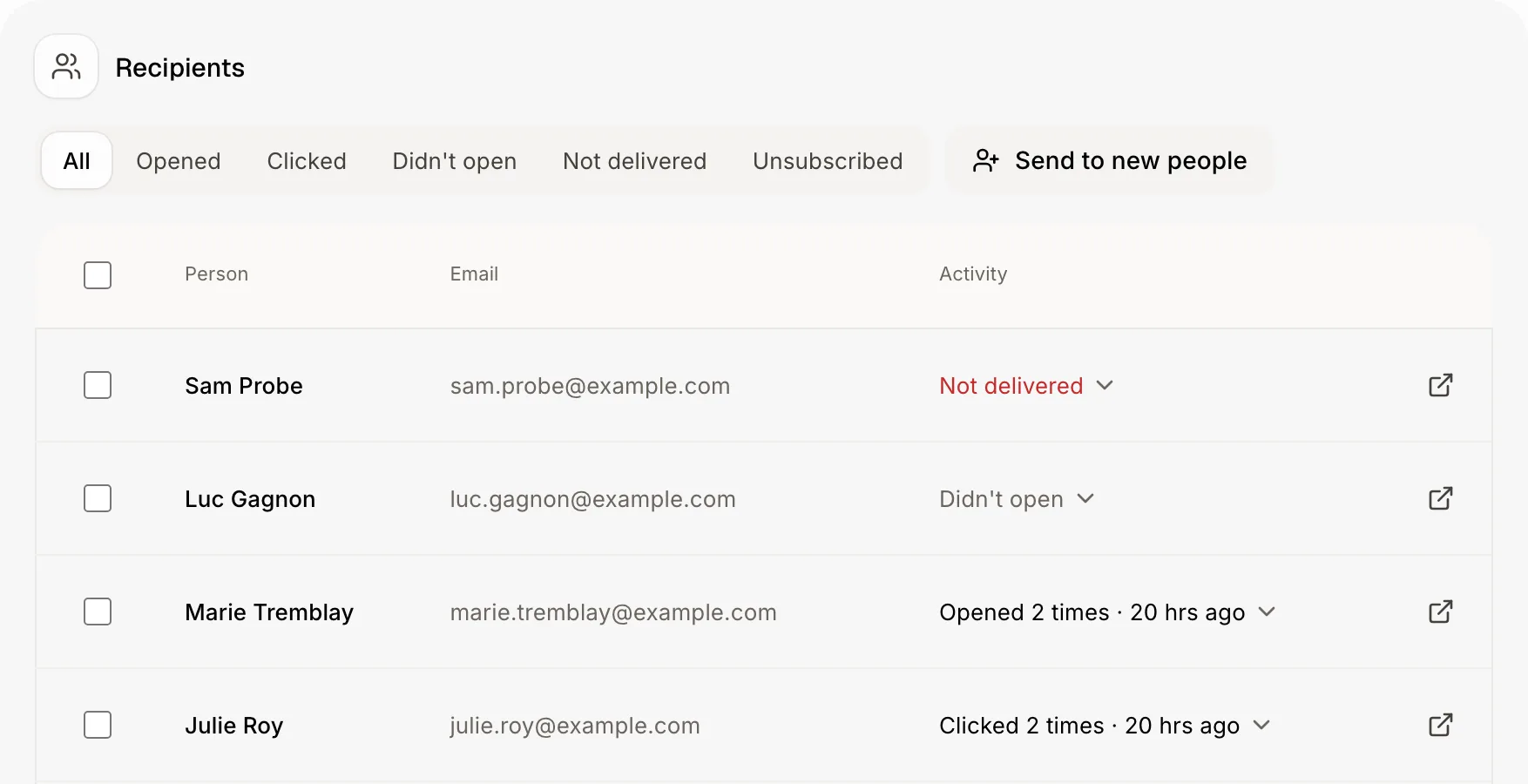
Under Recipients, pick All, Opened, Clicked, Didn't open, Not delivered or Unsubscribed. Activity shows how many times each person opened or clicked, and the last time (like Clicked 2 times · 5 mins ago). Click a person's row to see every open and click under it: which link, on what phone or computer (like iPhone · Safari), and when. Click it again to close it. The arrow at the end of the row opens their customer record in a new tab.
Click: Recipients › Clicked › the person
Step 3: See it in each customer's history
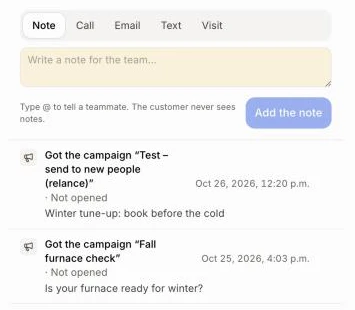
Every campaign a person got shows in their history: open the customer, then Activity. The line says Got the campaign "…" with its subject, and whether they opened it (Not opened, Opened 2 times), clicked or Unsubscribed. It also shows on the history of their company and of their deals, with the person's name. A campaign that didn't reach them says not delivered. Click the line to open the campaign's results. You can also ask Alori: "which campaigns did Julie get?".
Click: Customers › the customer › Activity
Step 4: See which links people clicked
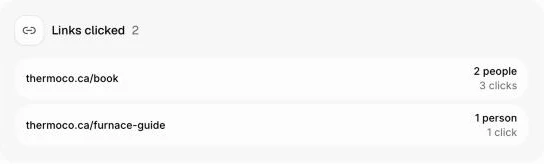
Once someone clicks, Links clicked shows each link in the email, the most clicked first, with how many people clicked it and how many clicks in all. A link shows the words it had in your email (like the button's text), or its address.
Click: Campaigns › the campaign › Links clicked
Step 5: Make a list of who opened or clicked
Pick Opened or Clicked, then click Make a list of these people. Alori makes a list of chosen people named after the campaign (like "Spring tune-up · opened") and opens it in Lists, ready for your next campaign. You can also ask Alori: "make a list of who clicked in the spring tune-up campaign", or "which links did Julie click?".
Click: Recipients › Clicked › Make a list of these people
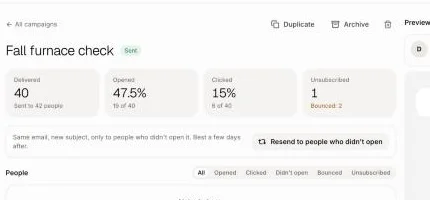
Step 6: Resend to people who didn't open
A day after you send, the main button at the top is Resend to people who didn't open (in the bar at the bottom on a phone). Click it: Alori makes a new draft with the same email and a new subject ("In case you missed it: ..."), for only those people. Read it over, then click Next: who gets it › Send now. It works best a few days after the first send, and a campaign can be resent once.
Click: Resend to people who didn't open › Next: who gets it › Send now
Step 7: Resend to the people you pick
Under Recipients, tick the box at the start of each person's row. To pick everyone who didn't open, click Didn't open, then the box at the top of the list. Click Resend to 3 people: Alori makes a new draft with the same email and subject, for only them. Add or remove people under Who gets it if you like, then click Send now. Anyone who unsubscribed since is left out. You can also ask Alori: "resend the spring tune-up campaign to Julie and Marc".
Click: Recipients › the boxes › Resend to 3 people › Send now
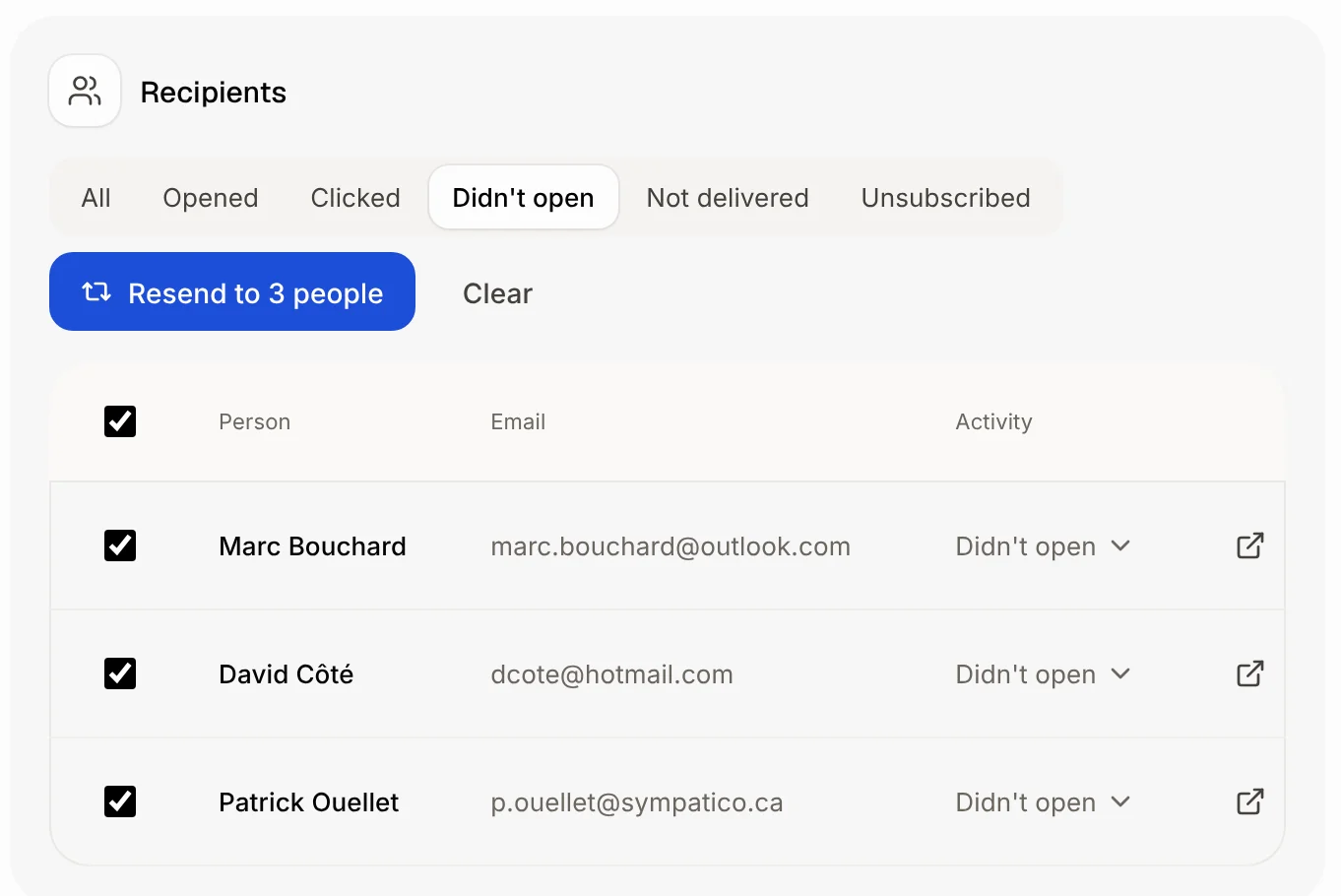
Step 8: Send it to new people
Someone it didn't go to should get it too? Under Recipients, click Send to new people. Find a customer by name, or paste a list of emails, then click Send to 1 person. They get the same email right away, show up in Recipients with everyone else, and count in Results. People it already went to, or who unsubscribed, are skipped. You can also ask Alori: "send the spring tune-up campaign to Julie and Marc", and say yes before it goes.
Click: Recipients › Send to new people › the people › Send to 1 person
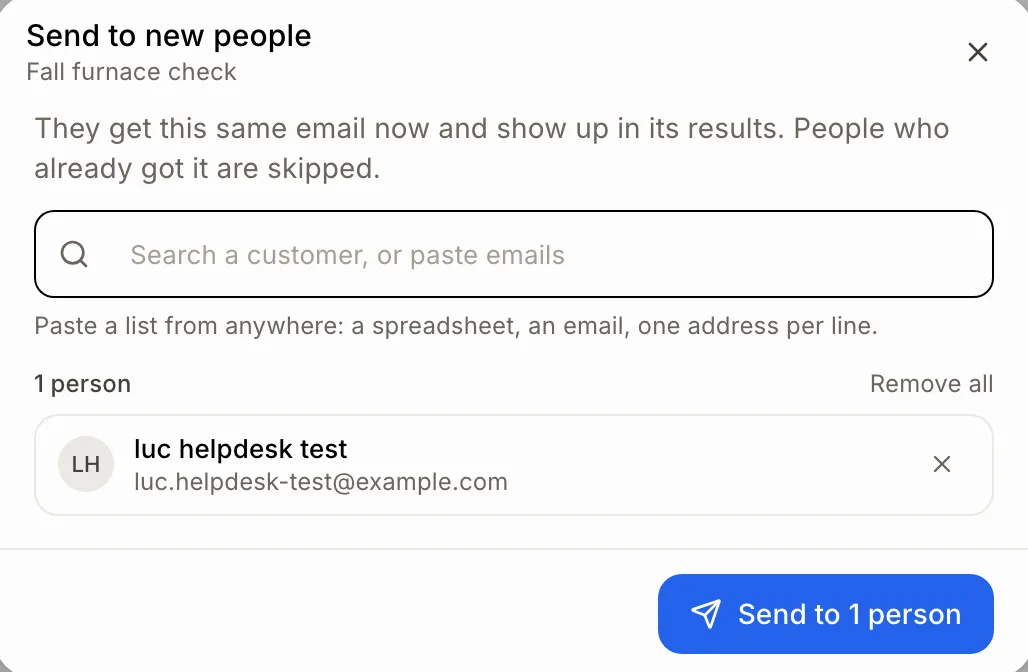
Step 9: Archive a campaign you're done with
Click ⋯ at the top of the campaign, then Archive, or the box icon at the end of its row in Campaigns. It leaves your list, but its results stay and still count in Results. To see it again, click 1 archived under your campaigns. ⋯ › Unarchive puts it back.
Click: ⋯ › Archive
Step 10: Delete a campaign you don't need
Click ⋯ at the top of the campaign, then Delete, or the bin at the end of its row in Campaigns, and confirm. The campaign and its results go away. People who unsubscribed stay unsubscribed, and the unsubscribe link in emails already sent keeps working. A scheduled campaign, or one still going out, can't be deleted: click Unschedule or Stop sending first.
Click: ⋯ › Delete
If it doesn't work
Stopped on its own: … addresses don't exist anymore: those people's emails came back, and they won't get your emails again. Click Resume sending to send to everyone else. If many more come back, it stops again.
Stopped: Alori paused your emails: too many of your emails came back from addresses that don't exist. Write to Alori support to turn them back on, then click Resume sending.
Stopped on its own: people marked it as spam.: check who it goes to before you click Resume sending.
Stopped: you're out of credits.: add credits, then click Resume sending.
Stopped: the emails couldn't be sent.: wait a few minutes, then click Resume sending.
Unschedule or stop it first.: the campaign is scheduled or still going out. Click Unschedule or Stop sending, then archive or delete it.
No Make a list of these people: nobody opened or clicked yet, or All is picked. Pick Opened or Clicked.
No Resend to … people: tick at least one person under Recipients. It shows once the campaign went out, not while it's still sending.
No Send to new people: it shows once the campaign is sent, not while it's still going out.
They already got it, or can't get emails.: everyone you picked already got this campaign, unsubscribed or has no email.
No opens yet: some email apps hide opens. Clicks are always counted.
Fewer opens than before: opens and clicks from link scanners, in the first minute after sending, are left out.
No Links clicked, or a click with no link: nobody clicked yet, or the click came before Alori kept which link was clicked.
A campaign isn't in a customer's history: it shows once it went out to them, not while it's still waiting to send.