How does my personal Email page work?
Email shows your own Gmail inside Alori. Only you see it. Read, reply, snooze and send later there, and add a thread to a conversation to share it.
Email shows your own Gmail inside Alori. Only you see your mailbox. You read, write, reply, snooze and send later there, and you choose which emails your team sees by adding them to a conversation.
Also called: my inbox, my mailbox, Gmail in Alori, personal email, mes courriels, ma boîte courriel, boîte Gmail
Step 1: Open Email
Click Email in the left menu. The first time, click Connect Gmail and allow access on Google's screen.
Click: Email › Connect Gmail
Step 2: Find your emails
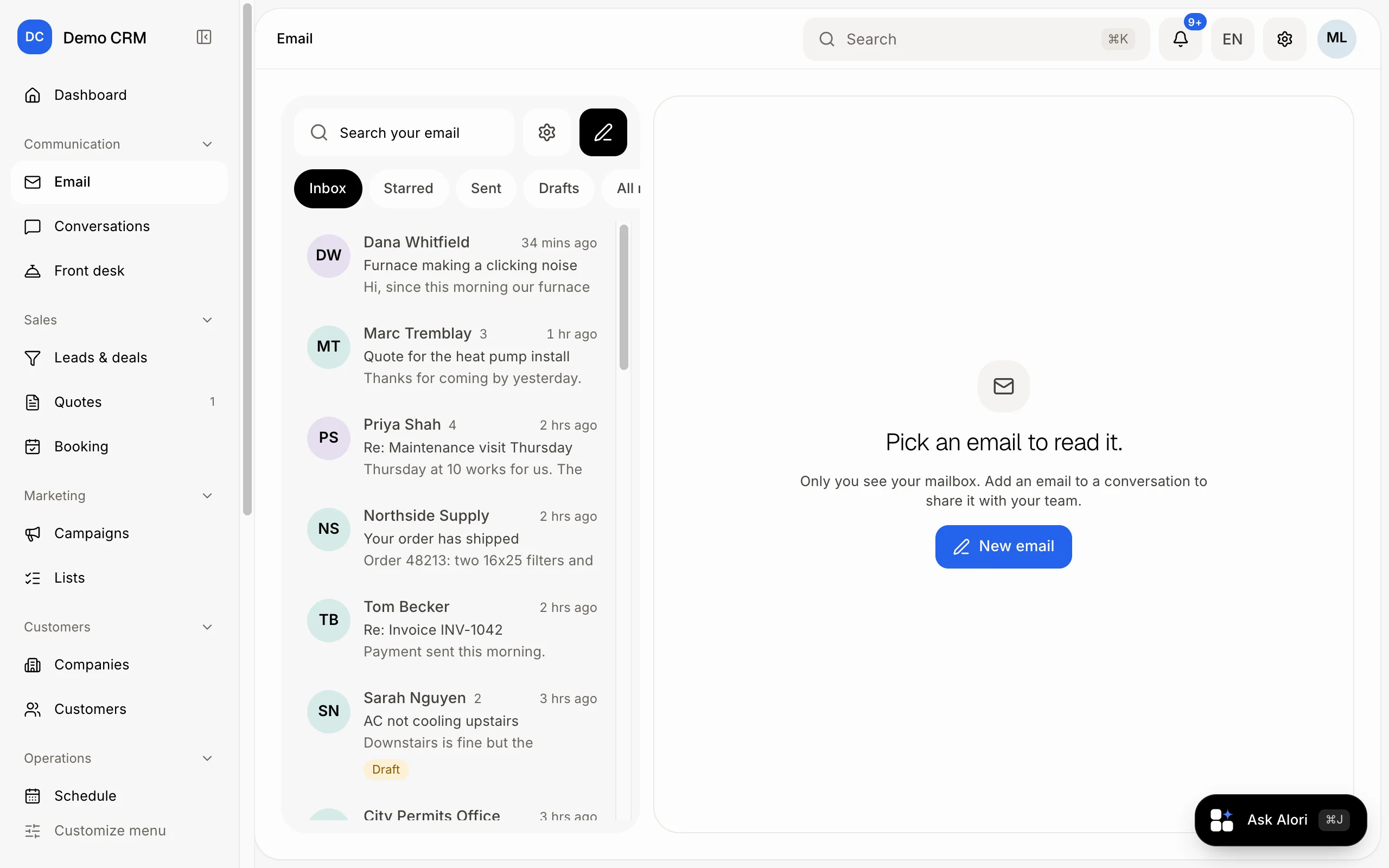
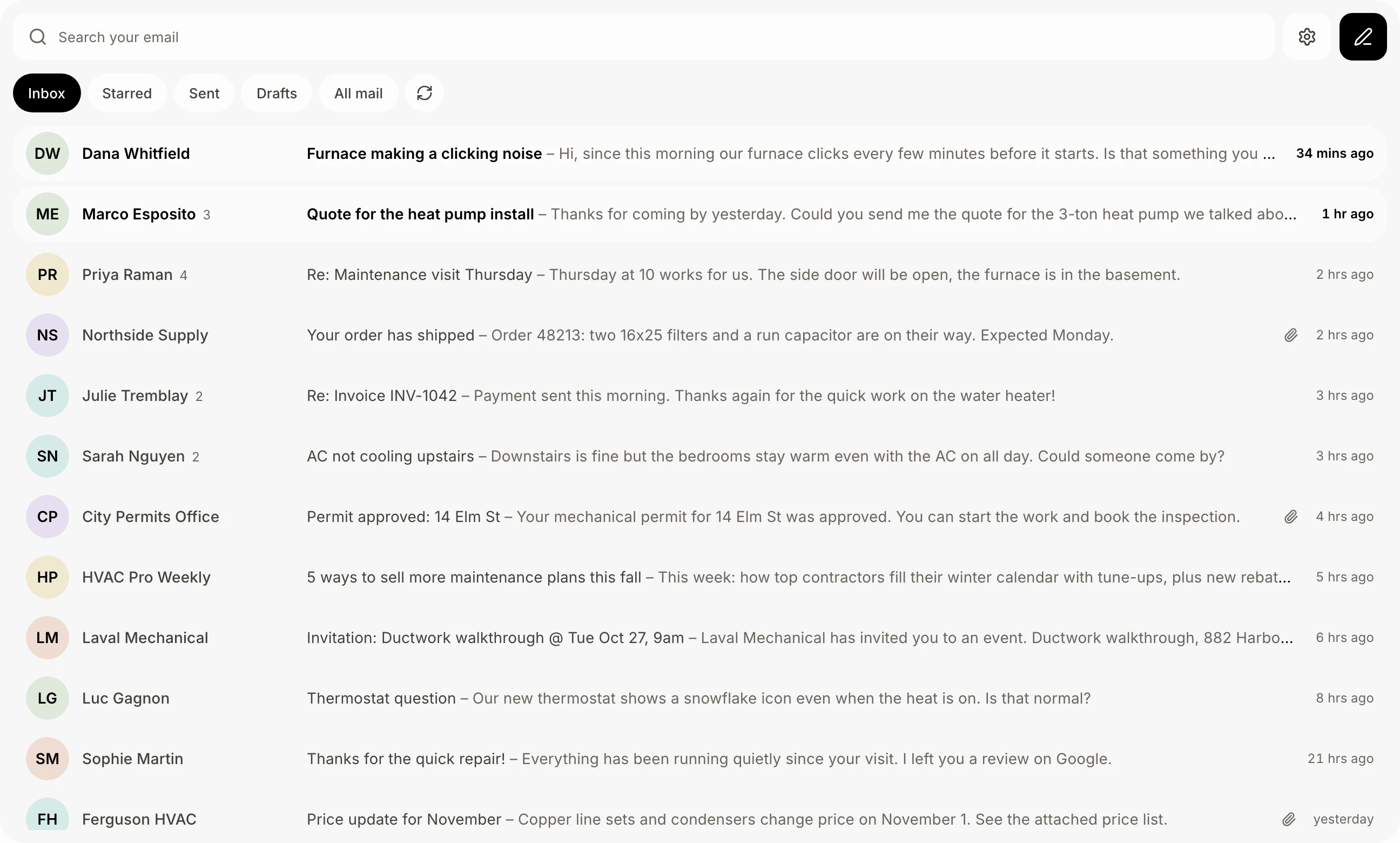
Your emails fill the page, one line each: who sent it (their Google photo, or their company's logo), the subject and the start of the email, and when. Pick a folder above them: Inbox, Starred, Sent, Drafts or All mail. Snoozed and Scheduled show when something waits there. Labels opens your Gmail labels. Type in Search your email to search all your mail.
Click: Email › Inbox
Step 3: Read and tidy
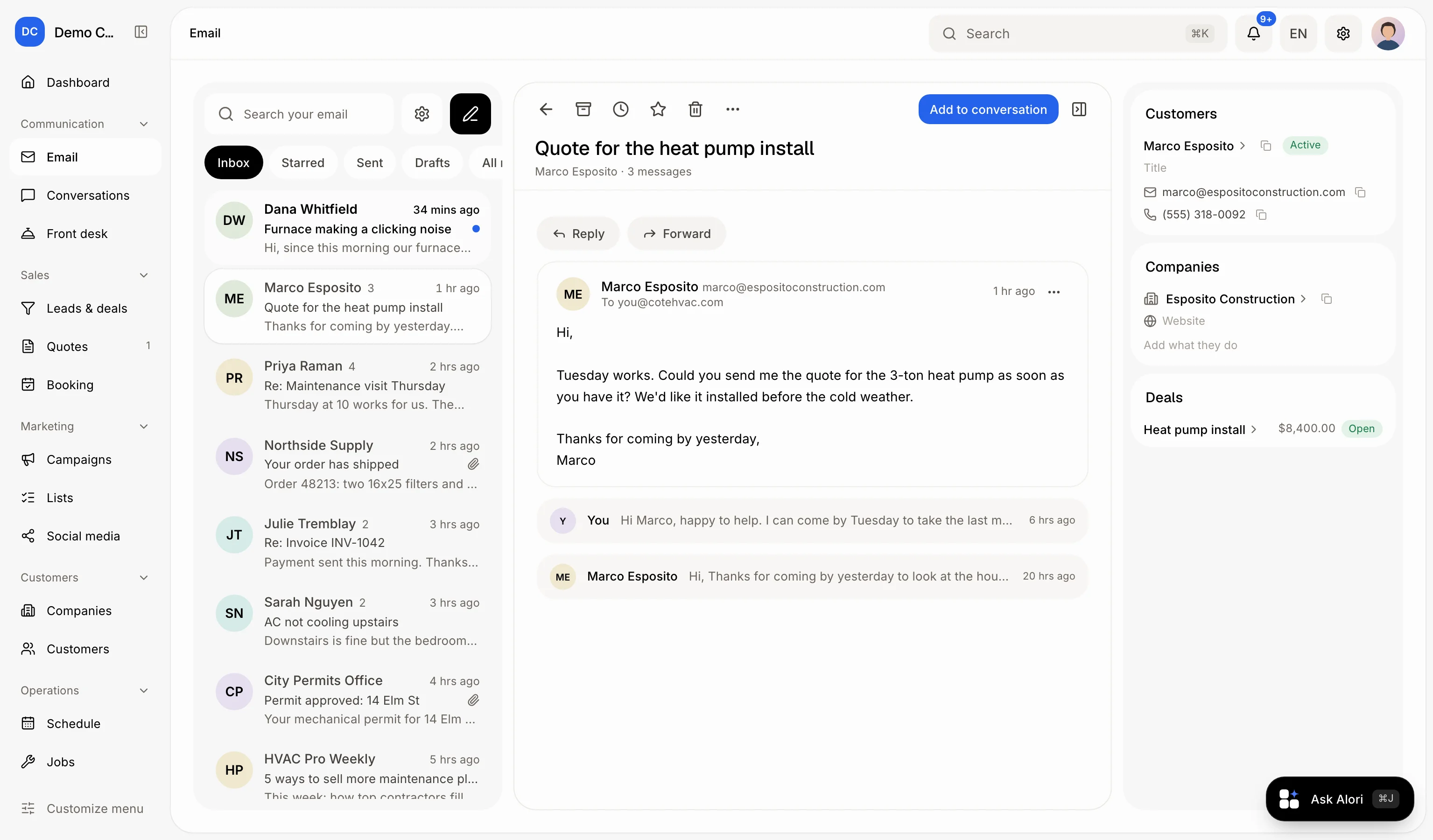
Click anywhere on an email to open it. It opens beside the list; the ← arrow at the top goes back to the full list. At the top: Archive, Snooze, Star, Label and Delete; ⋯ holds Mark as unread and Print. Snooze hides it until Later today, Tomorrow, This weekend, Next week or a time you pick. On the right, In your CRM shows who it's with, or Add to put them in your CRM. Drag its left edge to make it wider, or click the panel button at the top right to hide it (click it again to bring it back).
Step 4: Write and send
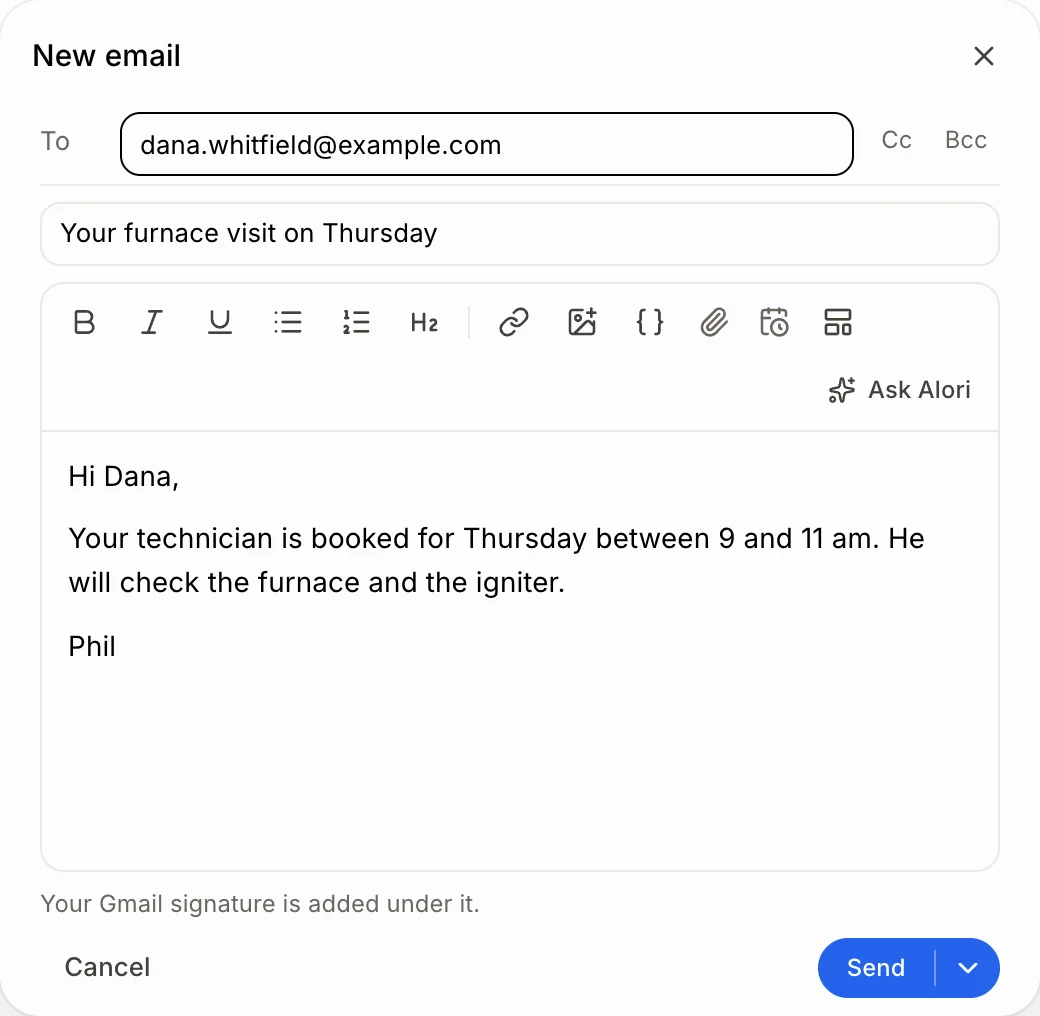
Click New email (the black pencil beside the search), or Reply, Reply all or Forward on an email. Your Gmail signature is added under it. Click Send and it leaves right away. Send later picks a time; the email waits in Scheduled, and Undo stops it.
Click: New email › Send
Good to know
Drafts save in your Gmail as you type: you see Draft saved. Change a draft in Gmail, pictures included, and Alori shows the new version when you come back (Updated from Gmail).
To add a picture or a screenshot, paste it in the email (⌘V or Ctrl+V), drag it in, or click the picture button.
Your recent emails are saved in Alori, for you only, so they open right away and update on their own. Disconnecting Gmail removes them.
Files: 25 MB at most per email.
Click a file in an email to open it. A .md file opens formatted, easy to read, right in Alori; Download keeps a copy.
Sending from this page uses your Gmail and no credits.
To share an email with your team, click Add to conversation. See How do I share an email with my team?
Email settings (the gear beside the search) opens what Alori does with your email, like drafting your replies.
You can ask Ask Alori "anything new from Dana?" or "archive those newsletters".
If it doesn't work
"Reconnect your Gmail" shows. Google stopped the access. Click Reconnect Gmail.
"Reconnect Gmail to tidy your inbox here" Click Reconnect to allow archive, star, labels and read marks.
"Your email didn't load." Click Try again.
"These files are too big for one email (25 MB at most)." Remove a file.
"You mention a file but nothing is attached. Send anyway?" Attach the file, or click Send anyway.
"Gmail isn't available on this app yet." Gmail isn't ready on your app yet.