How does the shared inbox work?
Conversations holds every text, email and website chat with your customers, one thread per customer, shared with your team.
Conversations is your team's shared inbox. Every text, email and website chat with a customer lands there, one thread per customer, and everyone on your team who can see customers sees the same threads.
Also called: shared inbox, inbox, messages, threads, Conversations, boîte de réception partagée, textos, courriels
Step 1: Open Conversations
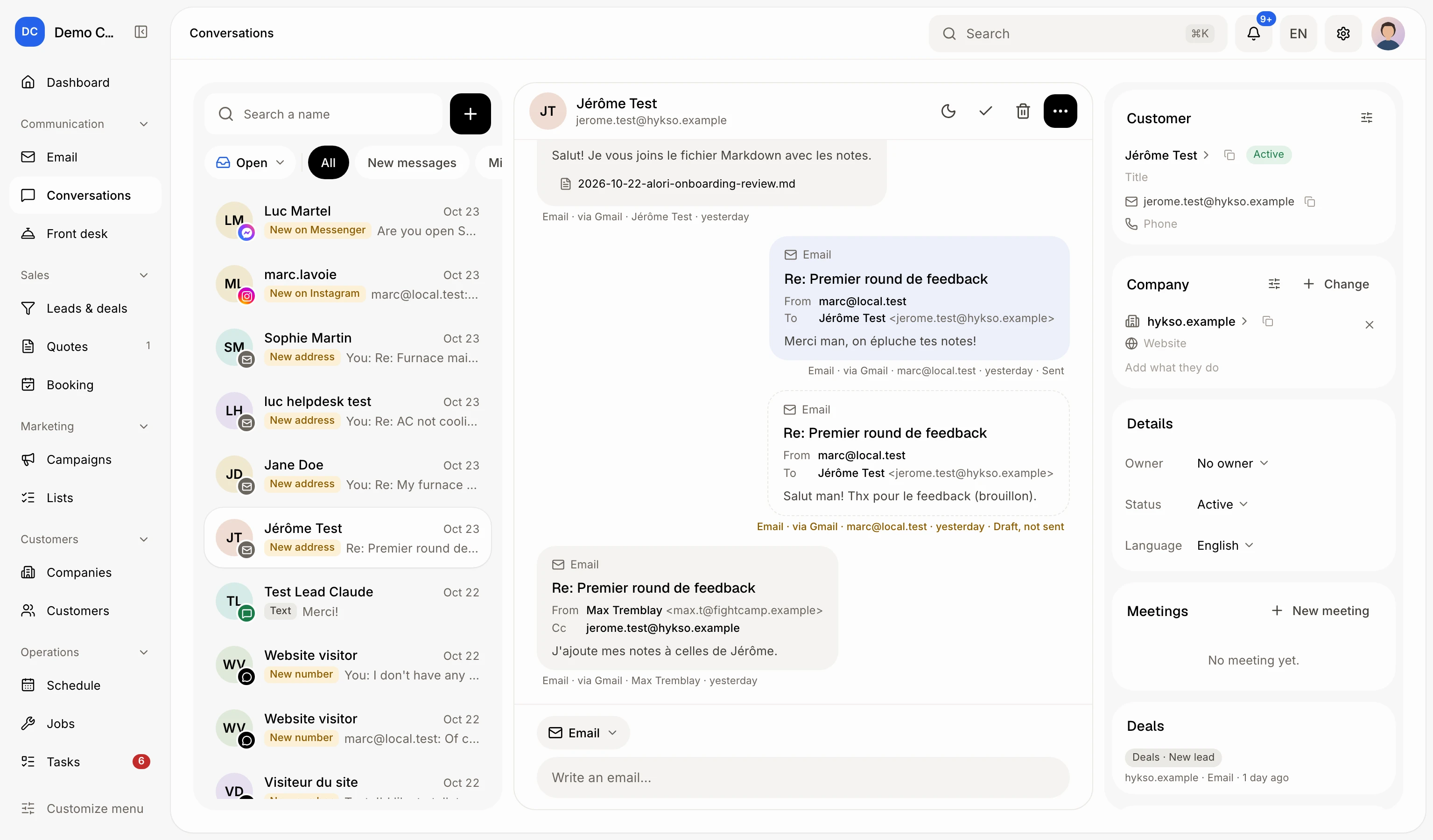
Click Conversations in the left menu. The list fills the page, one line per customer you've talked with, newest first. Click one to open the thread: texts, emails, calls and notes, in order. The list moves to a column on the left and the left menu shrinks to icons, to leave room. Click the arrow (All conversations) at the top of the thread to see the whole list again. Each email shows From, To, Cc and Bcc, with the addresses.
Click: Conversations
Step 2: Pick what to see
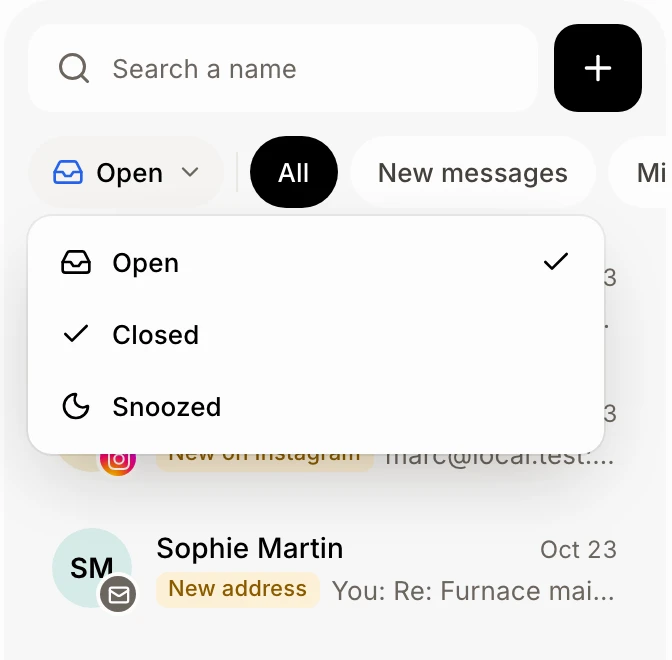
Search a name at the top of the list. The first button under it (Open ▾) switches between Open, Closed and Snoozed (the next to come back first). Beside it, filters narrow the open ones:
All: every open conversation.
New messages: unread ones, website chats Nora passed to you, and snoozed ones that came back. It turns yellow while some wait.
Mine and Unassigned: the customers you follow, and those nobody follows (teams of 2 or more).
New conversations have a yellow background in every list until someone opens them.
Click: Open ▾ › Snoozed
Step 3: Answer and choose who follows
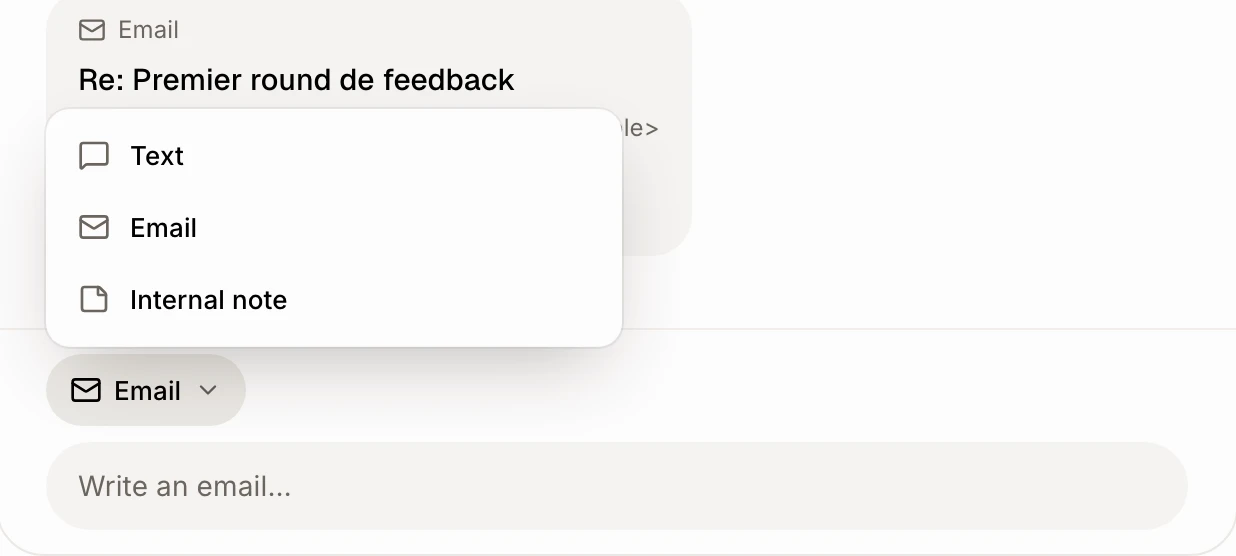
Write under the thread. The pill above the box (Text ▾) picks Text, Email or Internal note; it starts on the channel the customer last used. An email starts as one line, Write an email…: click it for the subject, recipients and formatting. To change the teammate in charge, open the Fiche (⋯) and pick them under Details › Owner; it changes the customer's owner too.
Click: Send by › Text
Step 4: Close it when it's handled
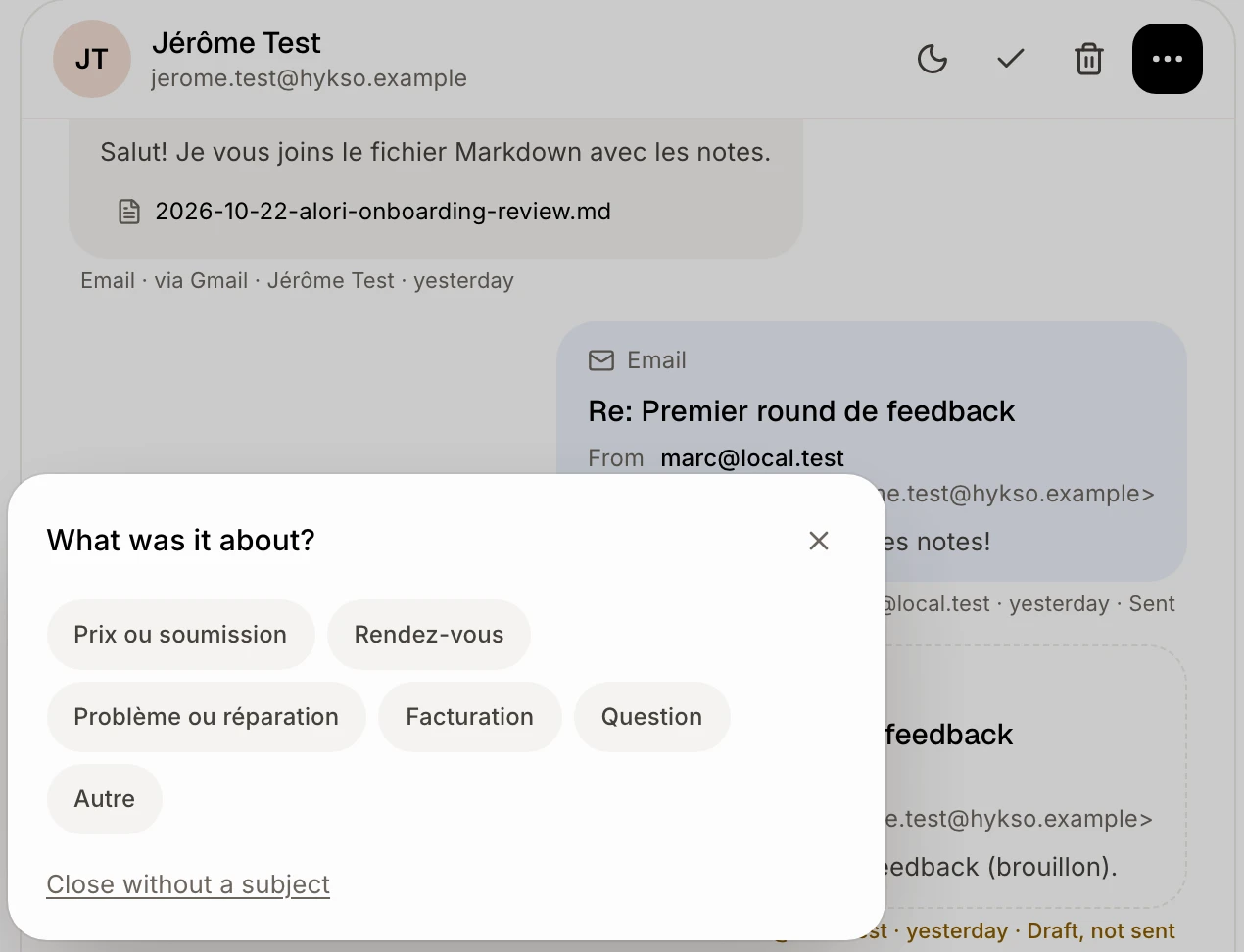
At the top of the thread, click the check mark (Close the conversation). Tap what it was about (What was it about?), or Close without a subject. It moves to Closed and comes back by itself when the customer writes again, unless they only say thanks and Keep closed when they only say thanks is on (see below). Click Undo, or the arrow (Reopen) later.
Click: Close the conversation
Step 5: Snooze it for later
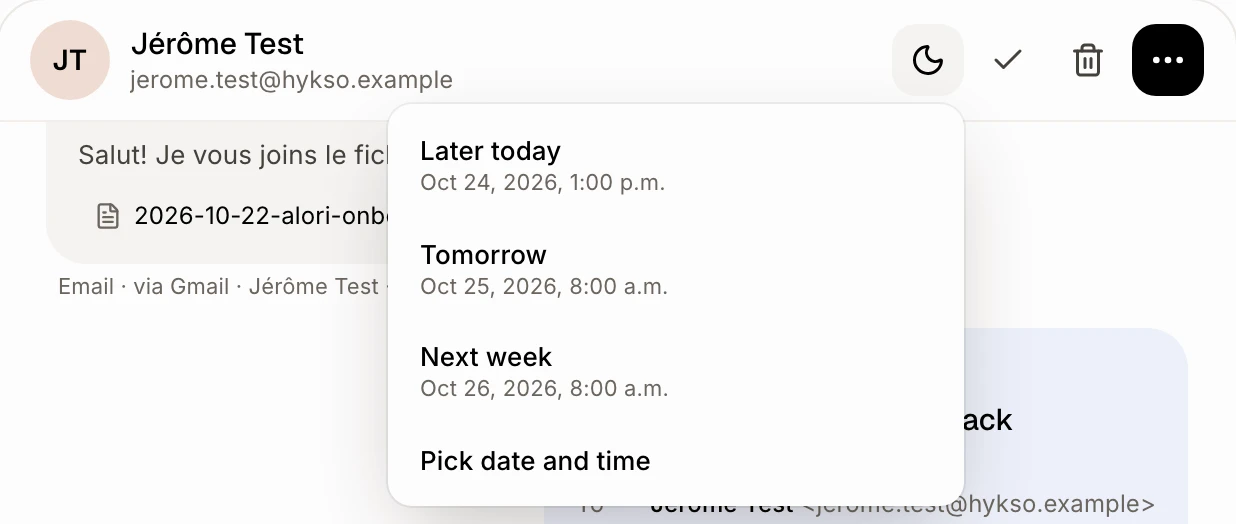
Click the moon (Snooze) and pick when it comes back: Later today, Tomorrow, This weekend (on weekdays), Next week, or Pick date and time. It moves to Snoozed, then comes back at that time (or when the customer writes) in New messages, in yellow, until someone answers. To bring it back sooner, click Bring back now.
Click: Snooze › Tomorrow
Good to know
At the top of a thread: Snooze (moon), Close the conversation (check mark), Delete the conversation (trash), Call and ⋯, the customer's Fiche: click their name to open their record, Customize the Fiche to pick its cards, Add on Companies to set their company. It sits beside the thread on a very wide screen, over it on a phone.
To close several, click their avatars, then Close in the dark bar: How do I close several conversations at once?
Delete removes its emails and texts from Alori, not from Gmail.
A customer who only says thanks after you close ("It works, thank you!") can keep the conversation closed: turn on Keep closed when they only say thanks in Front desk, under Who answers. Alori reads the reply; one that asks something or says it still doesn't work reopens it as usual. It works for emails, texts, Messenger and Instagram.
A visitor's or teammate's words show live in a faded bubble while they type, until sent or 10 seconds idle. Visitors only see dots.
Ask Alori: "who wrote this morning?", "what's snoozed?", "close Benali's conversation" or "snooze Benali until Monday 9 am".
If it doesn't work
"Preparing your conversations…" stays on screen. Wait a few seconds, then reload the page.
"Your messages with customers, in one place" in place of the list. No one has written yet. Start one with New conversation, or write from a customer's record.
There's no message box or New conversation button. Your role can only view conversations. Ask the owner.