How do I email a customer?
In Conversations, open the customer, pick Email above the box, click Write an email…, write, then click Send. Replies come back in the same conversation.
Open the customer's conversation (or click + to start one), pick Email in the pill above the box, click Write an email…, write a subject and your message, then click Send. The customer's reply comes back in the same conversation, for your whole team.
Also called: draft, unsent email, brouillon, private email, share in Conversations, send an email, write an email, send later, schedule an email, courriel, envoyer un courriel, envoyer plus tard, e-mail, mail
Step 1: Open the customer
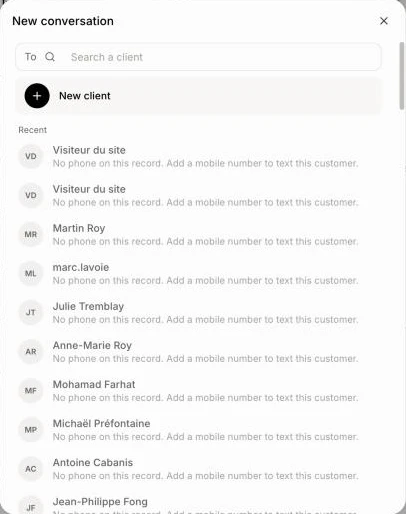
Click Conversations in the left menu. Click the customer's conversation, or click + (New conversation), search the customer in Search a client and click them: their conversation opens.
Click: Conversations › +
Step 2: Choose Email
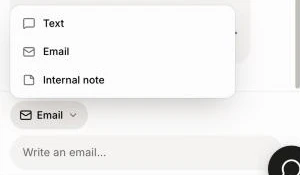
Click the small pill above the box (Text ▾) and pick Email. It starts on Email when the customer last wrote by email. Then click Write an email… to open the editor.
Click: Text ▾ › Email › Write an email…
Step 3: Write the email
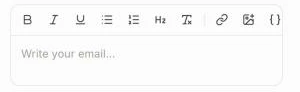
Write your message. A reply keeps the subject ("Re: …"); a first email asks for a Subject. Replying and nothing written yet? Click Ask Alori (the sparkle), then Let Alori write it, and Alori writes the reply from the conversation. The toolbar formats text and adds links and images, from the computer or the customer's Job photos. To put a screenshot or a copied picture in the email, paste it (Ctrl+V, or ⌘V on a Mac) where you want it, or drag it there: it shows right in the text, not as a file. Click a picture to make it smaller or bigger. The paperclip attaches files, the calendar shows your meeting links (click one to add it, or make a new one there), and the page icon adds a link to one of the customer's quotes. Cc and Bcc copy other people. It's the same editor as your Email page.
Step 4: Send it
Click Send, or press Cmd+Enter (Ctrl+Enter on Windows). The email goes from your Gmail when it's connected, or else from your business name. The line under the editor shows Sent from…. Your signature is added at the bottom. Changed your mind? Click Discard.
To send it later, click the arrow next to Send and pick a time, like Tomorrow. Click Undo in the message that shows to stop it. Until it leaves, it waits in Email › Scheduled, where you can Send now or Cancel and edit. It lands in the conversation when it goes.
Click: Send

From a customer's or a deal's page
You can also write from the customer's page (Activity › Email) or a deal (Email). The email is saved on the record by itself: on the customer, and when you write from a deal, on the deal and its company too. Your team sees it in their history.
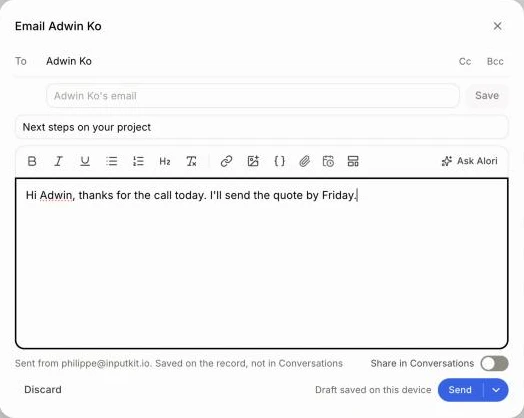
With your Gmail connected, the switch Share in Conversations under the box picks whether it also goes in Conversations:
Off (a new email starts here): it leaves from your Gmail and stays on the records only, out of Conversations. The line above says Sent from… Saved on the record, not in Conversations.
On: it also goes in the customer's conversation, and their answers come back there. A reply to an email that is already in Conversations starts on.
Emails written in Conversations always go in the conversation.
An email you didn't send yet
Closed the window or the page before you clicked Send? Nothing is lost. While you write, Draft saved on this device shows next to Send.

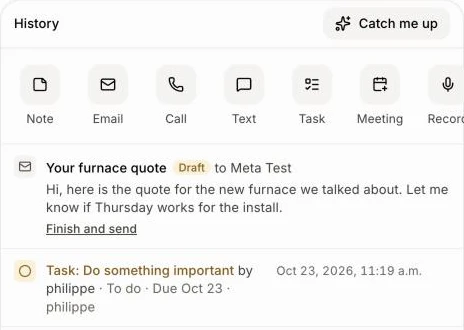
On the deal, the email shows first in History with a Draft badge, so nobody thinks it went out. Click Finish and send to open it again where you left it. Don't need it? Click the bin on that line.
Click: History › Finish and send
Good to know
A draft is kept in this browser only, until you send it or click Discard: your team doesn't see it, and it doesn't follow you to your phone. Only the words are kept, not the files or pictures you added.
Files: PDF, image, Word or Excel, 10 MB at most each, 3 files, 18 MB together.
Images in the email: JPEG, PNG, WebP or GIF, 5 MB at most. You can also pick Job photos.
Start from a template with Templates, or let Ask Alori write it. You can also ask Alori to send it later, like "email Benali tomorrow at 8".
Emails sent from Gmail use no credits. Emails sent from the app's address do. See What uses credits?
If it doesn't work
"This customer has no email." Add an email to the customer's record.
"Reconnect Gmail in Settings to send from your address." Go to Settings › Integrations › Gmail and click Reconnect Gmail.
"Out of credits. Add credits in Alori to send email." Add credits, then click Retry on the email marked Not sent.
"Too many emails sent this hour. Try again later." Wait, then click Retry.
"Up to 3 files per email." or "These files are too heavy together: 18 MB at most per email." Remove a file.
"An image or a file didn't upload. Try again." Click Send again.
"Couldn't send. Try again." Click Retry on the email in the thread.