What do I do when a connector says "Needs reconnect"?
The tool stopped Alori's access, often after a password change. Open Connectors and click Reconnect on it. Nothing you had is lost.
"Needs reconnect" means the tool stopped letting Alori in, often after a password change or when access was removed. Open Connectors and click Reconnect on that tool. Your synced records and settings stay as they were.
Also called: reconnect, connection lost, expired, access revoked, disconnected, à reconnecter, reconnexion, connexion perdue
Step 1: Find the tool
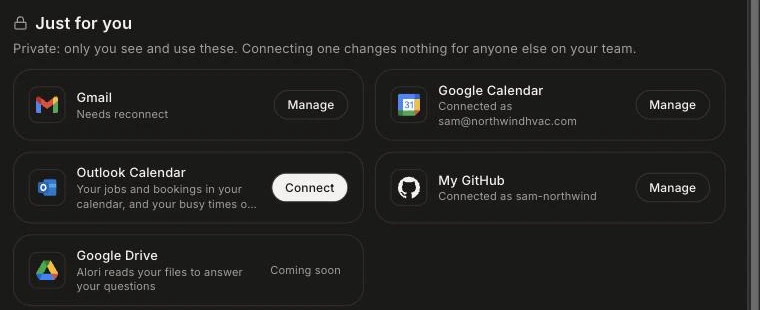
Click the grid menu at the top right, then Connectors. The tool that needs you shows Needs reconnect under its name, in the Just for you tab (your own Gmail, calendars and GitHub) or the Company tab.
Click: Connectors
Step 2: Click Reconnect
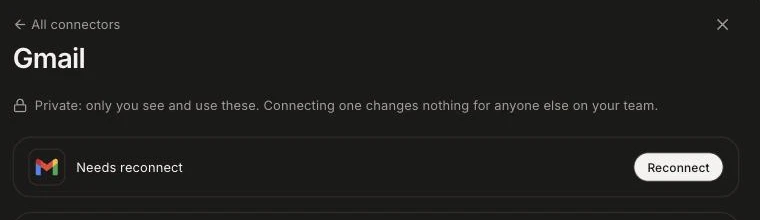
Click Reconnect and sign in to the tool again, then allow Alori. For your own Gmail, calendar or GitHub, click Manage first. For Apollo, paste a new API key instead. When it's back, the card says "Connected to" and the account name.
Click: Connectors › Reconnect
Good to know
Reconnect with the same account as before, so records stay matched and nothing is duplicated.
While it's not connected, that tool's work pauses: QuickBooks stops syncing, the bot can't post in Slack, and so on.
Your own Gmail, calendars and GitHub only reconnect for you: nobody else on your team is affected.
If it doesn't work
"… could not connect. Try again." Click Reconnect again and allow everything the tool asks for.
"That key didn't work. Copy it again and paste it here." (Apollo) Copy the whole key again and paste it.
It says "Needs reconnect" again soon after. Check that your account in that tool still has access, then reconnect. If it keeps happening, contact support.