How do I add a card like "Closing information" to every deal's page?
In the Deal page editor, add a card with a name and choose its fields. It shows on every deal's page, for the whole team.
Put the fields your team checks together, like the source and close date, in a card of their own, such as Closing information or Churn information. The card shows on every deal's page right away, for the whole team.
Also called: deal cards, record cards, deal page layout, closing information, custom card, cartes du deal, page d'un deal, personnaliser
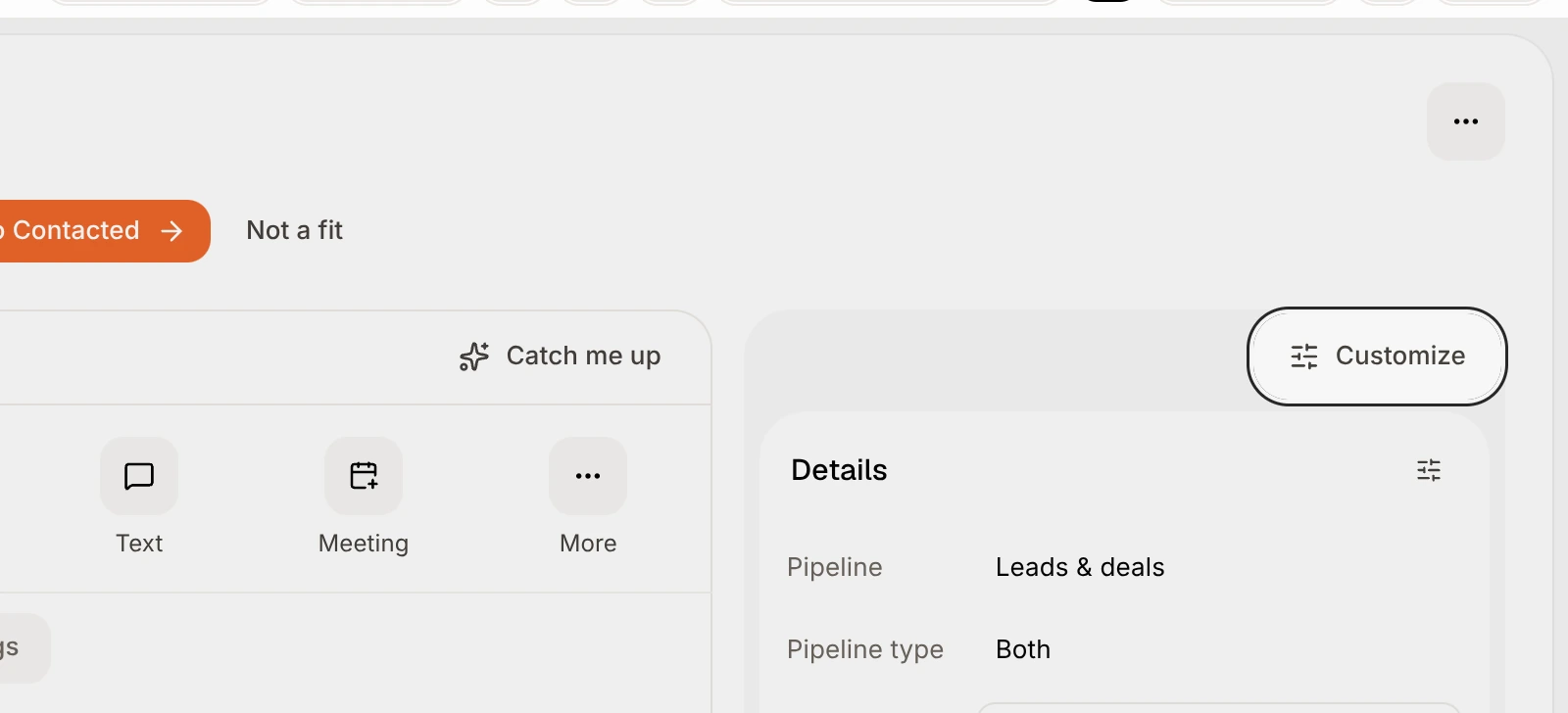
Click a deal to open its page. Above the cards on the right, click Customize.
The Deal page editor opens. On the left, the Cards list shows Details first, then your team's cards, each with how many fields it has. Add a card sits under the list. On the right, a preview of a deal shows your cards.
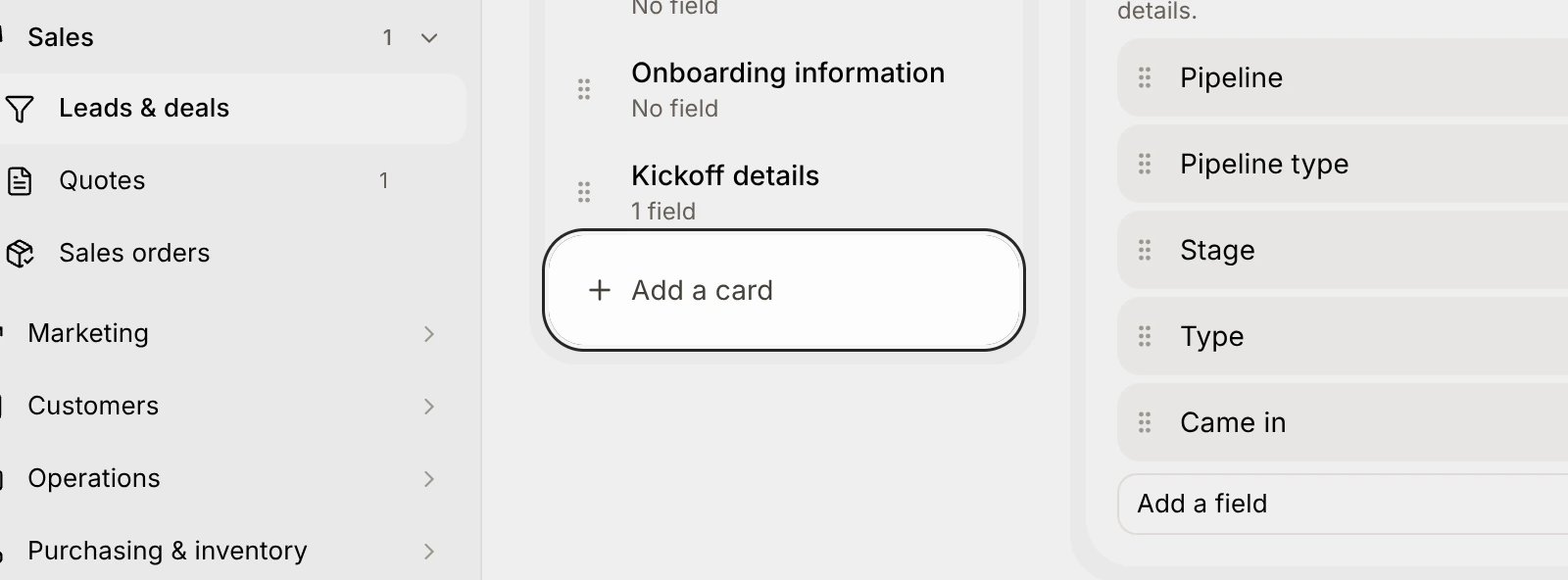
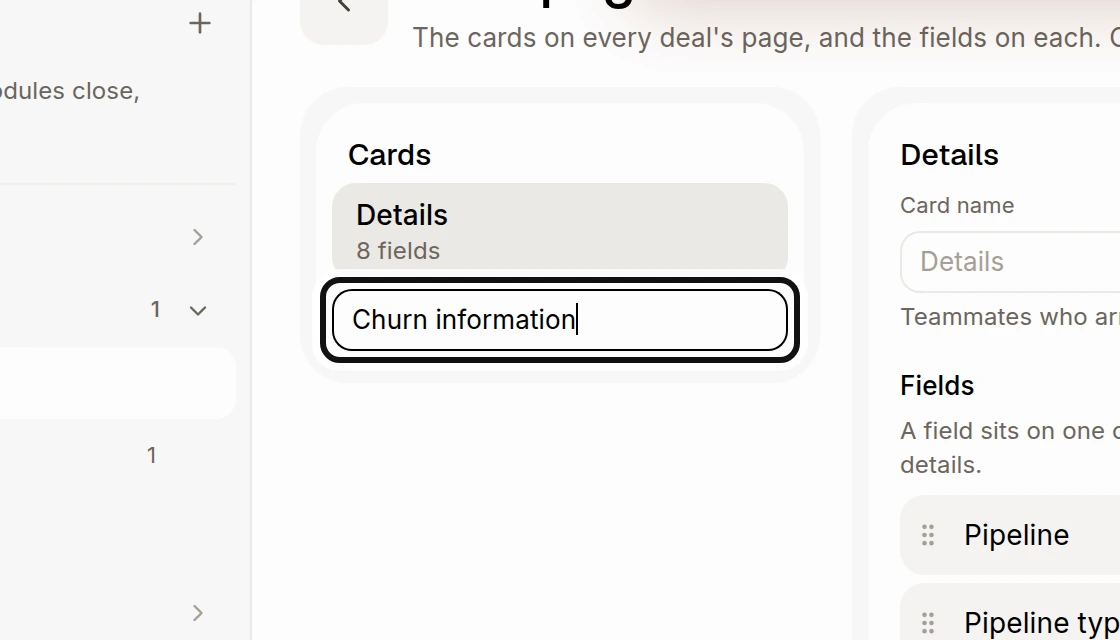
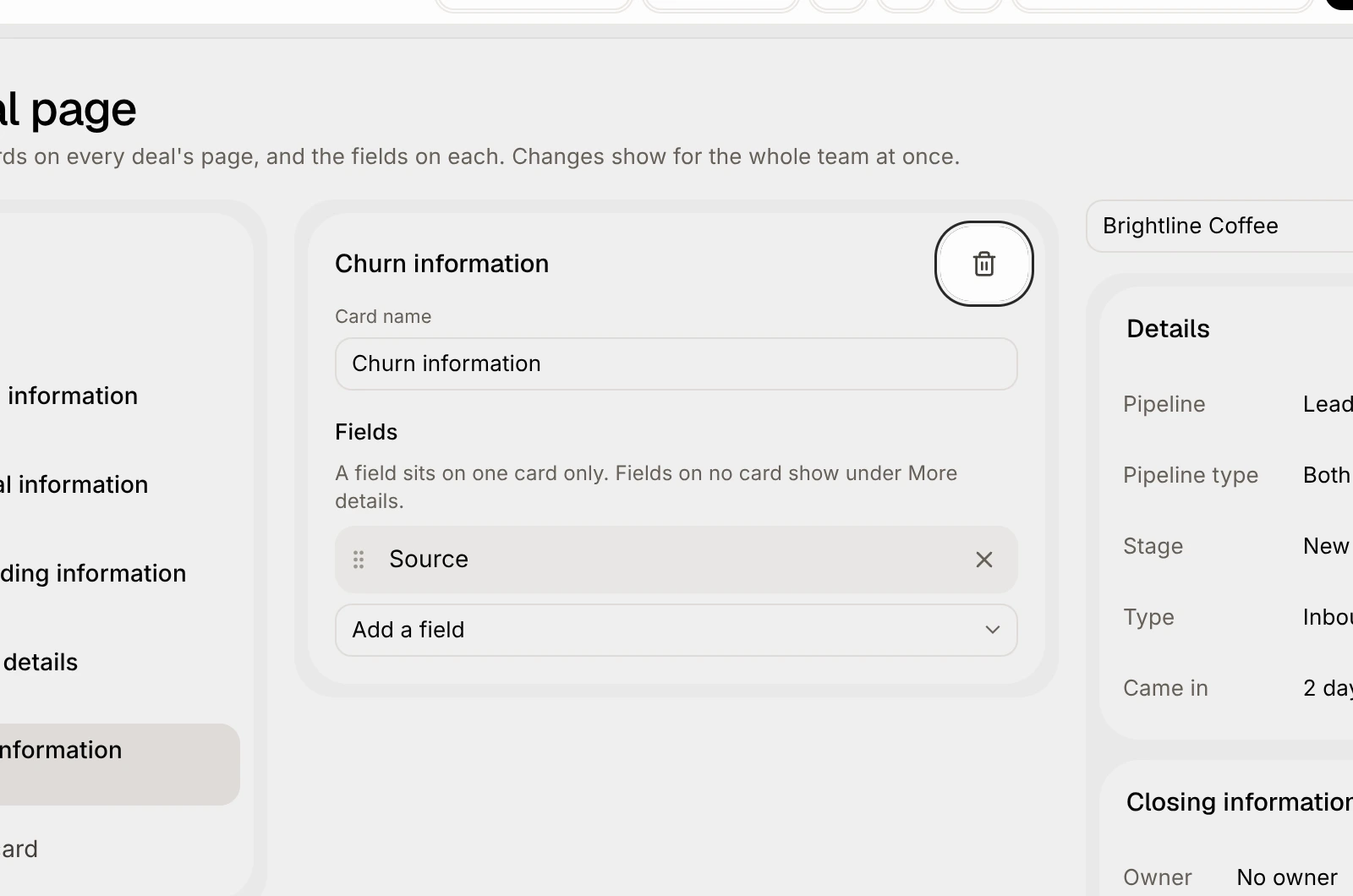
Click Add a card, type its name, like Churn information, and press Enter. The new card shows at the bottom of the list, with No field under its name.
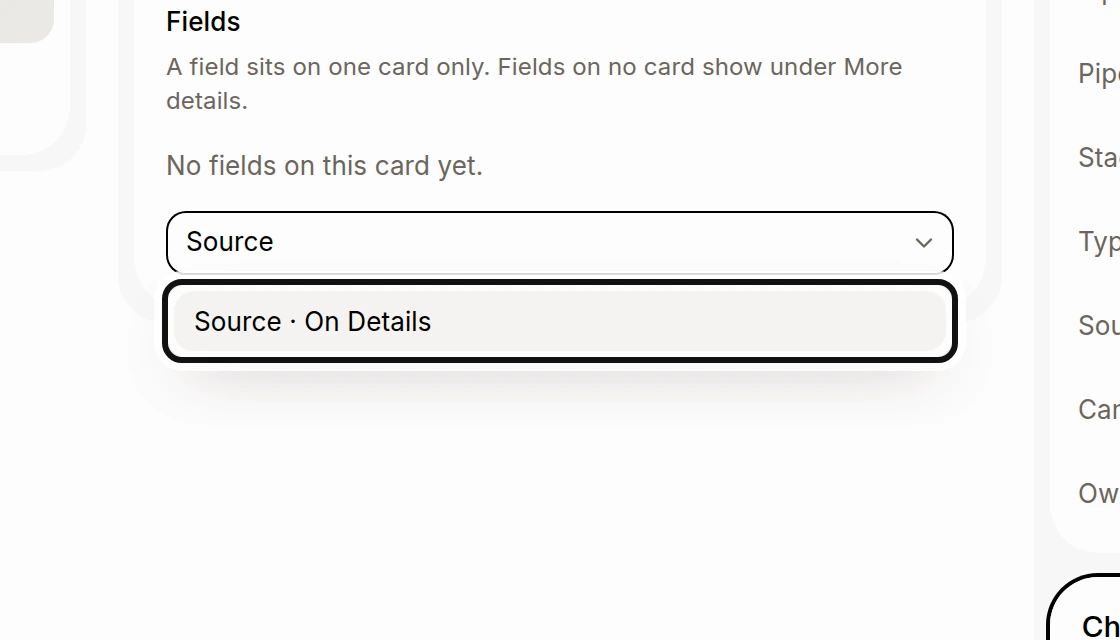
Click Add a field, type the field's name, like Source, and pick it. It shows on the card in the preview right away.
A field sits on one card only, so picking it moves it off the card it was on. Drag the fields into the order you want, or use Alt and the arrow keys.
There's nothing to save: every change is saved right away. To rename the card, change its Card name. To remove it, click the trash button next to its name. Its fields go back under More details.
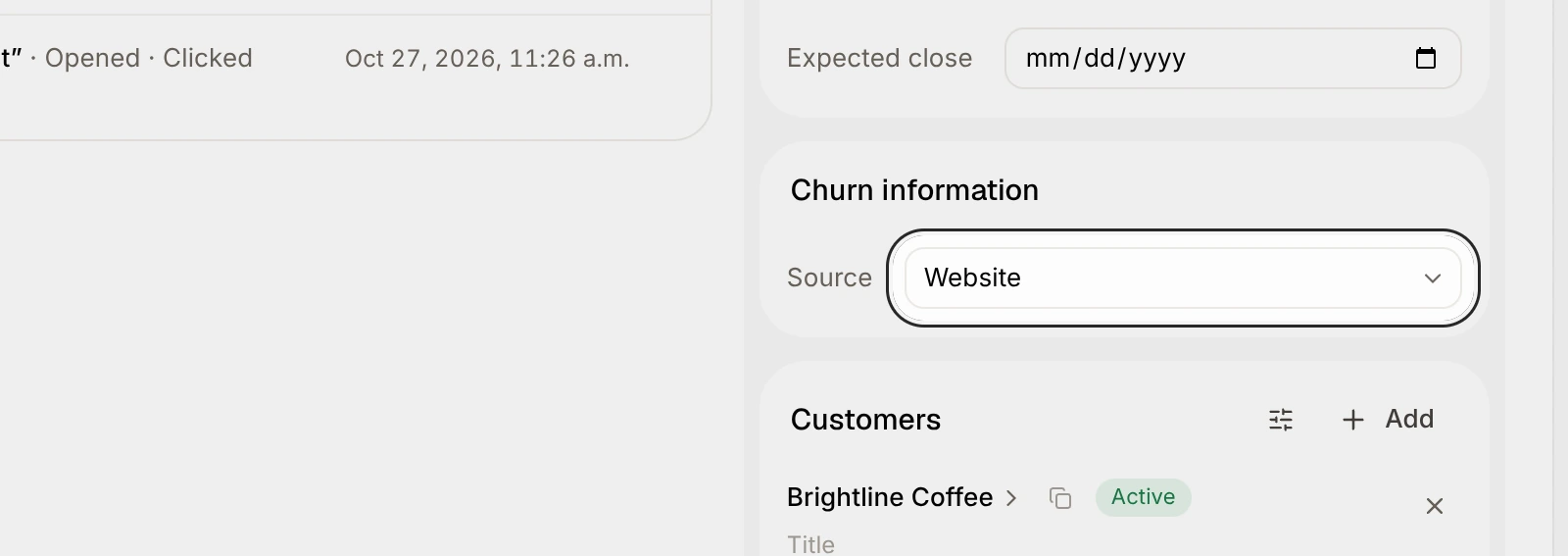
Open any deal: the new card is there with its fields, ready to fill in.
Good to know
Drag a card in the Cards list to move it on every deal's page.
You can rename Details too. Teammates who arranged Details their own way keep their version.
Fields that aren't on any card show under More details on the deal's page.
A deal page can have up to 20 cards.
Only teammates who can edit deals can change the deal page.
Ask Sam can do it for you: "Add a Closing information card with the owner and close date".