How do I add a deal?
On Deals, click New deal, pick the customer, name the deal, then click Create the deal. It starts at the pipeline's first stage.
Open Leads & deals and click New deal. Pick the customer, check the deal's name, then click Create the deal. It goes on the board at the pipeline's first stage.
Also called: new lead, new opportunity, create deal, add a sale, add a lead, nouvelle affaire, nouveau prospect, créer une affaire, opportunité
Step 1: Click New deal
In the menu, under Sales, click Leads & deals, then New deal at the top right.
Click: Leads & deals › New deal
Step 2: Pick the customer
Under For which customer?, search with Search a customer and click them. Someone new? Click New customer, type their Name and Phone (optional), then click Continue. The rest of their record is filled in later.
Click: New deal › the customer, or New customer › Continue
Step 3: Name the deal
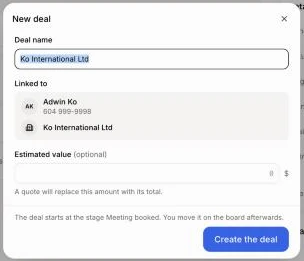
Deal name comes first and is the only thing you need. It's already filled in with the customer's company (or their name when they have none). Keep it, or type over it, like "Water heater replacement", or click one of your Usual services. Linked to shows who the deal belongs to: the customer and, when they have one, their company. The deal shows on both. Add an Estimated value (optional) if you know it. A quote will replace this amount with its total.
Step 4: Create the deal
The line above the button says which stage the deal starts at. Click Create the deal. You see Deal created, then you can click Prepare the quote or See the board.
Click: Create the deal
Other ways to add a deal
From a customer: on their record, click New, then Deal.
From a company: on the company, click New deal. The deal is named after the company.
Just ask: tell Ask Alori "New deal for Marie Tremblay, heat pump, about $8,000". It can add a whole list at once too.
From your website and other tools: see How do I send website, Zapier or Google Ads leads into Alori?
If it doesn't work
"… already has this number." That customer is already in your app. Click Choose … to use them.
"Enter a valid amount." Type only a number in Estimated value, like 8000.
The Create the deal button is grey. Type a Deal name.
No New deal button. Your role can view deals but not change them.
"Save customer only" adds the new customer without a deal. Use it when they aren't buying yet.