How do I add my photo to my booking page?
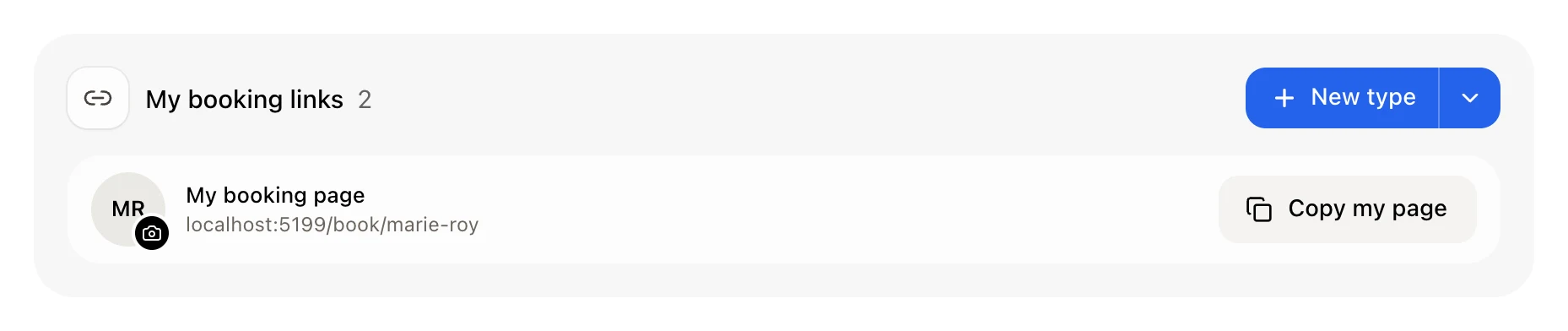
In Booking › Links, click the round picture on the My booking page line and pick a photo. It shows on your booking links and across the CRM, right away.
In Booking › Links, click the round picture on the My booking page line and choose a photo of yourself. It saves right away and shows beside your name on every one of your booking links. It's your one photo in the CRM: the same picture shows on the Users page, your employee file, website chats, tasks and jobs.
Also called: profile picture, avatar, headshot, host photo, photo de profil, avatar, ma photo, photo sur la réservation
Step 1: Click your picture
In your CRM, open Booking and stay on Links. At the top of My booking links, the My booking page line starts with a round picture: your initials and a small camera. Click it.
Click: Booking › Links › your picture
Step 2: Choose a photo
Pick a JPG, PNG or WebP photo from your computer or phone (5 MB at most). It saves right away and you see Photo changed everywhere. To change it, click it again. To take it off, click the small × on its corner.
Click: your picture › a photo

Step 3: See it on your booking page
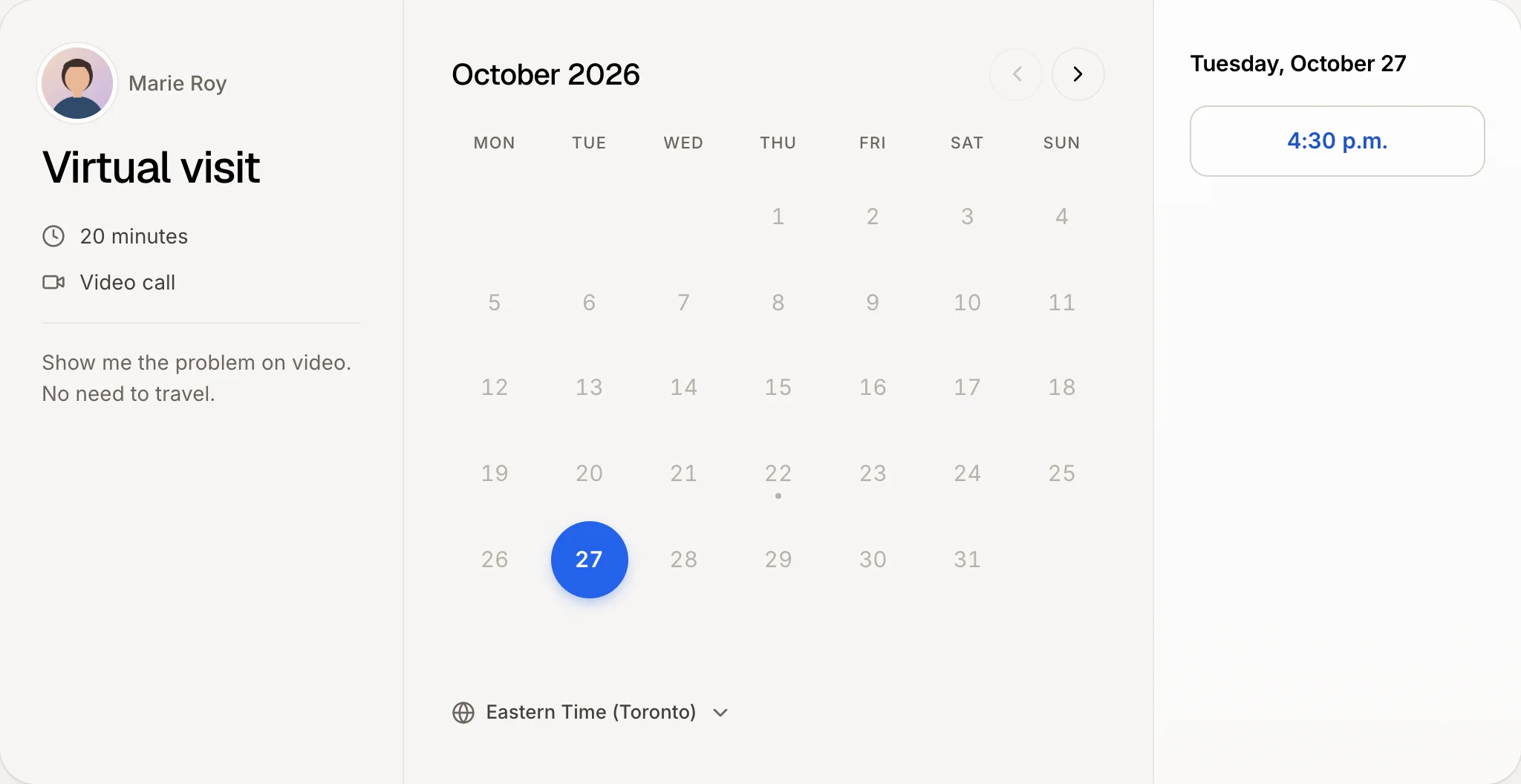
Your customers now see your photo beside your name when they open any of your booking links, and on your page that lists them all (Copy my page). Nothing else to do.
Good to know
Before you add one, your booking links show the photo of your Google account if you signed in with Google, or else your initials.
One photo, everywhere. You can also change it from your picture at the top right of the CRM, from the Users page, or from your page in Employees: it's the same photo, so changing it in one place changes it in all of them.
Each person has their own. Every teammate sets their own photo the same way. An admin can change a teammate's photo on the Users page, and HR an employee's in Employees. Team appointments (taking turns, the whole team together) show the business, not one person.
Your logo is automatic. The top of every booking page shows your business's app icon, the one in Settings › Business › App icon. Without one, it shows your business's initials.
From Ask Alori. In the CRM's Ask Alori, attach a photo to a message and ask, for example "Use this as my photo." The other chats can't take a picture, but any of them can take it off: ask "Remove my photo."
You need booking turned on first. See How do I turn on online booking?
If it doesn't work
"That photo is too large (5 MB at most)." Pick a smaller photo, or take a screenshot of it and use that.
"Use a JPG, PNG or WebP photo." The file isn't one of those (for example a HEIC from an iPhone or a PDF). Save it as a JPG first, then try again.
I don't see the picture on the My booking page line. It shows once you have at least one booking link. Create one first: How do I create a booking link?
My booking page still shows my initials. Reload the booking page.