How do I ask customers to rate us after a conversation?
Front desk › Satisfaction emails a one-click survey when you close a conversation, when you choose and in your own words.
Open Reviews › Settings. After you close a conversation (10 minutes later, or whenever you choose), the customer gets a text or an email asking how it went, and one click answers. Happy customers are asked for a Google review. Unhappy ones open the conversation again, marked Needs you, and whoever closed it gets a bell. Surveys after a job work the same way: see How do I get more Google reviews?.
Also called: CSAT, customer satisfaction survey, NPS, rating, feedback, review request, sondage de satisfaction, évaluation, avis Google
Step 1: Open the settings
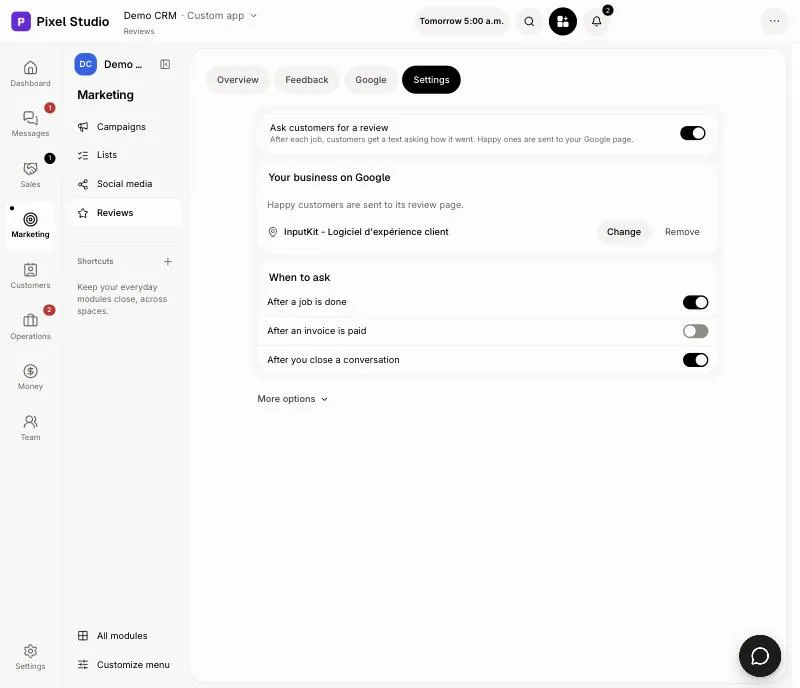
In your CRM, click Reviews, then Settings. Ask customers for a review is at the top, and After you close a conversation is under When to ask. Both are on from the start.
Click: Reviews › Settings
Step 2: Choose when it sends and the answers
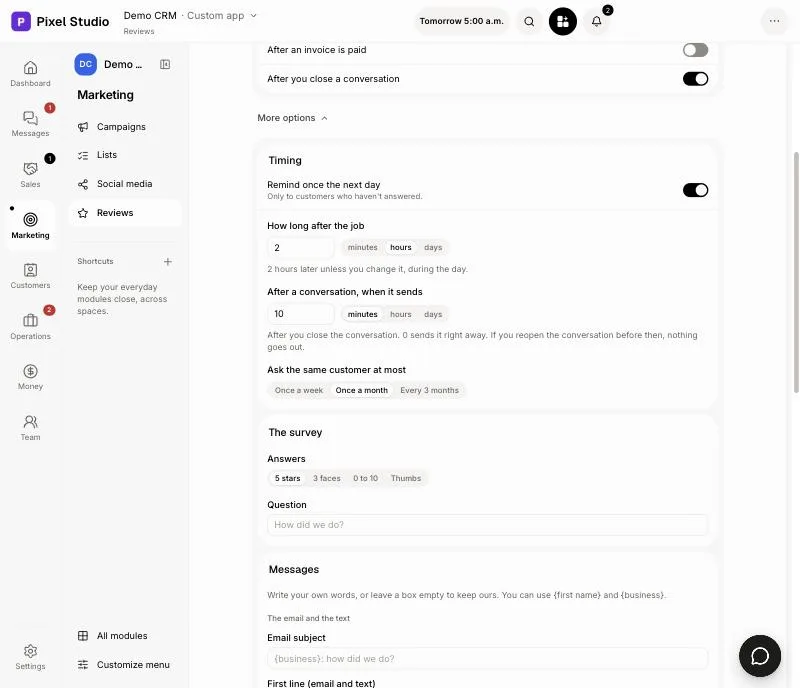
Click More options. Under Timing, in After a conversation, when it sends, type a number and pick minutes, hours or days, up to 30 days. 0 sends it right away. Under The survey, in Answers, pick 5 stars, 3 faces, 0 to 10 or Thumbs. Change the Question if you like. Under Timing, pick how often the same customer can be asked in Ask the same customer at most: Once a week, Once a month or Every 3 months. Happy customers go to the Google business you picked under Your business on Google; paste Another review link (under Other choices) only to send them somewhere else. Each change saves on its own.
Click: Reviews › Settings › More options
Step 3: Write your own messages
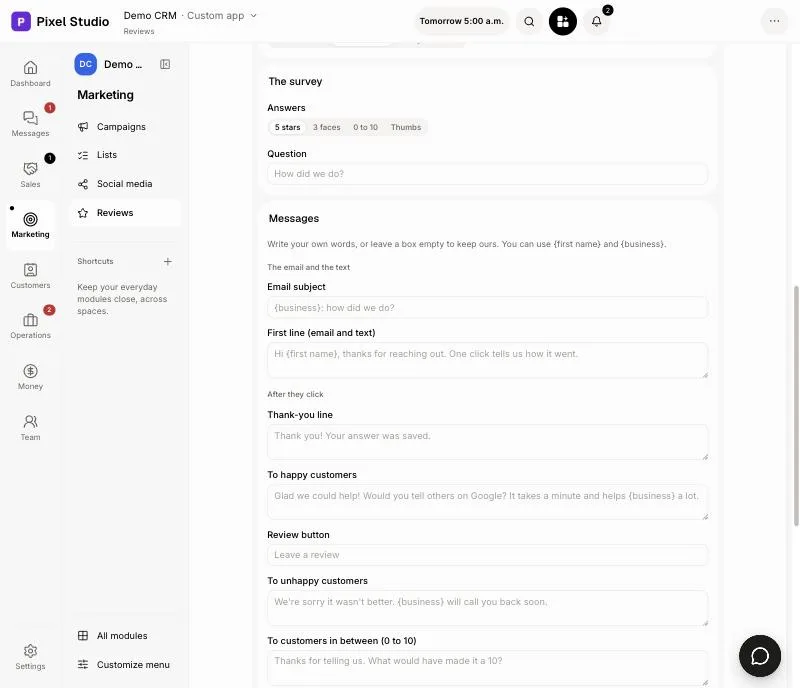
Under Messages, change any words the customer sees: the Email subject, the First line (email and text), the Thank-you line, what happy and unhappy customers read, the Review button and the comment box. Each box shows our words until you write yours. Use {first name} and {business} to fill in the customer's first name and your business. Empty a box to get our words back.
Click: Reviews › Settings › More options › Messages
Step 4: What your customer sees
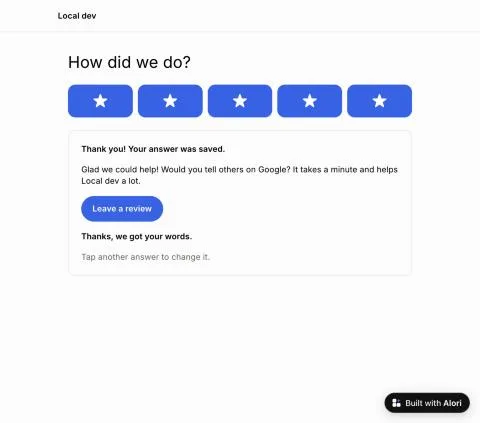
The survey shows your question and the answers in one row. A click opens a thank-you page that saves the answer, and the customer can add a few words. With 4 or 5 stars, a smile, 9 or 10, or a thumbs up, the page shows Leave a review. A low answer says you will call them back, and the conversation comes back, marked Needs you, with their answer in it, for the teammate who closed it.
Good to know:
Website chats don't get the survey: the chat bubble asks for stars itself. Those stars count on Reviews › Feedback too, and 1 to 3 stars also makes a Call back task.
No survey goes out if the customer has neither an email nor a mobile number, if you reopen or snooze the conversation before it sends, or if nobody on your team wrote to them in the last 30 days.
You can also ask Alori: "send the satisfaction survey 2 hours after I close a conversation" or "change the unhappy message to: Danick will call you today".
If it doesn't work
Surveys go out once your app is published, so their links have an address. Publish your app, then close a conversation again.
30 days at most. Pick a shorter time.
That isn't a web address. Copy the full link, like
https://g.page/r/…/review.To stop the surveys, turn off Ask customers for a review, or only After you close a conversation.