How do I assign a job to a technician?
Pick the person under Who is going when you schedule the job, or open the job and pick them next to Crew. They see it in their day right away.
Choose the technician under Who is going when you schedule a job. For a job that's already planned, open it and pick the lead next to Crew, then tap anyone working with them. The job then shows in their day.
Also called: dispatch, give a job to someone, assign a tech, crew, helper, assigner un travail, répartir, confier à un technicien, équipe, travaux, job
Step 1: Pick who is going when you schedule
In the Schedule window, the When step lists your team under Who is going. Each person shows Free, On leave, or what they already have at that time. Click the person who will do the job, then click Schedule.
Click: Who is going › the person › Schedule
Step 2: Change it on the job
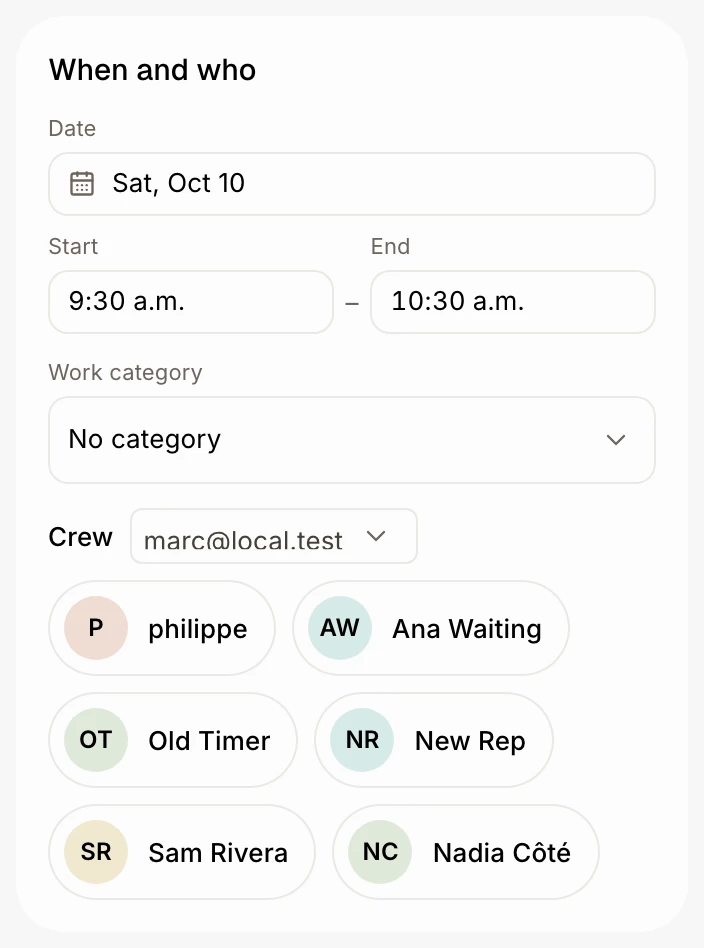
Open the job from Jobs or Schedule. In When and who (on the right on a computer, below the work on a phone), pick the teammate leading the job next to Crew, or Nobody to take it off everyone. Then tap the teammates working with them to add them to the crew; tap again to take them off. It saves right away.
Click: the job › When and who › Crew › the lead › the teammates
Step 3: Or drag it on the calendar
On Schedule, when each teammate has their own column, drag the job into another person's column. A message confirms the move, with Undo.
Step 4: Check each person's jobs
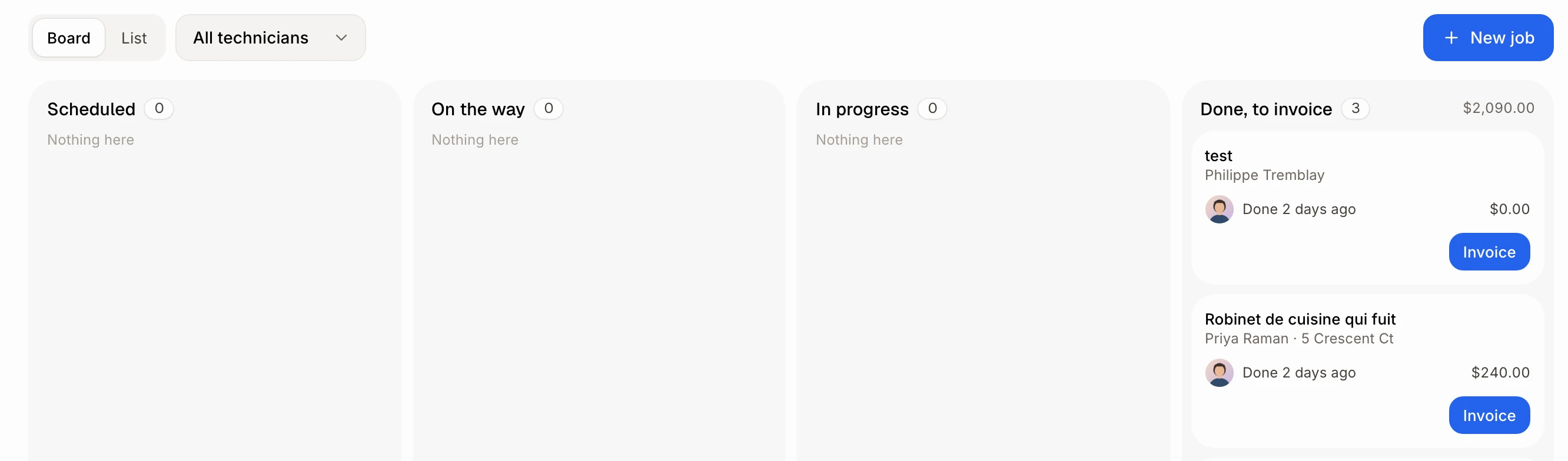
On Jobs, use the All technicians menu at the top to see only one person's jobs. Jobs given to nobody show Not assigned.
Click: Jobs › All technicians › the person
Good to know
Crew and the All technicians menu show once you have more than one person on your team.
A teammate whose role doesn't have All jobs sees only the jobs given to them or where they're on the crew.
While the job is in progress, everyone on it with an employee file is clocked in on it. See How do my team's hours get logged from jobs?
Only people who see all jobs can assign or schedule jobs.
You can still give a job to someone who's busy or off that day. Alori warns you first, for example: "already has something at" a time.
If a card on the person's employee file has expired or is missing, the message after you assign them adds "Heads up:" and names the card.
You can ask Ask Alori: "Give the Chen job to Luis" or "Put Marc on the Chen job too."
If it doesn't work
You don't see Crew. You're the only person on the team, or your role can't plan jobs. Add teammates in Users, or ask the owner.
The technician doesn't see the job. Check that they lead it or are on its crew, not Nobody.
"That didn't work. Try again." The change didn't save. Try again in a moment.