How do I bring my Discord server into Team chat?
In Import data, open Discord, connect it and pick your server, click Import my server. Later, Bring what's new adds what your team wrote since.
In Import data, click Import on Discord, connect Discord and pick your server. Click Import my server: your categories, channels, voice channels and every message come into Team chat. While your team still writes in Discord, click Bring what's new to add only what came after.
Also called: move from Discord, Discord import, copy Discord server, switch from Discord, keep Discord in sync, importer Discord, serveur Discord, importer les nouveautés
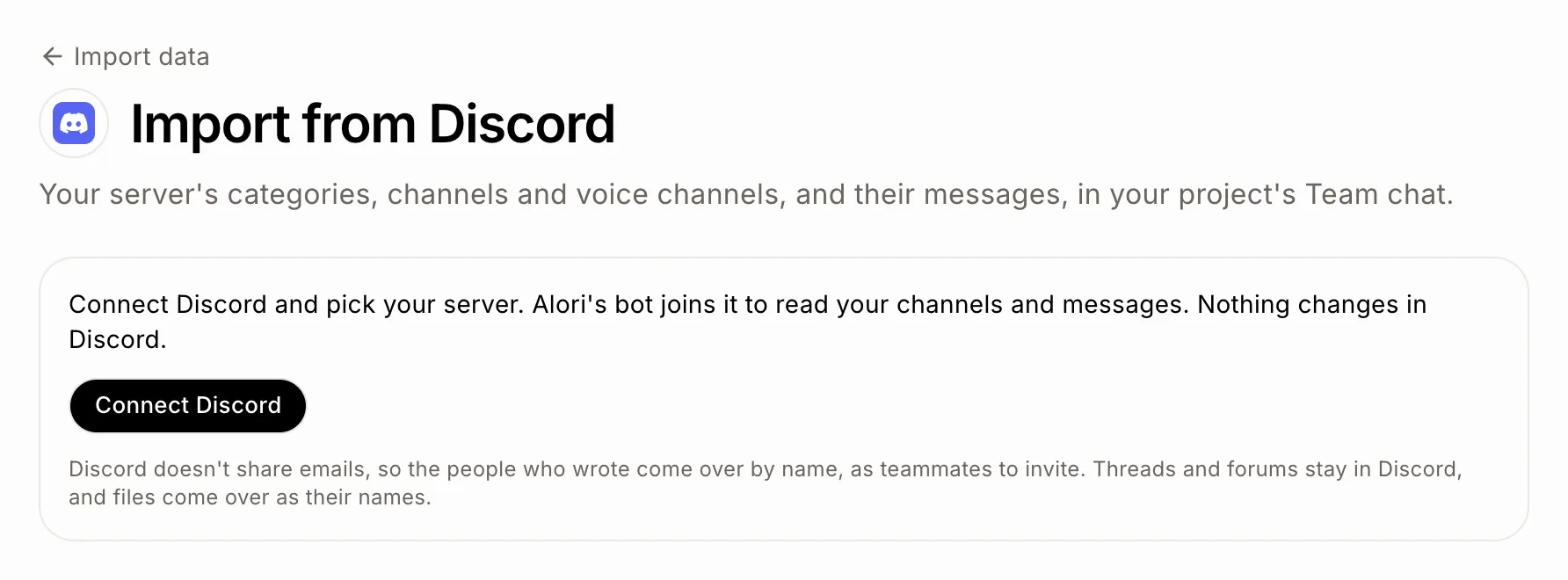
Step 1: Connect Discord
Open Import data, tap Team chat and click Import on Discord. Click Connect Discord and pick your server. Alori's bot joins it to read your channels and messages. Nothing changes in Discord.
Click: Import data › Team chat › Discord › Import › Connect Discord
Step 2: Pick who's who
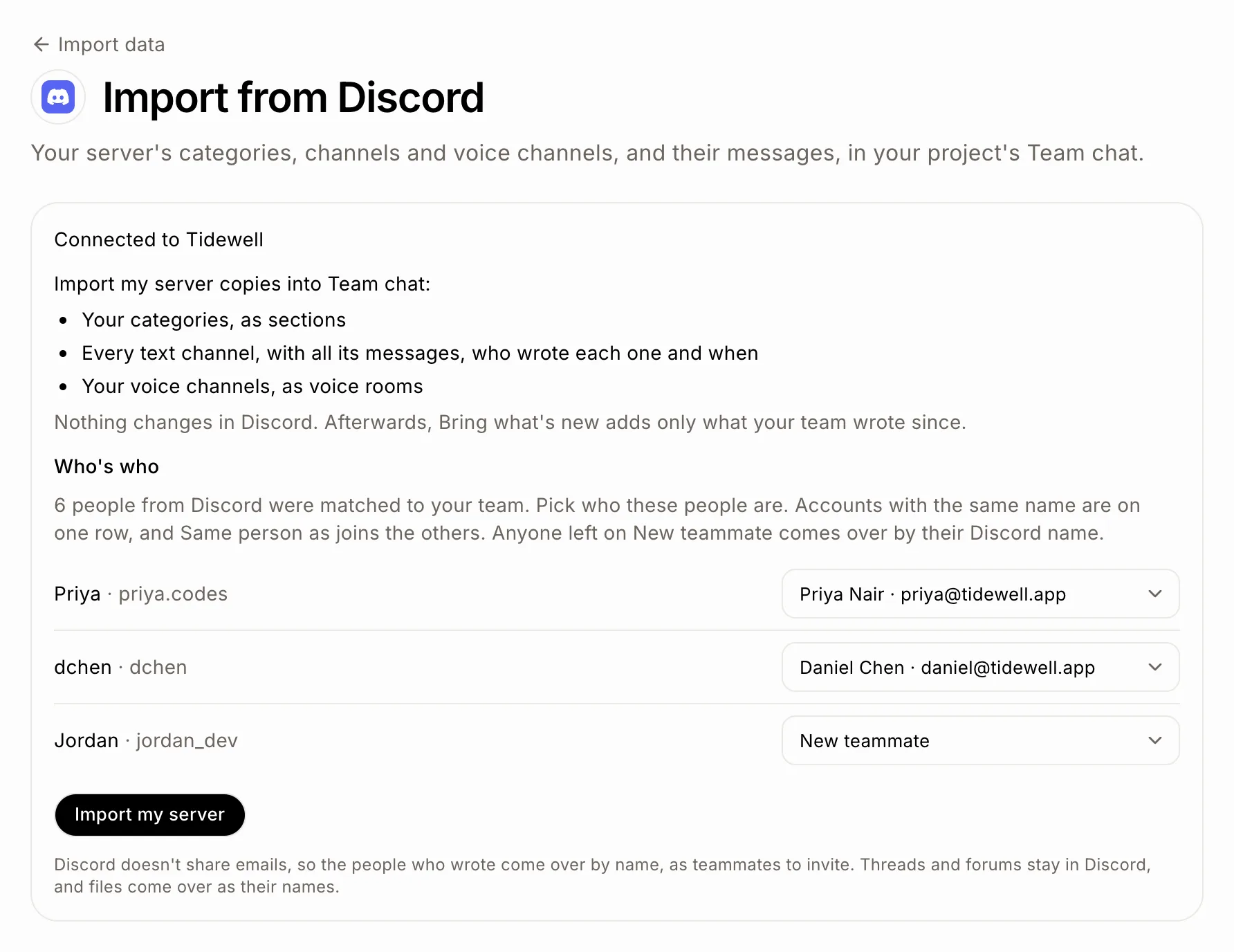
Alori matches your server's people to your team. Under Who's who, pick a teammate for anyone it isn't sure of. Anyone left on New teammate comes over by their Discord name.
Step 3: Import your server
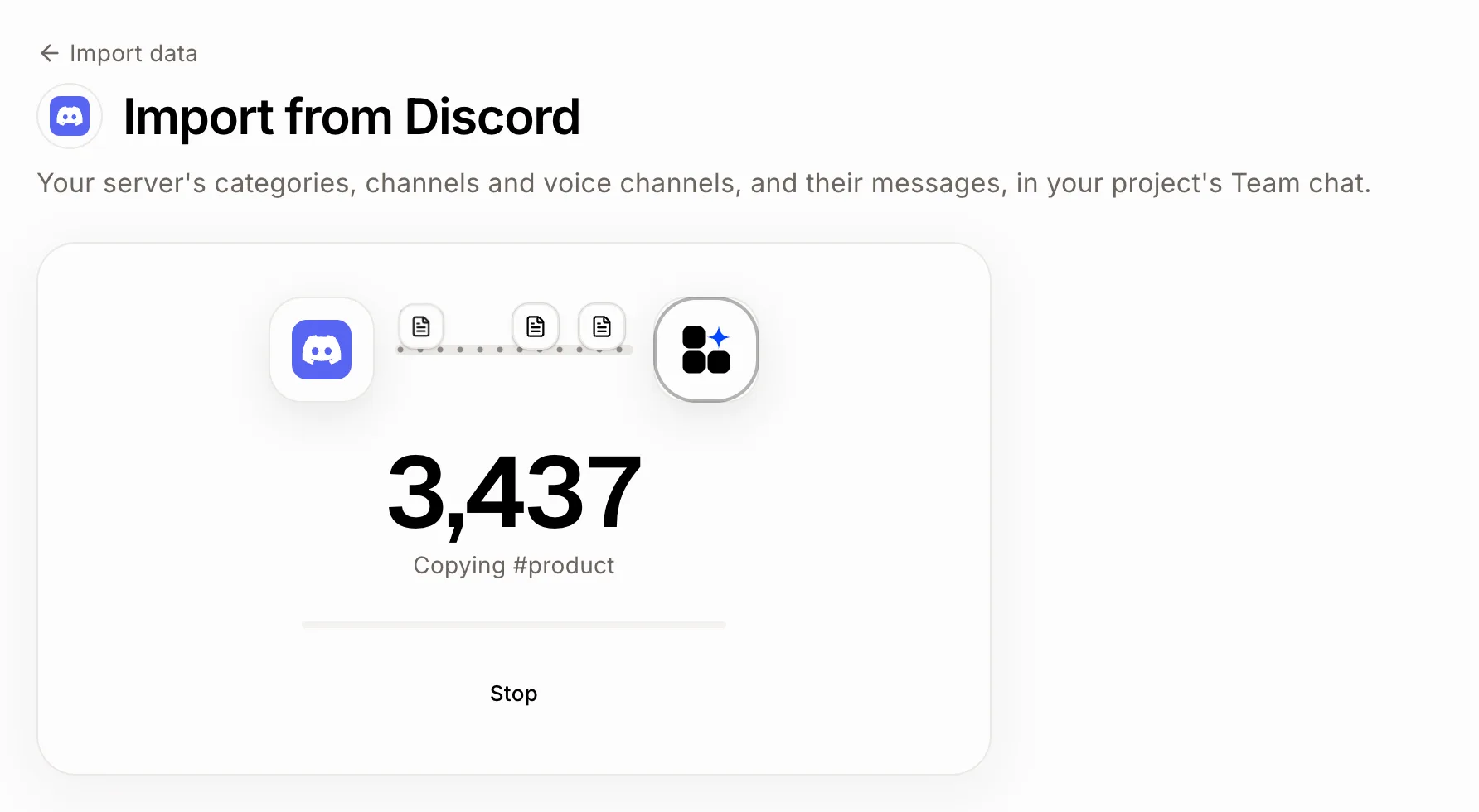
Click Import my server. Keep the page open while the count goes up. Each channel gets the teammates who can see it in Discord, so everyone has the same channels as there. Click Stop anytime: what came over stays.
Click: Import my server
Step 4: Bring what's new
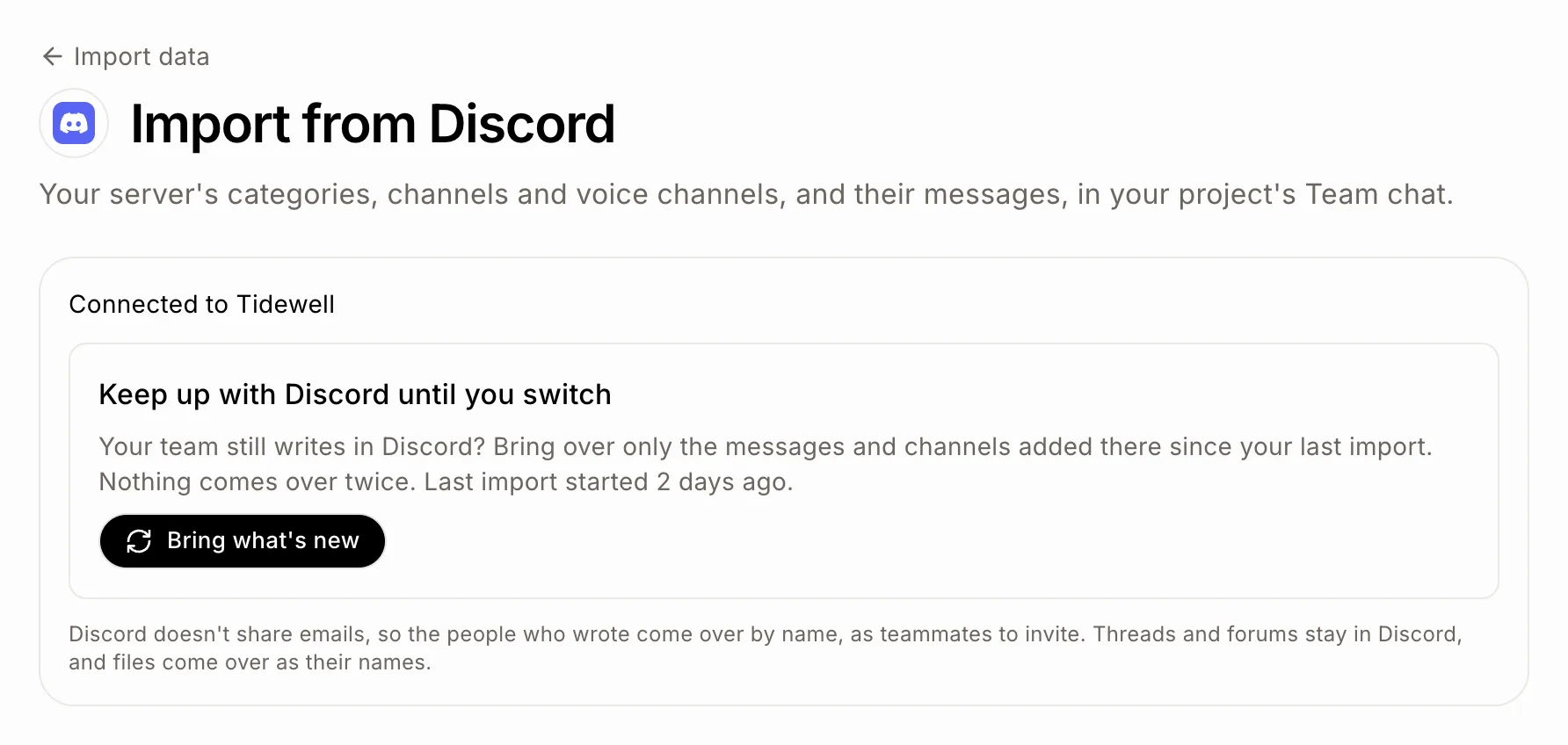
Moving a team takes a few days. Until everyone writes in Alori, come back and click Bring what's new: only the messages and channels added in Discord since your last import come over, with the same who's who.
Click: Import data › Discord › Bring what's new
Good to know
Nothing comes over twice: messages already in Team chat are skipped.
Bring what's new shows once an import went through every channel. If you clicked Stop, click Import again first.
Someone who comes over as a new teammate isn't in channels until they join Alori. Once they have, Bring what's new adds them.
Discord doesn't share emails, so people come over by name. Threads and forums stay in Discord, and files come over as their names.
If it doesn't work
"Discord refused Alori. Connect Discord again and pick your server." Click Connect Discord and pick your server.
"Alori can't see who's on your server yet, so it can't tell who wrote each message. Try again later." Nothing comes over until Discord lists your server's people. Open the page again later.
"Alori's bot can't read some channels." In Discord, give the Alori role View channels and Read message history, then import again.
"Discord is busy. Try again in a minute." Click again a minute later.
"Your app needs an update before it can hold Discord's channels." or "Your app isn't online yet." Publish your project once, then import again.