How do I fill a quote from a customer's email or request?
On a quote, click From a request, paste the customer's email and click Fill the quote. Alori adds each item with its price from your price list.
Open the quote, click From a request, paste the customer's email or request for quote, and click Fill the quote. Alori reads it and adds a line for each item asked for, with its price from your price list. Check the lines, then click Save.
Also called: request for quote, RFQ, purchase order, quote request, demande de soumission, demande de prix, bon de commande
Step 1: Open the quote
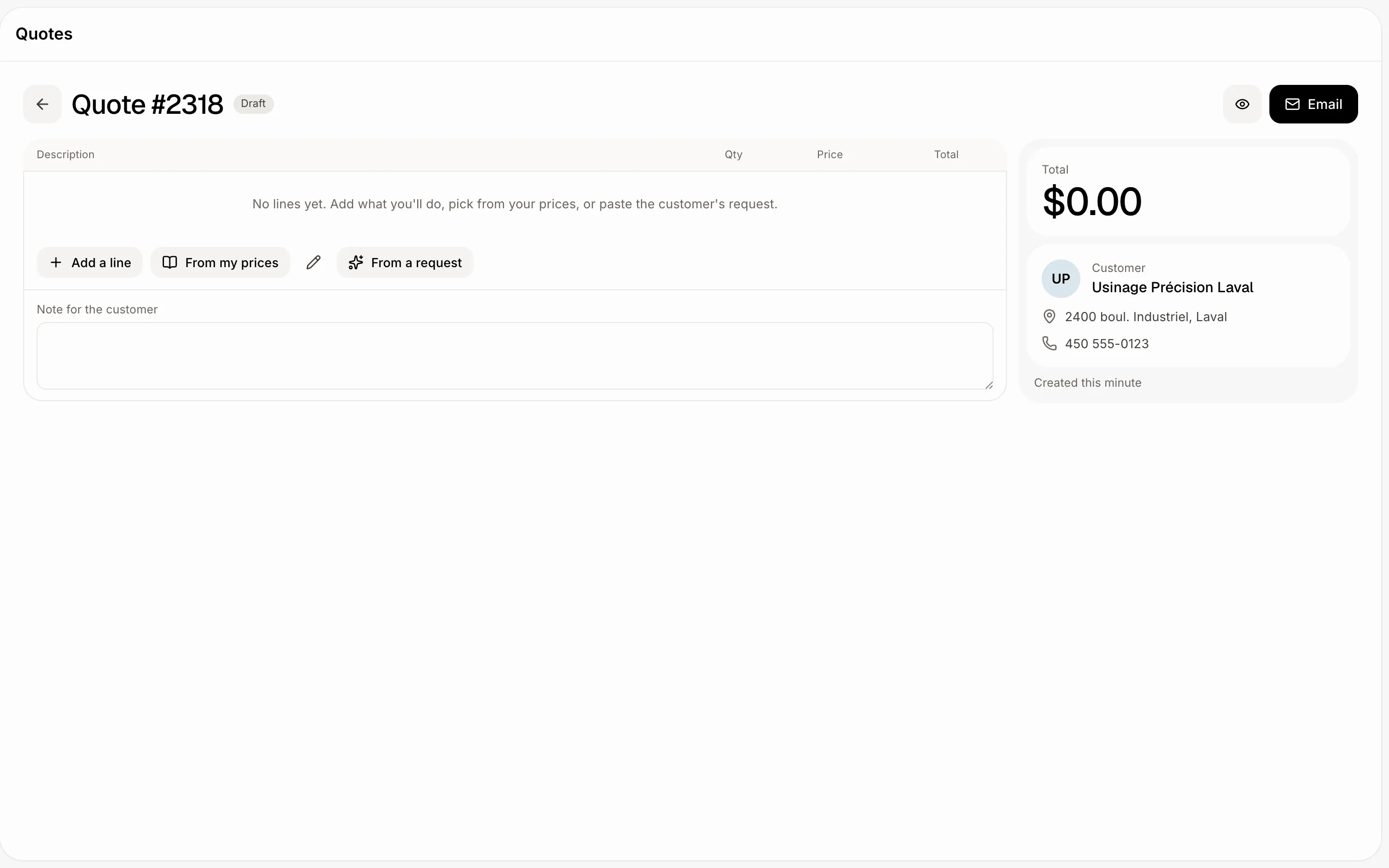
Start a quote for the customer (Quotes › New quote), or open a draft you already have. Under the lines, next to Add a line and From my prices, click From a request.
Click: Quotes › the quote › From a request
Step 2: Paste the request
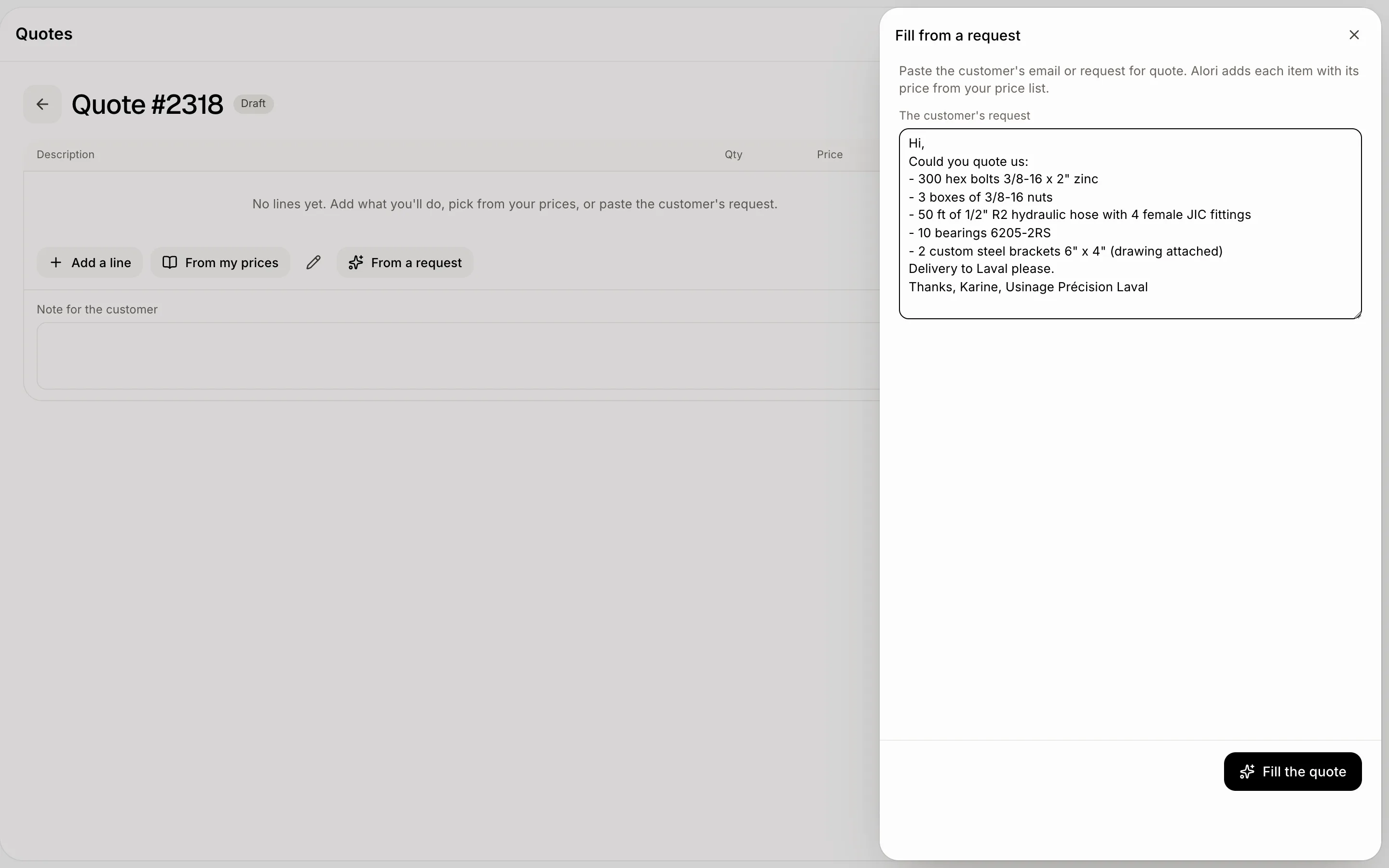
The Fill from a request panel opens. Copy the customer's email, the list from their purchase order or their request for quote, and paste it under The customer's request. Paste it as it is: greetings, signatures and delivery notes are left out. Then click Fill the quote.
Click: paste the text › Fill the quote
Step 3: Check the lines, then save
Each item the customer asked for becomes a line:
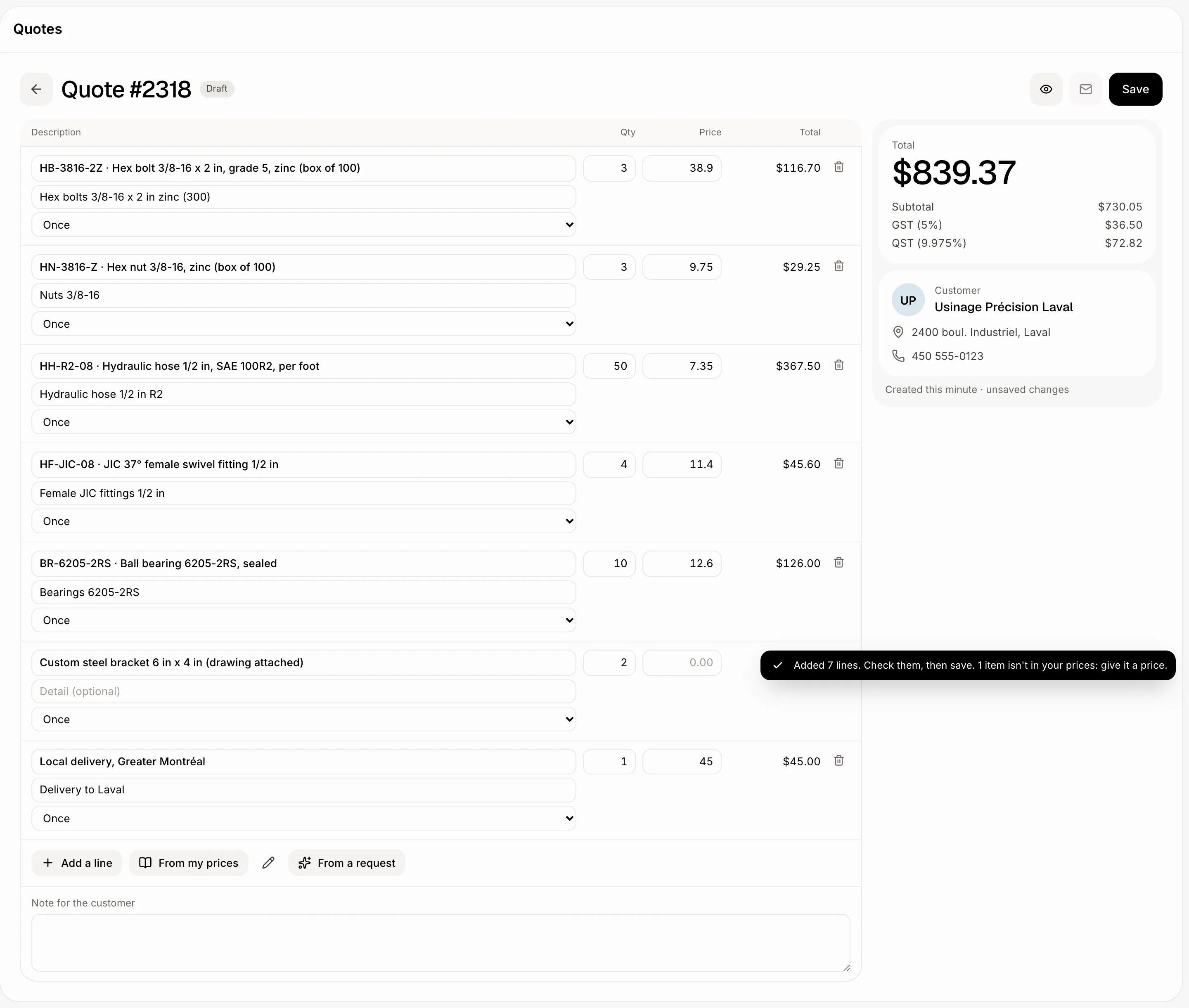
Found in your prices: the line takes your item's name and price, and the quantity in your item's unit (300 bolts sold by the box of 100 is 3). The customer's own words go in the line's detail, so you can see what they asked for.
Not in your prices: the line keeps the customer's words and its Price stays empty. Type a price, or remove the line.
A message tells you how many lines were added and how many need a price. Nothing is saved yet: fix anything you want, then click Save. Then send it as usual with Email.
Click: check the lines › Save
Good to know
Your price list is what makes it work: the more items you keep there, with clear names and part numbers, the more lines come in priced. See How do I set up my price list?.
The lines are added after the ones already on the quote, so you can paste a second email into the same quote.
Alori looks at the first 400 items of your price list. Items past that come in with no price.
Reading a request uses AI, which uses credits.
Ask Sam can do it too. Paste the email in the chat and say which customer it's for, for example "Make a quote for Usinage Précision Laval from this email". Sam makes the quote, and you can undo it.
An accepted quote can't change, so the button isn't there.
If it doesn't work
"No items found in this text. Paste the part with what the customer wants." Paste the part of the email with the items and quantities.
"You're out of credits." Add credits in Alori, then try again.
"Too many tries at once. Try again in a minute." Wait a minute, then click Fill the quote again.
"AI isn't set up for this app yet." Publish your app from Alori, then try again.
"This quote has as many lines as it can hold." A quote holds up to 100 lines. Start a second quote for the rest.
"Alori couldn't read this request. Try again." Nothing was added. Click Fill the quote again.