How do I find a page in the menu?
Type in the search box at the top of the left menu, or open a section to see its pages. The menu remembers which sections you opened.
Written by Philippe Genois
The left menu groups your pages into sections such as Customers, Sales, Marketing, Support, Operations, Purchasing & inventory, Money, Team and AI team. You can search for a page by name, or open a section and look inside.
Look at the menu on the left. The search box is at the top, with your sections below your everyday tools. Sections can be folded or opened.
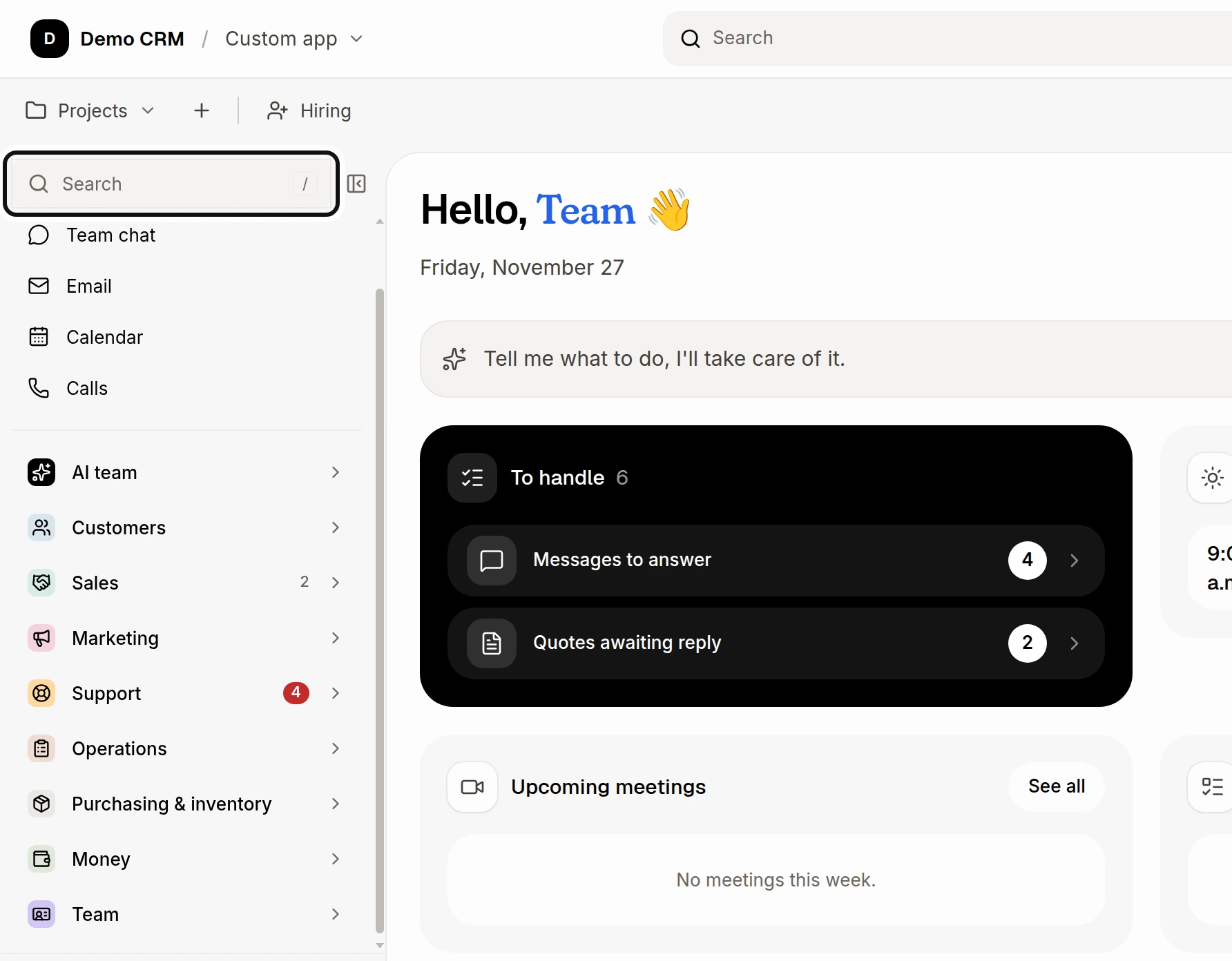
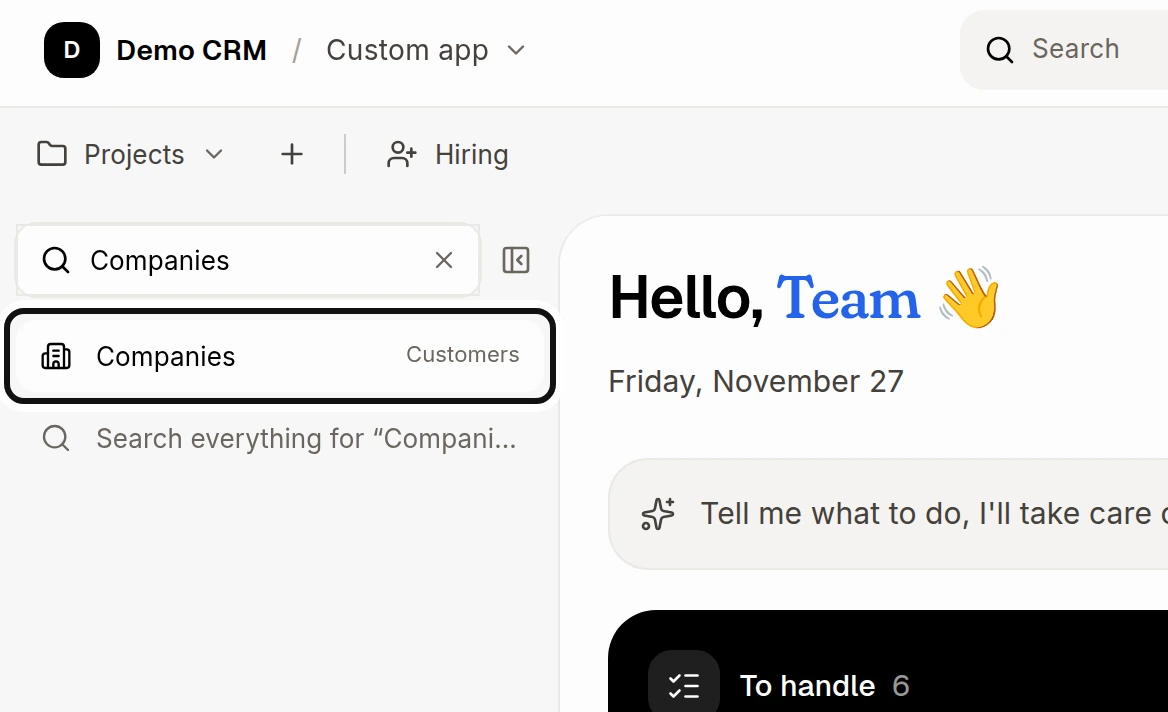
Click the search box at the top of the menu and type the name of the page, like Companies. Click the page you want to open it.
No idea what the page is called? Click a section title to open it and see its pages. For example, Companies is under Customers. Click the page you want.
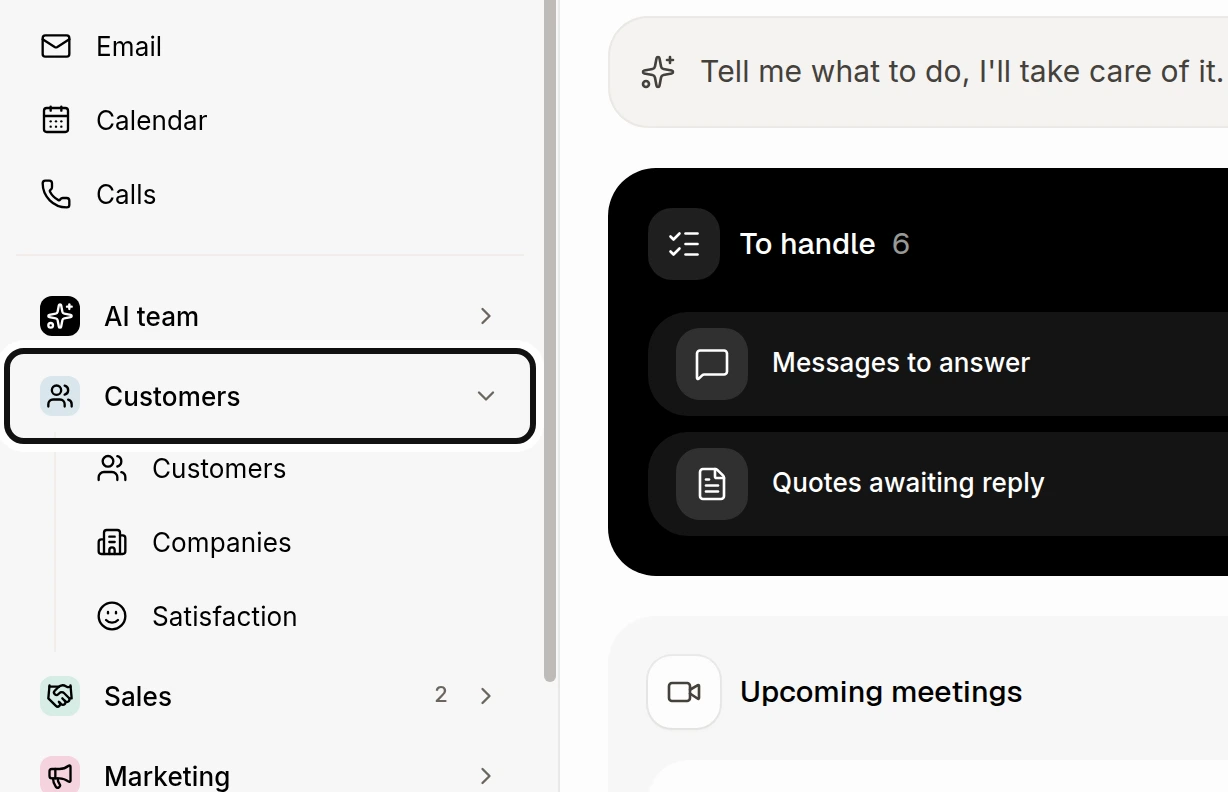
Click the section title again to fold it back. Alori remembers which sections you opened, so they are still open the next time you come back.
Good to know
Companies only shows in the menu once your app has at least one company.
Search can find pages you have hidden from your menu. To choose and reorder your menu, see How do I choose and reorder what's in my menu?
You only see pages your role can open and that your app has. If a page is missing, ask the owner.
Once a page is open, you can keep it in a tab at the top. See How do I keep pages open in work tabs?
AI team lists your bots and may offer bots you can turn on.
Did this answer your question?