How do I keep pages open in work tabs?
Switch between pages, pin them, and keep them in folders at the top of your app.
Written by Philippe Genois
Open two pages in your team app and use the tabs at the top to return to each one where you left it.
Open a page, then open another page from the menu. When two pages are in progress, their tabs appear at the top. Click a tab to return to it.
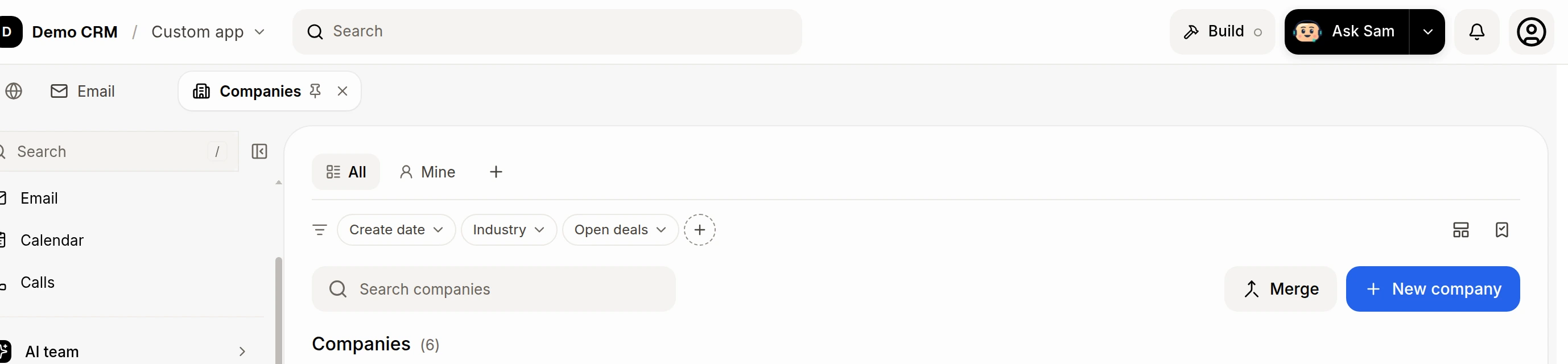
To keep a page handy, click the pin on its tab. Drag tabs to change their order; use the × on a tab to close it.
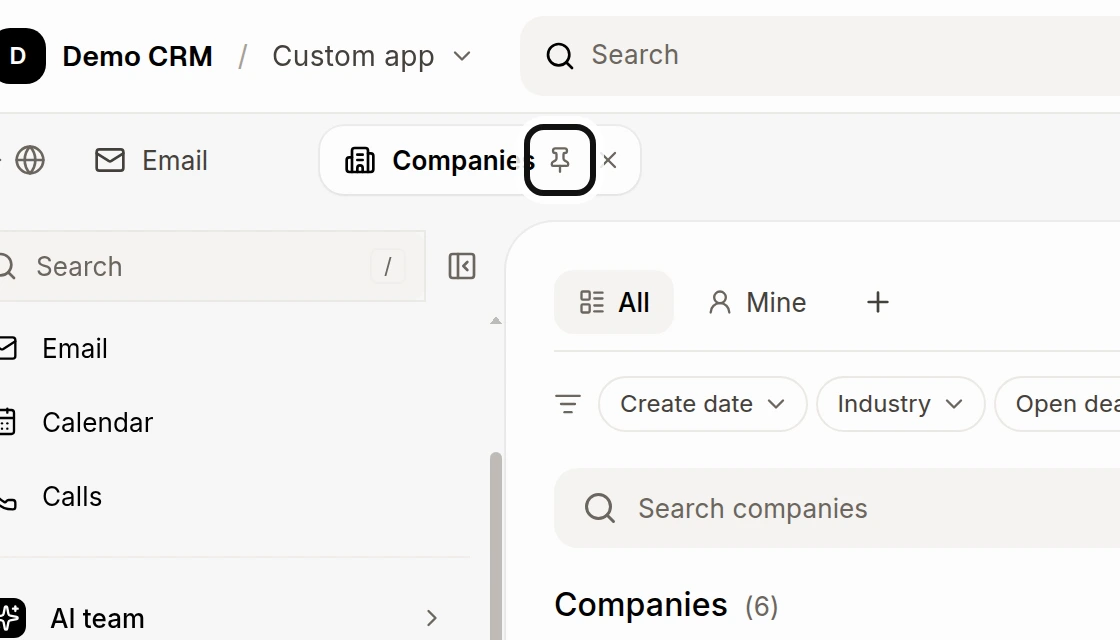
To group pinned pages, right-click a pin and choose New folder. Give it a name and click Add. Right-click another pin to move it into an existing folder.
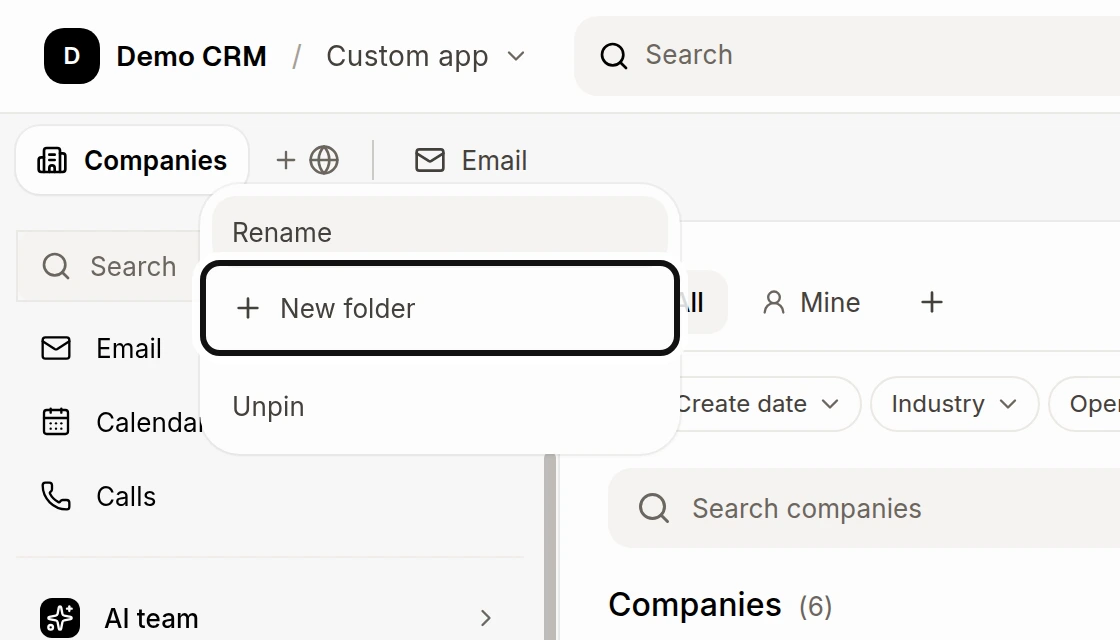
To keep a website in the row, click Add a site, enter its Address and an optional name, then click Add. The site opens in a new browser tab.
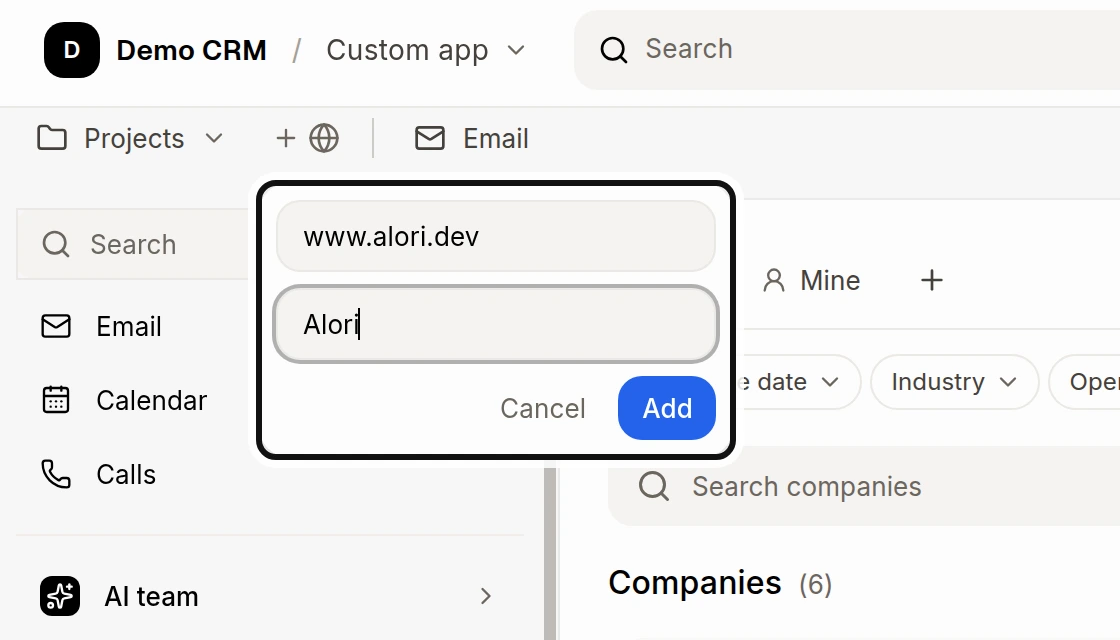
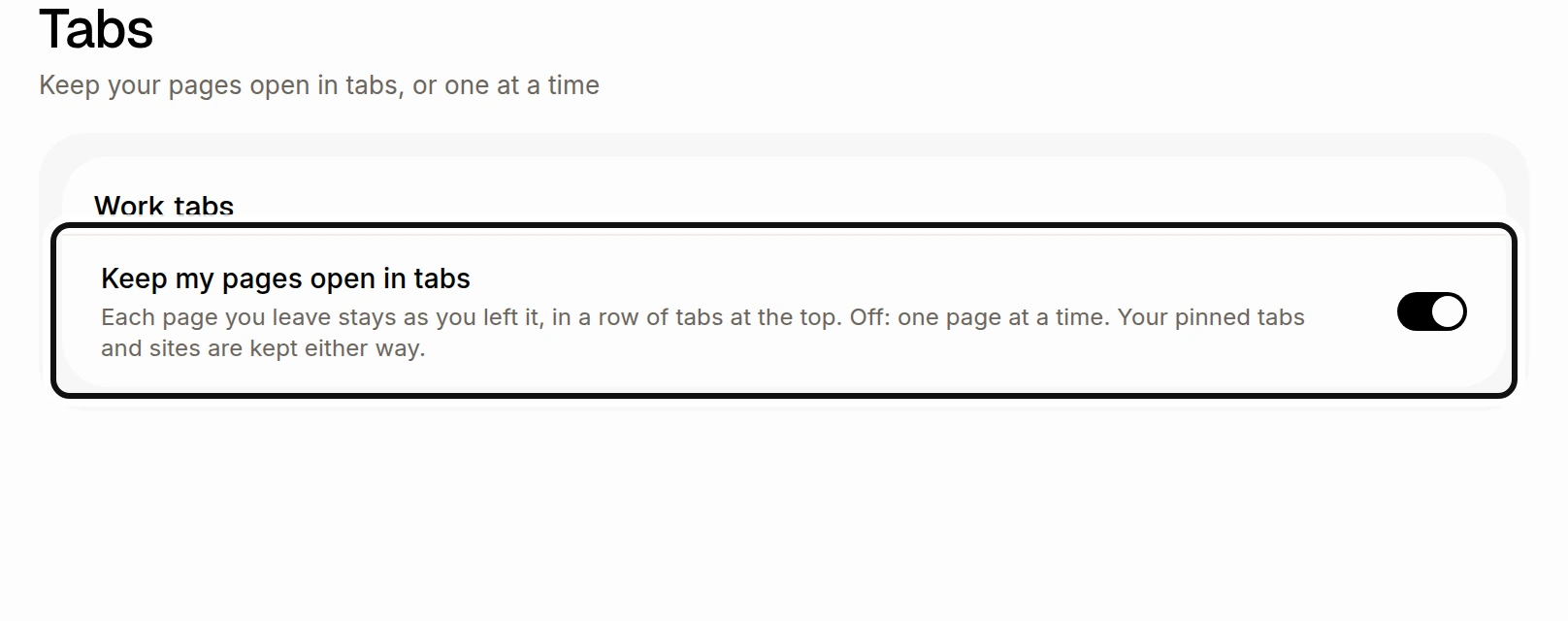
Turn Keep my pages open in tabs on or off. Your pinned tabs and sites are kept either way.
On a phone, find your work in progress in Menu. Home, Settings and Team chat don't open as work tabs.
Did this answer your question?