How do I get notified when someone tags me in Team chat?
Turn on pop-up notifications once. Alori then plays a sound for new messages, shows a pop-up when someone tags you, and you can pick the sound or pause it.
Every new message in Team chat plays a soft sound. When someone tags you (@your name), writes to you in a direct message, or calls the whole channel with @channel, Alori also shows a pop-up with who wrote and their first words. Click the pop-up to open the message. Turn pop-ups on once per browser.
If you installed Alori as an app on your computer (from Chrome), its icon in the Dock shows how many team messages you haven't read.
Also called: alert, ping, mention, sound, chime, badge, unread count, do not disturb, snooze, mute, notification, avertissement, mention, son, ne pas déranger, sourdine
The pop-up shows when Alori isn't the window you're looking at: another tab or another app. While you're reading the channel a message lands in, nothing rings.
Step 1: Turn on pop-up notifications
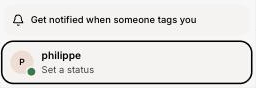
The first time you click anywhere in Alori, your browser asks whether Alori may show notifications. Click Allow. If you missed it, click Get notified when someone tags you at the bottom of the Team chat list, just above your name.
Click: Team chat › Get notified when someone tags you › Allow
Step 2: Pick your sound, or turn it off
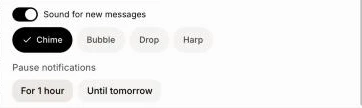
Click your name at the bottom of the Team chat list. Under Notifications, Sound for new messages turns the sound on or off. Under it, pick Chime, Bubble, Drop or Harp: each one plays when you click it, so you can choose by ear. Your choice is saved on your account, so it follows you on every computer.
Click: Team chat › your name › Chime

Step 3: Pause notifications when you don't want to be disturbed
Under Pause notifications, click For 1 hour or Until tomorrow. No sound and no pop-up until then. Your teammates still see your messages arrive, and the red count still shows. Click Turn notifications back on to end the pause early.
Click: Team chat › your name › For 1 hour
You can also ask Alori: "Pause my chat notifications until 2 pm", "Turn off my chat sound" or "Switch my chat sound to Drop".
If it doesn't work
"Your browser blocks notifications. Click the icon left of the address bar and allow them." You clicked Block once. Click the icon left of the web address, set Notifications to Allow, then reload the page.
No sound. Check that Sound for new messages is on, and that your computer isn't muted. The browser only plays sounds after you have clicked once on the page.
No pop-up on a Mac. Open System Settings › Notifications, pick your browser (Chrome, Safari…) and allow its notifications.
A muted channel stays quiet. Unmute it from the channel's menu to hear it again.