How do I import my Aircall phone setup and recordings?
In Import data, click Import on Aircall and paste your API ID and token. Then start Phone setup, Calls, or both; each imports on its own.
In Import data, click Import on Aircall and paste your Aircall API ID and token. The Aircall page then has two boxes, and each one imports on its own, with its own steps and progress: Phone setup rebuilds your numbers, greetings, voicemail, ring groups and phone menu as call flows you check before they go live; Calls puts every Aircall call on its customer's file with its recording, its transcript and the teammate who took it. Bring one, the other, or both.
Also called: phone system, call flows, IVR, phone menu, ring groups, voicemail, call recordings, call history, importer Aircall, système téléphonique, enregistrements d'appels, menu téléphonique, historique d'appels
Step 1: Connect Aircall
In Aircall, open Dashboard › Integrations & API › API keys, then Generate an API key. In Alori, open Import data and click Import on Aircall. Paste the API ID and the API token, then click Connect. Alori only reads Aircall. One key works for both boxes; to change it, click Use another key.
Click: Import data › Import › Connect
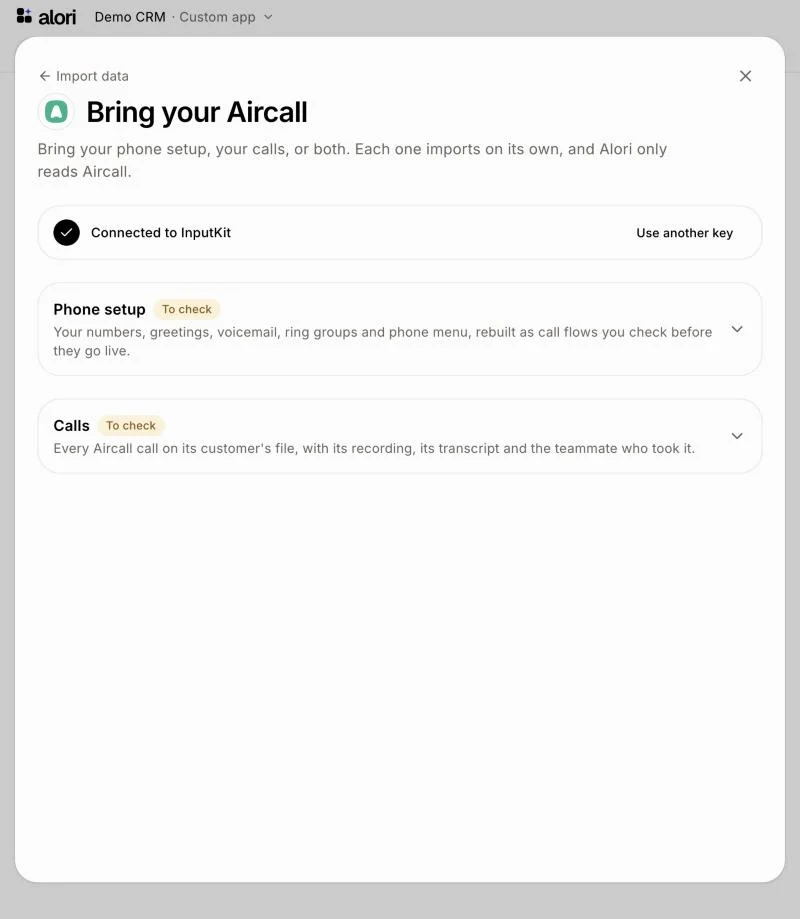
Step 2: Bring your phone setup
In the Phone setup box, click Start. Alori reads your numbers, users, teams and greetings, and the menu keys your callers pressed in the last 60 days. It takes about a minute. Then, under Check and finish: Aircall doesn't share its opening hours, so Alori starts from Monday to Friday, 9 to 5. Click That's right, or Change the hours. If people from Aircall aren't on your Alori team yet, click Invite your team: until then, calls that should ring them go to voicemail. A number marked Needs a fix needs a change before it can run. Last, click Turn it on: Alori creates the ring groups and call flows, and the main number's flow becomes your default and runs on your Alori number right away. The box then says On. Keep Aircall until your numbers move over: click Move your Aircall numbers to start.
Click: Phone setup › Start › That's right › Turn it on
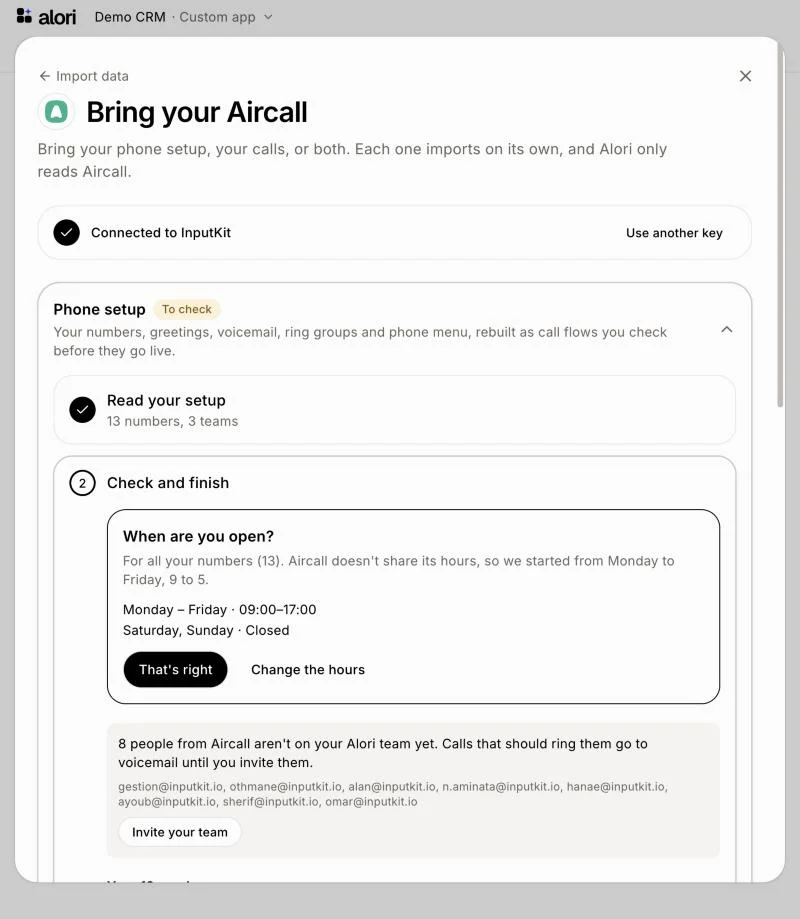
Step 3: Bring your calls
In the Calls box, click Start. Alori reads your call history with the same key. Each number that called you, or that you called, becomes a customer, or finds the customer who already has that number (left as your team has it). Each call lands on that customer's file with its outcome, its length, its recording and its transcript. Transcripts come over only when your Aircall plan has the AI Assist add-on: Aircall shares them with nothing else, and only for calls made after it was turned on. Alori writes a short summary from each one. Without AI Assist, calls come over without their transcripts, and the import page says so.
Under Who took the calls, each Aircall user gets a person from your Users (the list in Alori's top-right menu). Alori matches them by email or by full name. A guess (the same name with a middle name, or an email that spells their name) is marked Check. To change one, click the box and type a name to find the right person. Someone who isn't a user yet comes over as a new teammate with their calls, and nobody gets an email until you invite them. Then click Looks good, try a sample to import your latest calls, check them, and click Import everything. The box shows where it stands: To check, Importing…, Sample imported, then Imported. Calls from a hidden number have no customer and don't come over.
Click: Calls › Start › Looks good, try a sample › Import everything
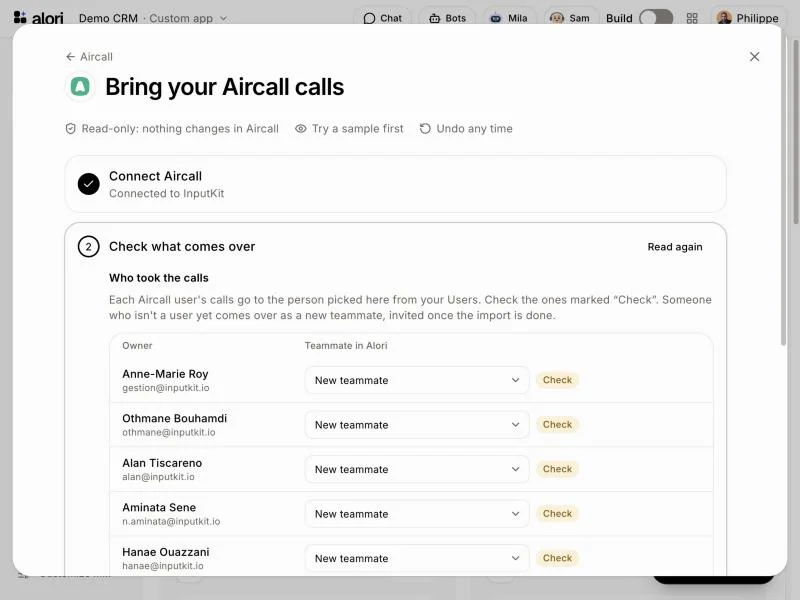
Recordings from HubSpot
Recordings also come with your call history from HubSpot. When your HubSpot calls were recorded with Aircall, the HubSpot import shows Connect Aircall now to keep your call recordings. Paste the same API ID and token. Without it, calls come over without their recordings (click Continue without recordings to skip). Recordings over 25 MB are skipped. If your Aircall plan has the AI Assist add-on, each call's transcript comes too, as Aircall wrote it, and Alori writes a short summary from it. Without AI Assist, Aircall doesn't share transcripts, and the import page says so. Leo, your sales coach then reviews the calls from the last 30 days for the teammate who took each one, without sending a message about each one. While they copy, the import page shows "Copying call recordings", even after the rest is done. See How do I move from HubSpot to Alori?
Good to know
To take the phone setup back, click Undo. It removes the call flows and ring groups this import created, and goes back to your previous flow. To take the calls back, use Delete all data under the Calls steps.
Read again replaces the changes you made in Check and finish.
If it doesn't work
"Aircall didn't accept that key. Check both values, or generate a new key." Copy both values again, or make a new key in Aircall.
"Aircall is busy: the tools connected to your Aircall account used up its calls for this minute. Try again in a minute." Wait a minute, then try again.
"Aircall refused the saved key. Paste a new one." Make a new key in Aircall and paste it.
"This import is already on. Undo it first to read again." Click Undo, then Read again.
"Finish the checks above first." Answer what's left in Check and finish.
"Calls came over without their transcripts: Aircall only shares them with its AI Assist add-on." Your Aircall plan doesn't have AI Assist. Your calls and recordings came over; add AI Assist in Aircall to get transcripts of your next calls.