How do I import my tickets from Linear?
In Import data, click Import on Linear, click Connect Linear and Allow, pick who's who, then click Import everything.
Open Import data, click Import on Linear, then Connect Linear and Allow. Pick which Alori teammate each Linear person is and click Import everything. Your teams and issues come over into Tickets with the same numbers, comments and history.
Also called: Linear migration, Linear issues, move from Linear, issue tracker, importer Linear, tickets Linear, billets, équipes Linear
Step 1: Connect Linear
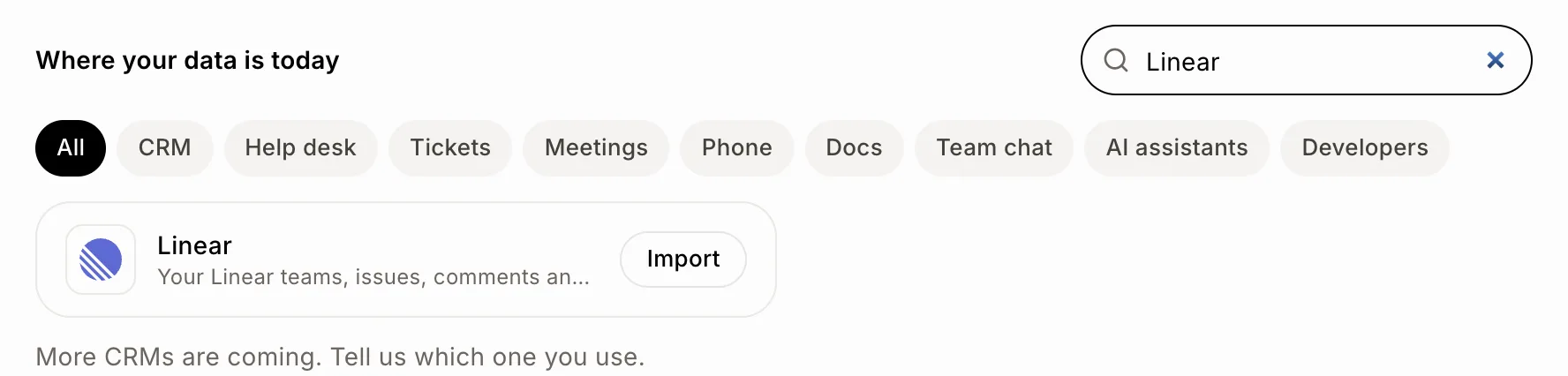
Click the grid menu at the top right, then Import data. Click Import on Linear, then Connect Linear. Linear opens: pick your workspace if you have several, and click Allow. Alori only reads your Linear. Private teams you aren't in can't be read.
Click: Import data › Linear › Import › Connect Linear › Allow
Step 2: Check and import
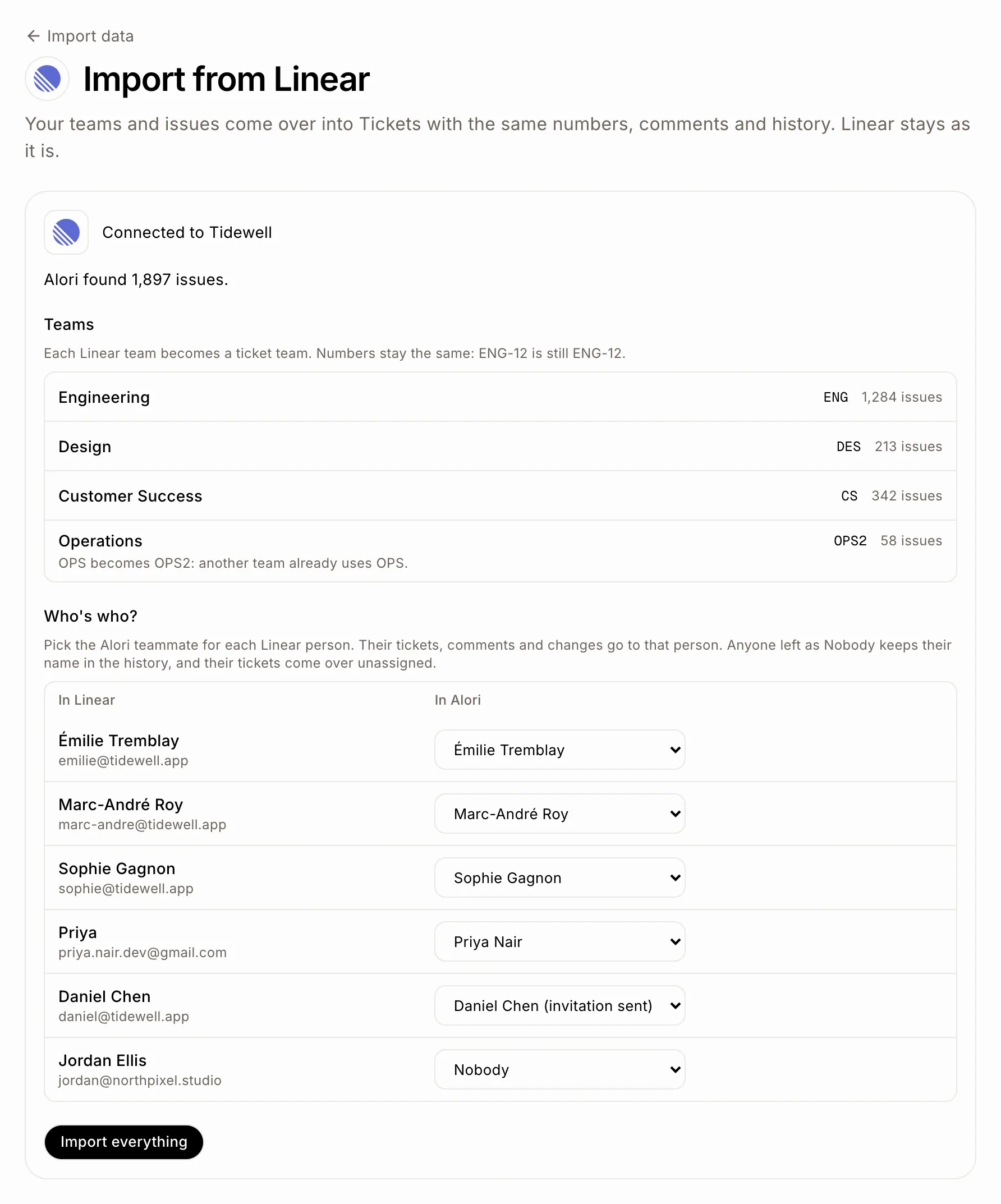
Alori shows how many issues it found and each team with its key. Next to each Linear person, pick the Alori teammate who takes over, or Nobody. Alori guesses by email, then by name (accents or not), then by first name. Someone you invited who hasn't joined yet is marked invitation sent: their tickets are theirs when they join. Click Import everything. You can close the page; you get an email when it's done.
Click: Import everything
What comes over
Teams. Each Linear team becomes a ticket team with the same key, its statuses in the same order, its triage and its cycles. If another team already uses that key, the page shows the new key it gets.
Same numbers. ENG-12 is still ENG-12, and links to Linear issues become ticket numbers.
Issues. Open, closed and archived issues, with title, description, status, priority, assignee, labels, due day, size, cycle and project. Bug, Feature, Improvement and Question labels set the ticket's type.
Comments and history. Every comment with its replies and pictures, and every change of status, assignee, priority, labels, project, cycle and due day, with who did it and when.
Links. Sub-tickets, blocks, related and duplicates. Pull requests and other attached links are listed at the end of the description.
Projects. With their lead, target day and state. Milestones become labels.
Linear Customers. Customers become companies, and their requests link the ticket to the company.
Nobody is emailed. Imported tickets never email customers, ring the bell or count as late.
What stays in Linear
Issues in the trash, initiatives, documents, project updates, views, templates, automations and SLA rules.
Import again or undo
Import again brings only what changed in Linear since your last import, so you can keep using Linear until you switch. Nothing comes twice.
Undo import takes out what the import brought: tickets, their comments and history, and the teams, projects and companies it made. A ticket your team commented on in Alori since stays.
If it doesn't work
The Linear import isn't switched on yet. Ask Alori's support in the chat.
Linear didn't connect. or Linear asks you to connect again. Click Connect Linear and Allow again.
Linear asks Alori to slow down for a while. Nothing to do: the import goes on by itself.
Your app needs an update before it can take a Linear import. Publish your app once, then try again.
Linear didn't answer. or The import stopped. Click Try again: what already came over stays.