How do I import my time from Clockify?
In Clockify, export Reports › Detailed as CSV. In Alori, go to Tasks › Time, click Import from Clockify and drop the file.
Export Clockify's Detailed report as a CSV, then drop it on Tasks › Time › Import from Clockify. Your projects, clients and hours come over in one go.
Also called: Clockify, Toggl, timesheet import, time entries, importer Clockify, feuille de temps, heures
Step 1: Open Import from Clockify
In Alori, click Tasks › Time, then Import from Clockify under your week. The window says what to export: in Clockify, click Reports › Detailed, pick dates that cover all your time, then Export › Save as CSV.
Click: Tasks › Time › Import from Clockify
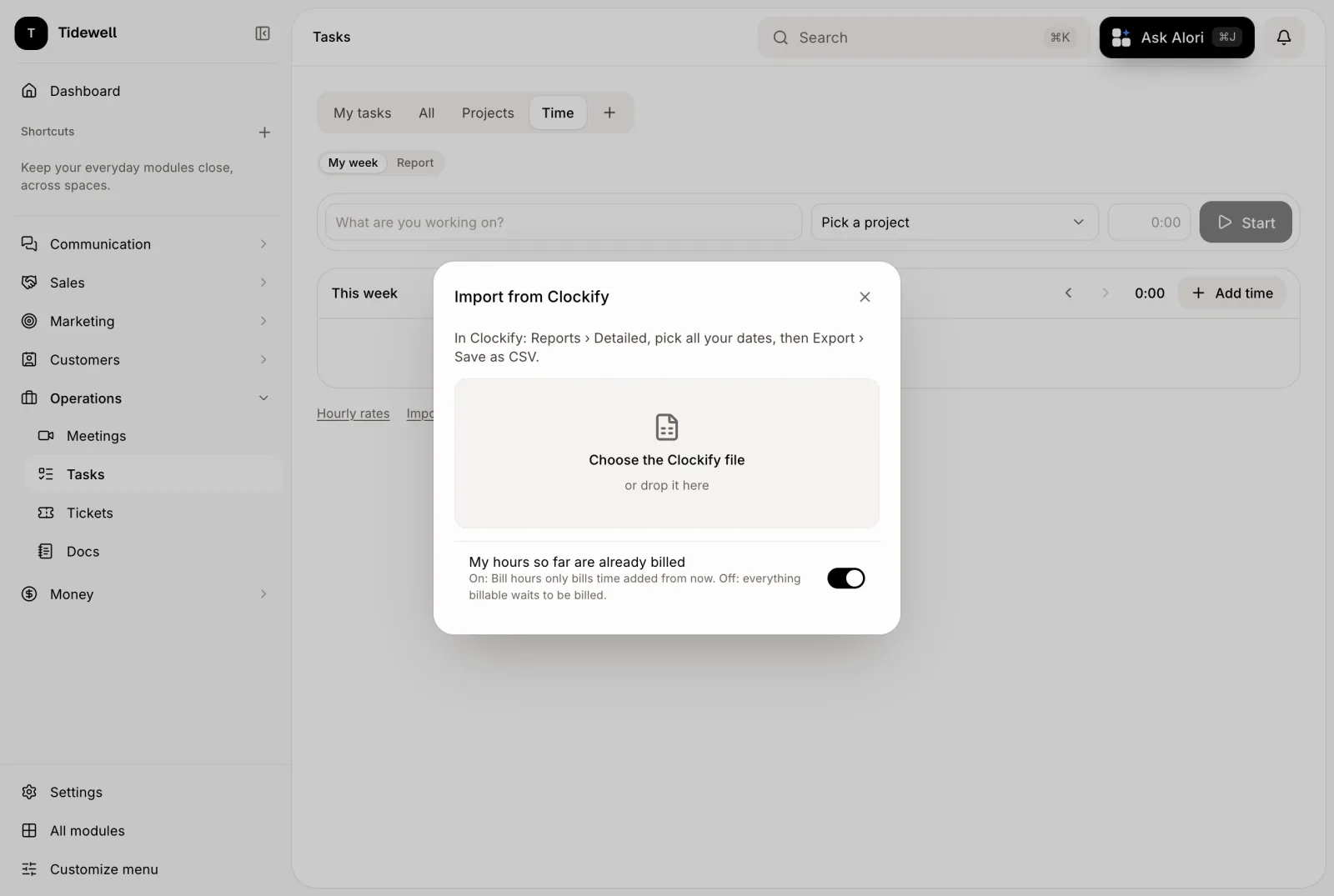
Step 2: Say if your old hours are billed, then drop the file
My hours so far are already billed is on: your old hours show as Billed before Alori, and Bill hours only bills time added from now. Turn it off if some hours still wait to be billed. Then drop the Clockify file in the window, or click Choose the Clockify file. The import starts at once. You can change one entry later in Edit time with Already billed outside Alori.
Click: Choose the Clockify file
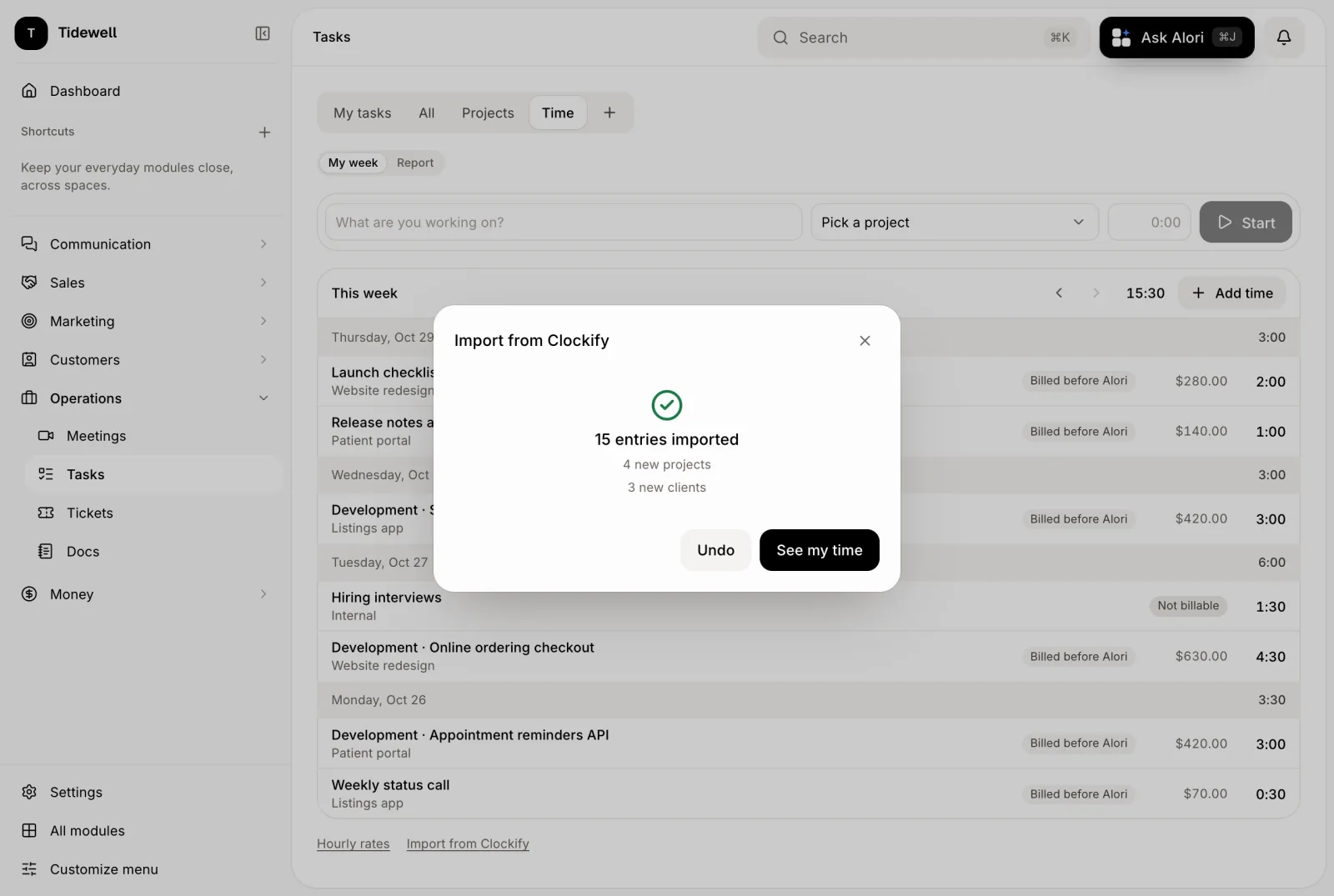
Step 3: See your time
Click See my time: it opens the week of your newest imported time.
Click: See my time
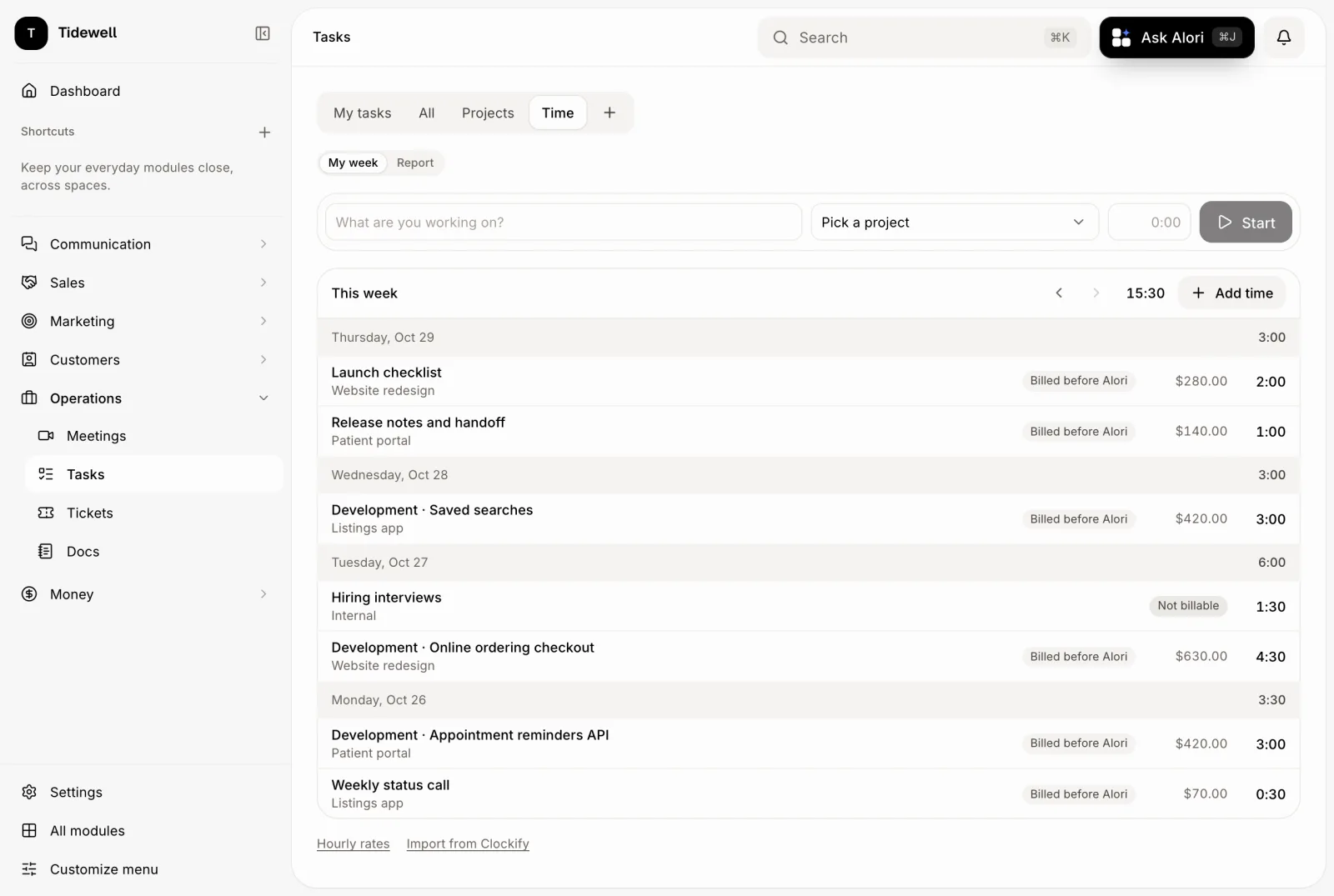
What comes over
Each Clockify project becomes a project, found by its name, with its client found by name or added.
Each entry keeps its day, hours, billable flag and description. A Clockify task that matches one of the project's tasks links to it; otherwise its name starts the note.
Your teammates' hours come over by email or name when the owner imports. A teammate imports only their own.
Each person's usual Clockify rate becomes their rate, when they have none yet.
Everyone who tracked time on a project joins its Team, with their rate on it when it differs from their usual one.
Importing the same file again skips what's already here. Undo takes the import back.
If it doesn't work
This isn't a Clockify Detailed report. Export it from Reports › Detailed, not Summary or Weekly.
This file can't be read. Export it again as CSV.
This file has no time in it. Check the dates you picked in Clockify.
This file is over 20 MB. Export fewer months at a time.
Stopped before the end. Import the same file again: what's already here is skipped.