How do I invite someone from outside to Team chat?
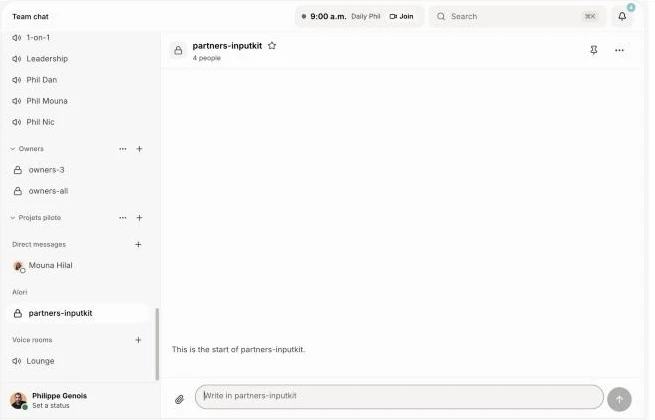
Open a channel, click Add people, type their email and press Enter. They get an email and only see the channels you add them to. Change or remove them from Users.
Open a channel in Team chat, click Add people and type their email. They get an email with a link, and once they join they only see the channels you add them to, never the rest of your app.
Also called: guest, outside collaborator, client in chat, subcontractor, shared channel, Slack Connect, invité, collaborateur externe, sous-traitant, canal partagé
Use it for a client, a subcontractor or a partner you work with on a job. A guest doesn't take a seat on your team.
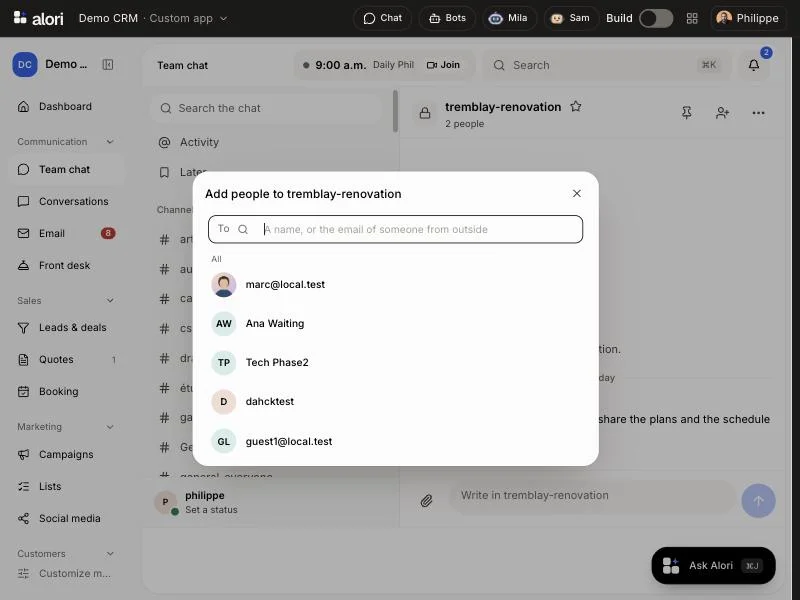
Step 1: Open the channel and click Add people
Guests can join any channel except General, which is for your team only. Make a channel for the job first if you need one, then open it and click the Add people icon at the top.
Click: Team chat › your channel › Add people
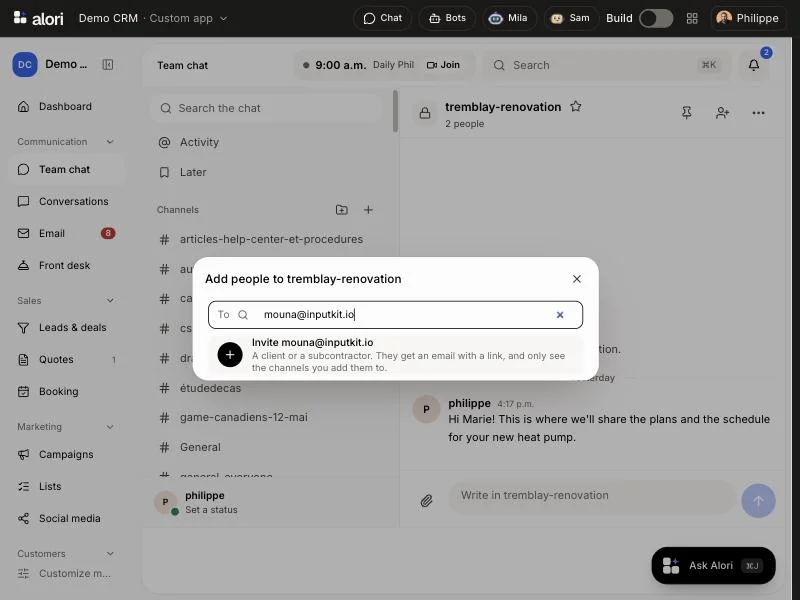
Step 2: Type their email and press Enter
In To, type their email. As soon as what you type matches nobody on your team, Invite someone from outside shows at the top, and once the email is complete it becomes Invite and their email: press Enter or click it. The invitation leaves right away. Someone who already uses your chat is added at once, with no email.
Click: To › their email › Invite their email
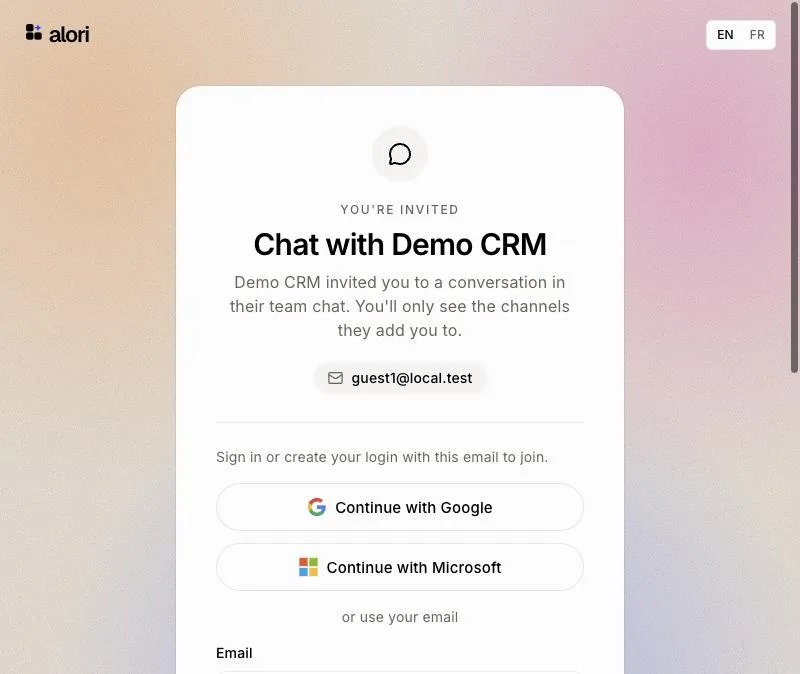
Step 3: They open the link and join
They get an email from your business. The link opens a page that says who invited them. They continue with Google or Microsoft, or choose a password, using the email you invited. Nothing else to fill in: no business, no setup.
Click (for them): Join the conversation › Continue with Google, or a password › Create account
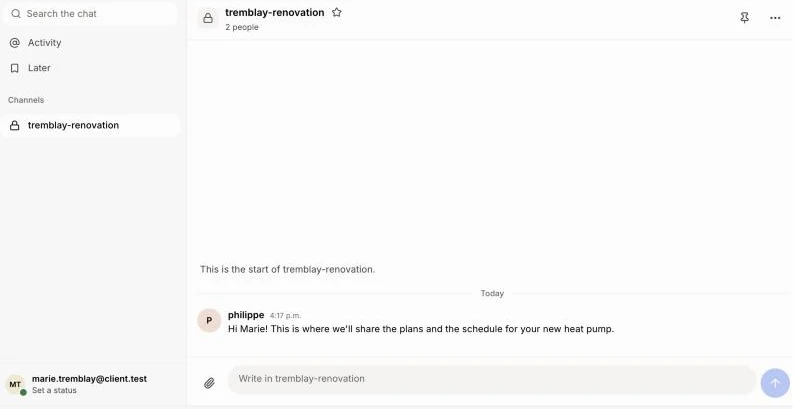
Step 4: What they see
They land straight in your chat, with only the channels you added them to. They can write, reply and send files there. They can't send private messages, and nobody on your team can send them one: everything with them happens in their channels. To add them to another channel, invite the same email from that channel: they're added at once.
From the menu with their email at the top, they open Profile to set their name and photo, which your team sees beside their messages. That's all they get of Alori: no connectors, no settings.
Already on Alori? It shows in their own chat
Someone who runs their own Alori app stays in their own Team chat. After they join, your channel shows in their channel list under your business's name. They click it and write right there, like in any of their channels: no switching apps. Invited by several businesses, they see each one's channels in the same chat.
Click (for them): Team chat › your business's name › your channel
Already on your team? Make them a guest
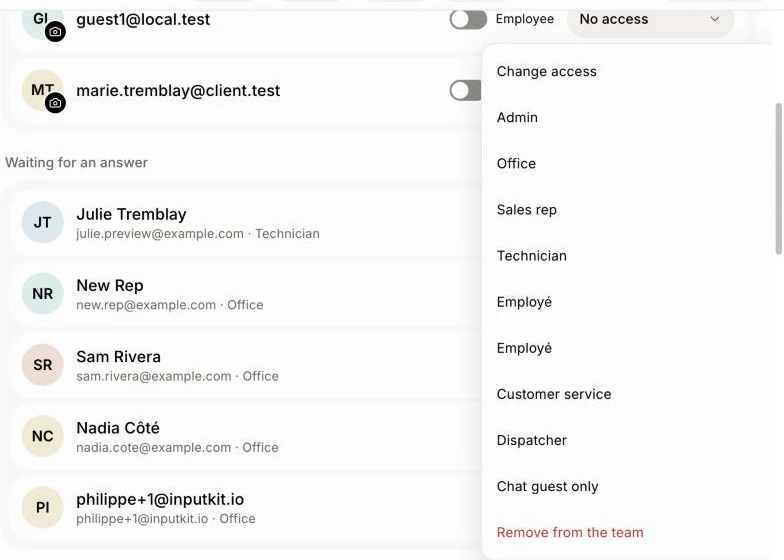
Someone from outside you added to your team before (often with the No access role) sees General and every public channel. Make them a guest instead: they leave your team, so their seat is free, and keep only their private channels. Their private messages go away for them. They're signed out once, then sign back in with the same email.
Open Users, click their role, then Chat guest only and Make guest. Admins can't be made guests: give them another role first.
Click: Users › their role › Chat guest only › Make guest
See and change what each one reaches
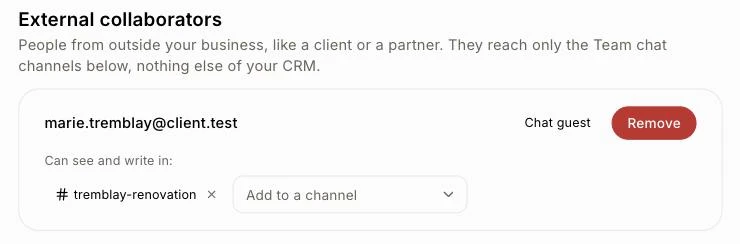
Open Users and scroll to External collaborators. Each person shows exactly the channels they can see and write in, and the ones waiting for them until they join.
Add a channel: pick it in Add to a channel. They're in at once.
Take a channel away: click the × on it.
Remove someone: click Remove. They're taken out of every channel and signed out right away. To bring them back, invite them again.
Click: Users › External collaborators › Add to a channel, × or Remove
If it doesn't work
"General is for the team only. Make a channel to invite someone from outside." Make a channel and invite them there.
"This email doesn't look right." Check the email for typos.
"The invitation is ready, but the email couldn't go. Send them this link:" Copy the link shown and send it to them by text or your own email.
"This app has as many guests as it can hold (200)." Remove guests you no longer work with first.
"Inviting people from outside needs the latest version of your app. Upgrade it from Alori first." Upgrade your app, then try again.
"People from outside only write in the channels they were added to, not in private messages." Guests can't have private messages. Write to them in a channel they're in.
"This invitation is for a different email." They must sign in with the email you invited. Invite the email they use instead.
Your channel shows as a button under Other businesses in their chat. One of your two apps is on an older version: upgrade it from Alori, and the channel shows in their list.