How do I move from Pipedrive to Alori?
Bring your Pipedrive records into Alori, starting with a sample.
Bring your Pipedrive records into Alori, with a sample first.
Alori reads Pipedrive without changing it.
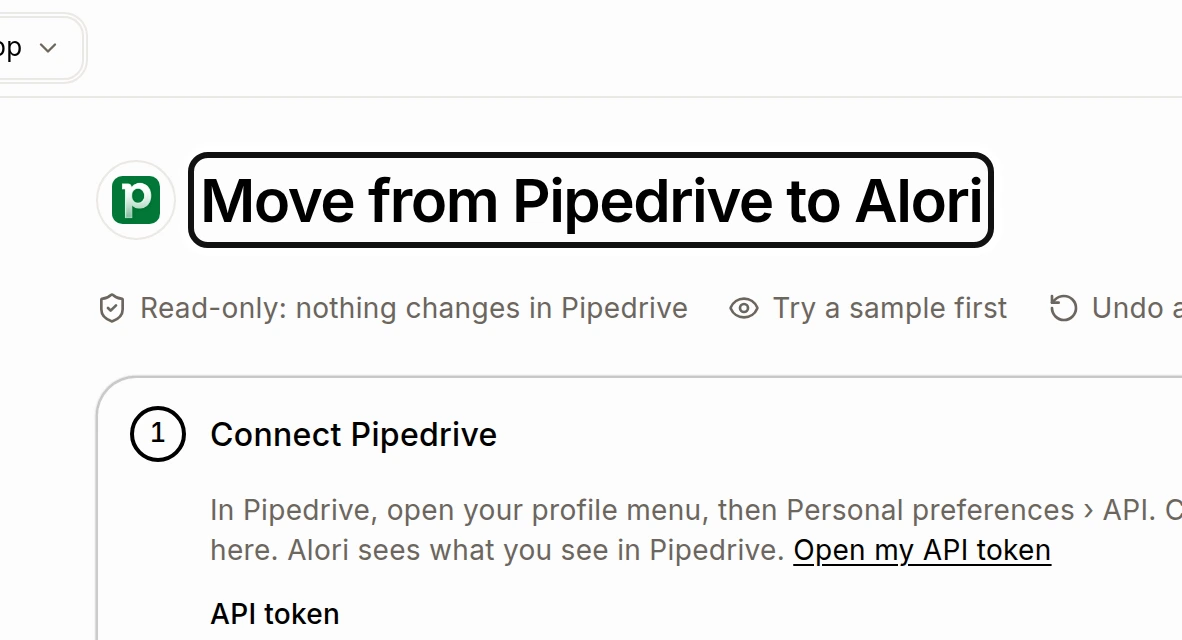
In Pipedrive, open your profile menu, then Personal preferences › API. Copy your personal API token and paste it into API token in Alori.
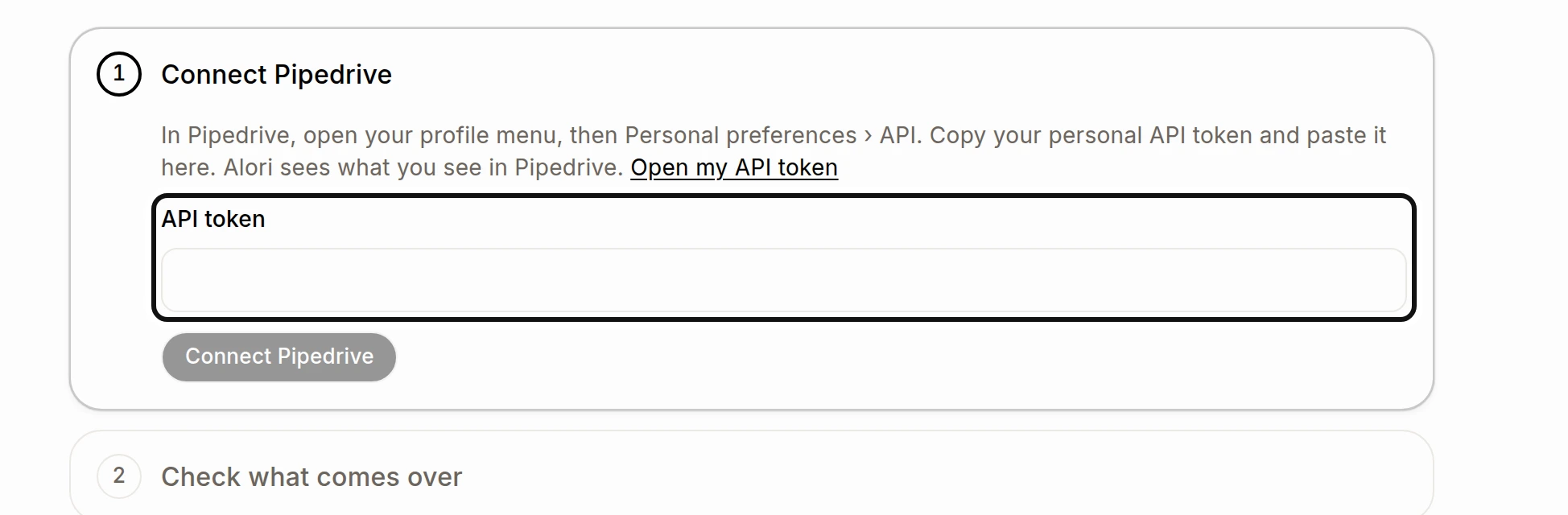
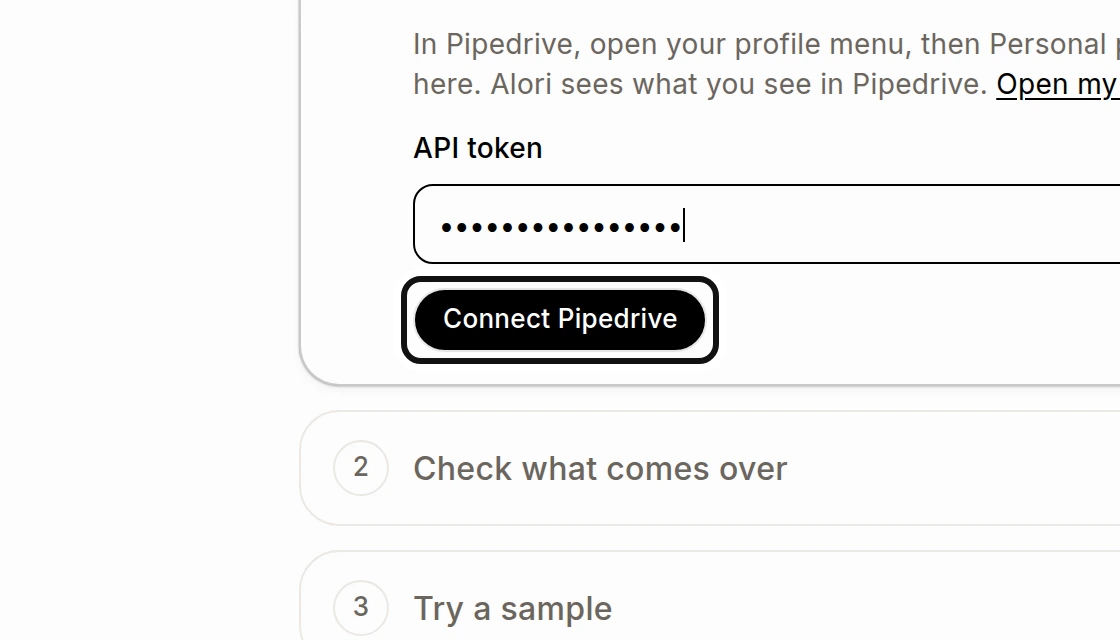
Click Connect Pipedrive.
Under Check what comes over, review the records and, if needed, choose Fields, owners and pipelines to change where they go.
Choose Looks good, try a sample, then import the sample and check it in your app.
Choose Looks good, import everything and confirm the import. You can close the page while it runs.
People, organizations, deals, leads, pipelines, activities, notes and products can come over. Importing again brings changes without making copies. Imported customers, companies and deals show Imported from and when each link was made. Review look-alike records after importing: records merged in Pipedrive may still be separate in Alori. See How do I merge duplicate customers?.