How do I plan a job that lasts several days?
Set a Last day on the job, then see it as one long bar on the Gantt tab, where you can stretch its right edge to change the last day.
Written by Philippe Genois
To plan a job over several days, open it and fill in Last day. The Gantt tab on Jobs then shows it as one long bar from its first day to its last day. To change the last day later, drag the right edge of the bar.
Give the job a last day
Click the job you want to plan. It opens on its own page.
Find When and who (on the right on a computer, below the work on a phone). Next to the date, time and length, click Last day and pick the day the job ends.
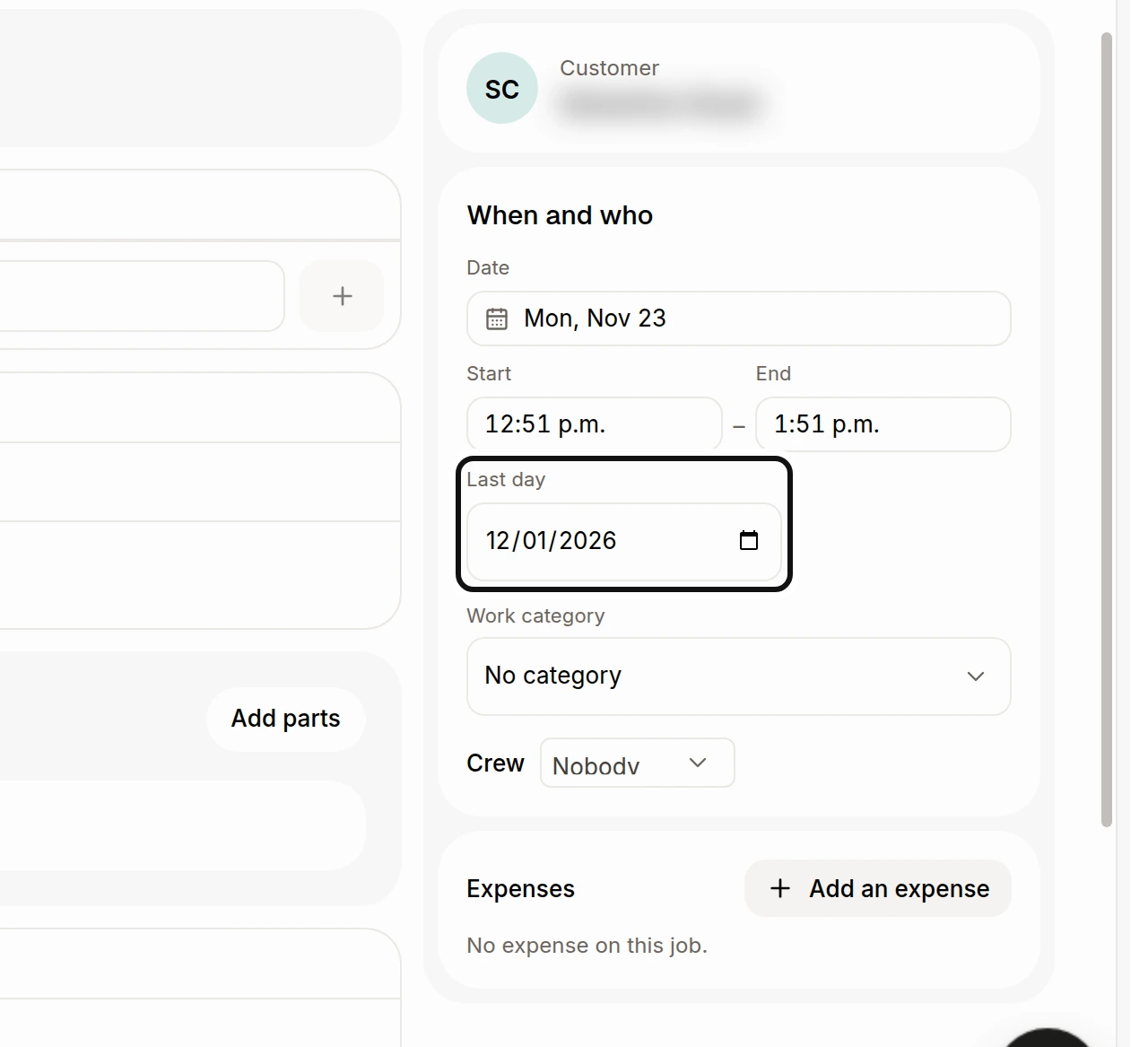
Click Save. Save only shows once something changed. A message confirms it, with Undo.
Good to know about Last day:
It's optional. A job without one lasts a single day.
The date can't be before the first day. If you pick the first day or an earlier one, the job stays a single day.
Each day's work keeps the same start time and length. The last day ends when that day's work ends.
Only people who plan every job see these fields.
See it on the Gantt tab
Click Gantt next to Board and List.
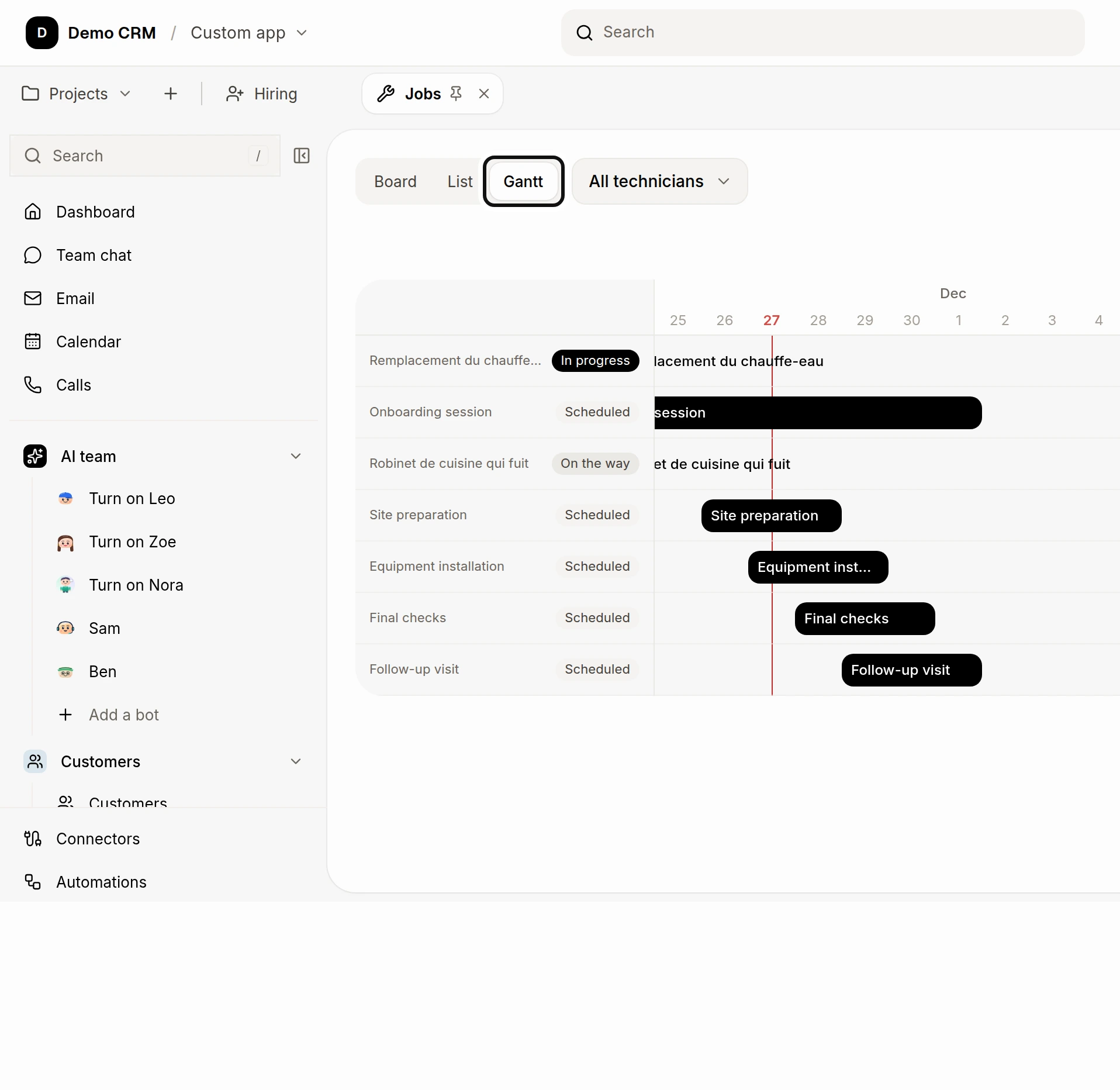
Find your job. Names are on the left, each with its stage. Each job is a bar on a row of days, and a red line marks today.
Click Today to jump back to today. Use Weeks or Months to zoom out or in.
Click a bar, or a name on the left, to open the job.
Change the last day by dragging
On the Gantt tab, point at the right end of the job's bar. A lighter strip shows there.
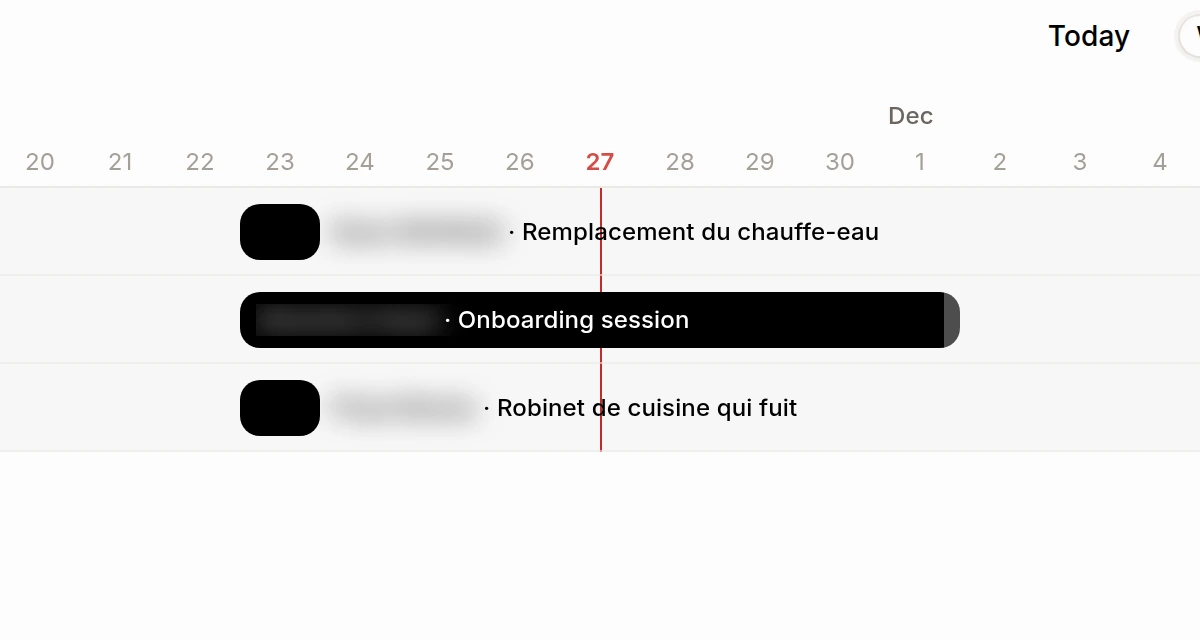
Drag the strip left or right, then let go. Only the last day changes. A message confirms it, with Undo.
Drag it back to the first day and the job becomes a single day again. A bar is never narrower than one day.
To move the whole job to other days, drag the bar itself. The first and last day move together, so the job keeps its number of days. For more on moving jobs, see How do I move a visit or change its length?
Good to know
Gantt shows on a computer. On a phone, set Last day on the job's own page.
Only people who plan every job can drag bars. Everyone else can only open them.
Jobs that are done show in a paler grey bar. On a short bar, the title sits just to the right of it.
To see one teammate's jobs, use the All technicians menu at the top of Jobs. It shows once you have more than one person on your team.
With nothing to show, you see "No jobs planned in these weeks."
Related
Did this answer your question?