How do I read, reply to and swipe emails in the phone app?
Connect Gmail, find and reply to email, and choose what swiping does.
To get the app, see How do I use Alori on my phone?.
Open Email in the Alori phone app.
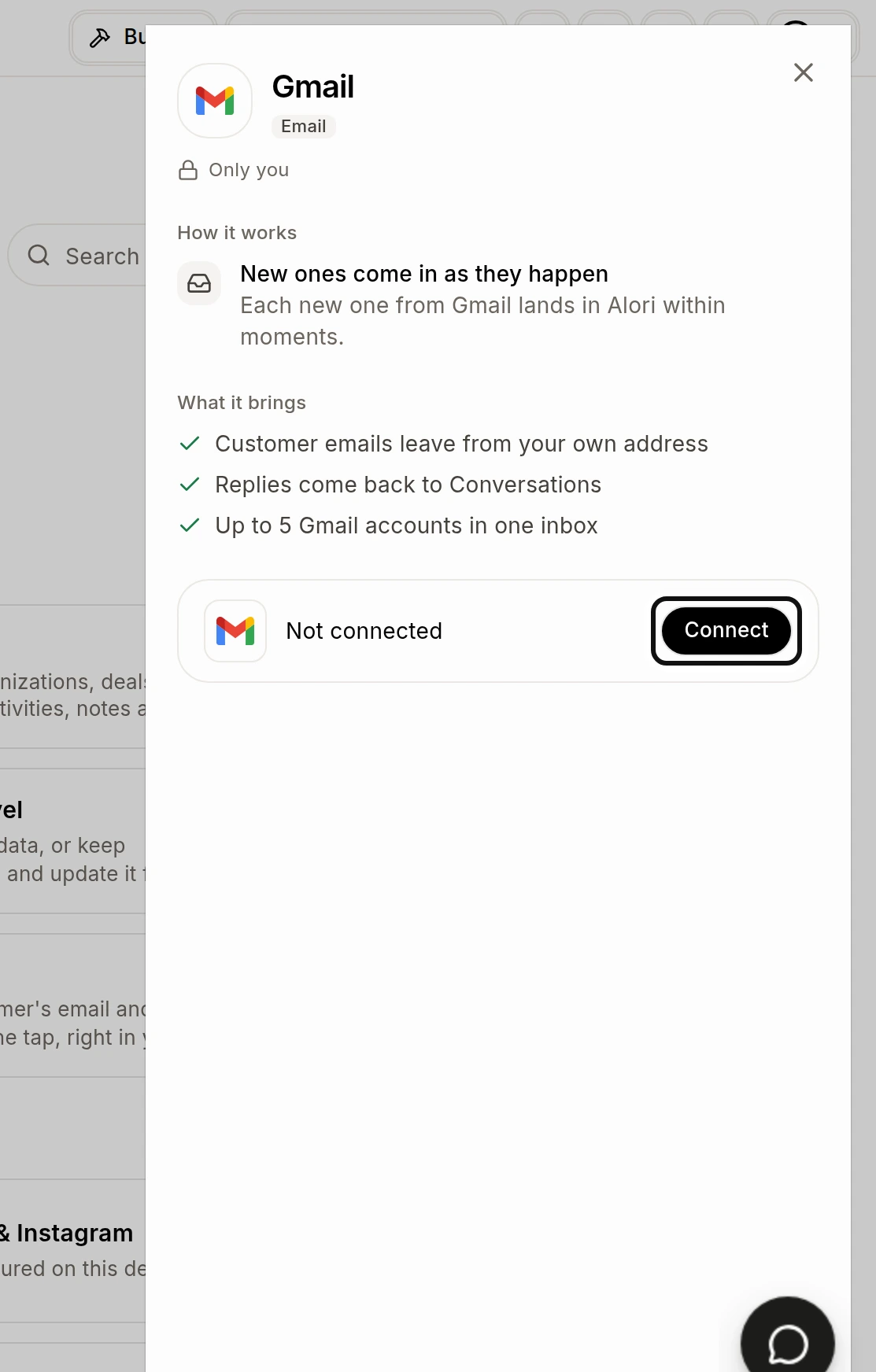
If you haven't connected Gmail, tap Connect on the web and connect it there. You can also open Gmail on the web and click Connect.
Tap Folders to choose a folder, such as Inbox, Sent or Archived.
Tap Search and type what you want to find.
The list shows sender names so you can recognize who wrote.
Tap an email to read it.
Tap Reply or Forward, write your message and tap Send.
To set up swipes, open Folders, then Swipe actions.
Set Swipe right to Read or unread and Swipe left to Archive. At first, both directions archive.
Swipe an email right to mark it read or unread, or left to archive it.
After archiving, tap Undo if you want to put it back.