How do I see tasks as a board?
In Tasks, open My tasks or All and click Board. Each status is a column; drag a card to move it.
Open Tasks, pick My tasks or All, then click Board. Each status is a column: To do, Waiting, In progress and Done. Drag a card to another column to change its status.
Also called: kanban, board view, columns, status board, tableau, vue tableau, kanban des tâches
Step 1: Open the board
Click Tasks in the left menu. Pick My tasks or All, then click Board next to List.
Click: Tasks › All › Board

Step 2: Move a card
Drag a card to another column. You see "…moved to…" with the new status. Moved it by mistake? Click Undo.
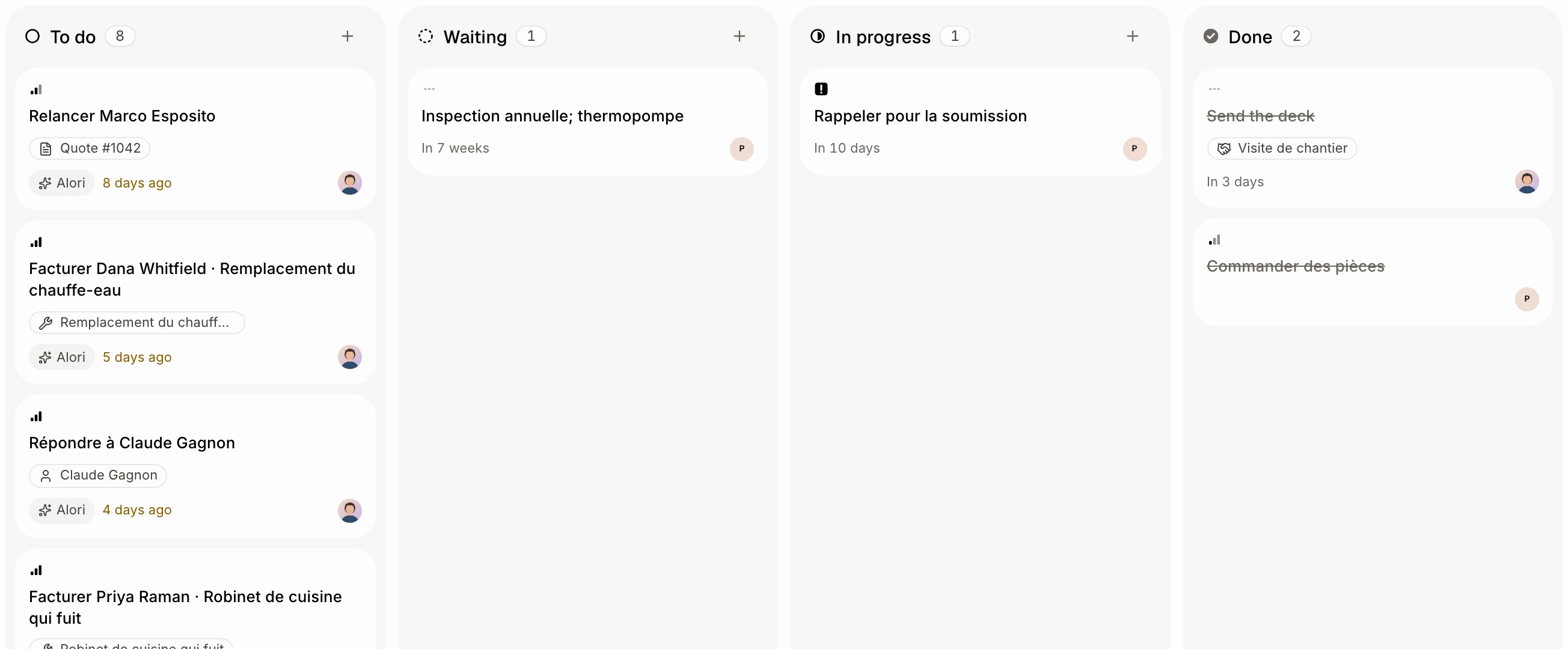
Step 3: Add a task in a column
Click + at the top of a column. The new task starts in that status.
Click: +

Step 4: Narrow it down
In All, use Search tasks, Assignee, Status, Priority, Due and Project to show only some tasks. Assignee shows when you have a team, Project when you have projects.
Click: All › Assignee

Good to know
Each card shows the priority, the due date, and who has it. A late date is highlighted.
Click a card to open the task in a window over the board. Click a chip on it, like a quote or a customer, to go straight there.
An Alori tag marks a task Alori made. A repeat icon marks one that repeats.
Cancelled tasks don't show on the board.
The board is for computers. On a phone, tasks show as a list.
Click List to go back.
If it doesn't work
I can't drag cards. Your role can only view tasks. Ask the owner.
I don't see Board. Your screen is narrow, like a phone. Use a computer, or make the window wider.
"No task matches these filters" Click Clear filters.