How do I send a customer a meeting invite?
On the customer's, company's or deal's page, click Meeting, check the time, then click Add to calendar. The customer gets the invite by email.
On a customer's page, click Meeting in the row of buttons above the tabs. Everything is already filled in: the customer as a guest, the next free hour and a video link. Click Add to calendar and the customer gets the invite by email.
Also called: book a meeting, schedule a call, invite, calendar invite, rencontre, invitation, planifier une rencontre
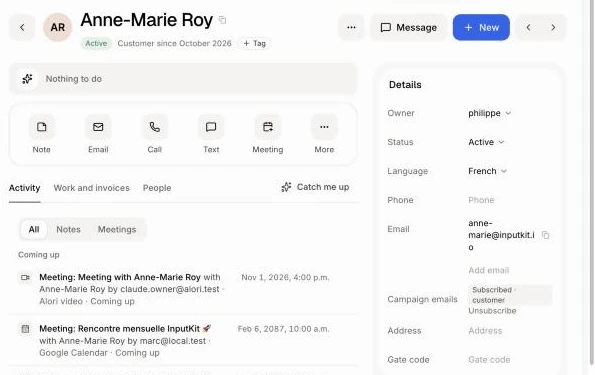
Step 1: Click Meeting on the customer's page
Open the customer. In the row of buttons above the tabs, click Meeting. A company's page and a deal's page have the same row: on a company, it is for the person picked under With.
Click: Customers › the customer › Meeting
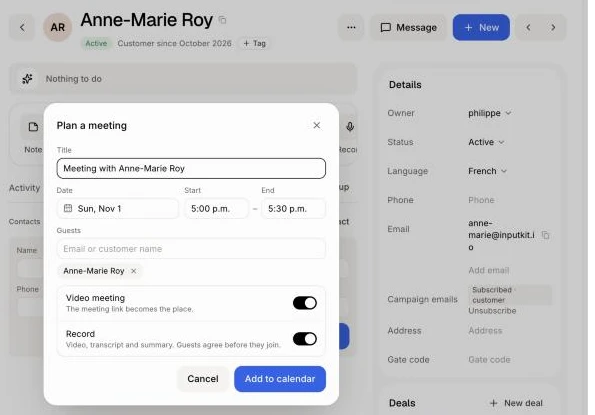
Step 2: Check the meeting and click Add to calendar
The Plan a meeting window opens with a title, the next free hour (during the work day) and 30 minutes. The customer is already under Guests: add teammates or anyone else by name or email. Video meeting is on, so the meeting link becomes the place; turn on Record to get the video, transcript and summary. Then click Add to calendar.
With Google Calendar connected, the meeting goes on your Google calendar and Google sends the invites. Without it, the meeting goes on Alori's calendar and Alori emails the invites.
Click: Add to calendar
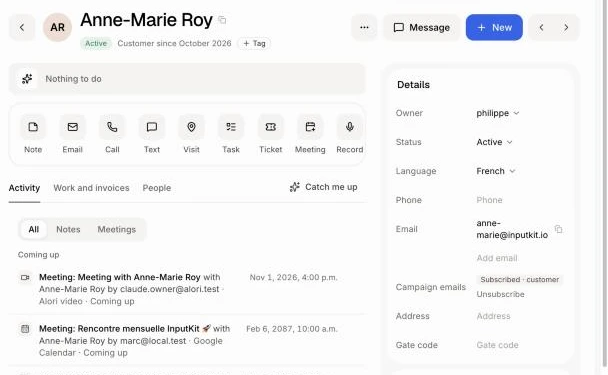
Step 3: See it in the history
The meeting shows at the top of the customer's history, under Coming up, with its time and video link. A note "Meeting planned" is added for the team.
If it doesn't work
"has no email yet: add it to send them the invite.": the customer has no email. Type it in the field under the guests and click Add. It is saved on their record and they become a guest.
No Meeting button: you need the right to edit this customer. Ask the owner to change your role.
No Video meeting switch: your role can't make video meetings. Type an address under Location instead.