Know who's chatting: identify signed-in users
Add Alori("identify") once people sign in. The chat knows them, puts them in their company and saves your own fields in the CRM.
If people sign in on your website or product, the chat can know who they are. Their name and email are filled in, they go into their company in your CRM, your own fields (like their plan) are saved on their contact, and their chats follow them to any device.
Also called: identify, signed-in users, Intercom boot, user hash, custom attributes, identifier les utilisateurs, champs personnalisés
1. Add the identify call
The chat must already be on your website. Once your user is signed in, add this to the page:
<script>
  window.Alori=window.Alori||function(){(Alori.q=Alori.q||[]).push(arguments)};
  Alori("identify", {
    userId: "USER_ID",
    email: "USER_EMAIL",
    fullName: "USER_FULL_NAME",
    userHash: "USER_HASH",
    plan: "Pro",
    company: {
      id: "COMPANY_ID",
      name: "COMPANY_NAME",
      seats: 12
    }
  });
</script>userId: their id on your website.fullName: their full name. No full name? SendfirstNameandlastNameinstead.emailandphone: their contact details.company:idis your company's id. It brings everyone at that company together in one company in your CRM, even if its name changes.nameis its name.
2. Send your own fields
Add any other field, like plan: "Pro". Where you put it says where it goes:
Next to
userId: it goes on the contact.Inside
company: it goes on the company, likeseats: 12.
If your CRM doesn't have that field yet, Alori makes it for you, named from the key (signup_date becomes Signup date). Numbers make a number field, true or false a yes/no field, dates like "2026-03-02" a date field, links a link field, and anything else a text field. You'll find them in Settings › Custom fields, where you can rename them. Up to 20 fields each.
The first 5 fields Alori makes for the contact, and the first 5 for the company, show right away in Conversations, under the person's name and under their company. So put the fields your team needs most first. To show others or hide one, click the sliders icon on the Customer or Companies card.
3. Sign it with your secret key
userHash proves the user is really who the page says. Fields and companies are saved only when it's right.
Open Front desk › Settings, and under Install, click Know who's chatting.
Click Show secret key and copy it.
Keep the key on your server, never in the page. Compute the HMAC-SHA256 of the user id with the key, and put the result in
userHash.
In Node:
const userHash = crypto.createHmac("sha256", SECRET_KEY).update(userId).digest("hex");If you don't send a userId, sign the email instead.
To let Nora look at this company in your other software (see How do I connect Nora to my other software?), sign the company too: the HMAC-SHA256 of the user id, a line break and the company's name, put in companyHash.
const companyHash = crypto.createHmac("sha256", SECRET_KEY).update(userId + "\n" + companyName).digest("hex");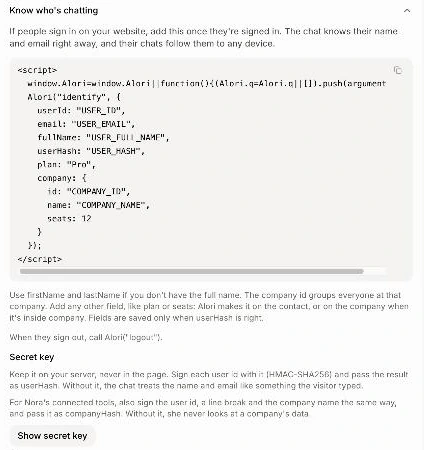
4. Log them out
When your user signs out, call Alori("logout"). The next person on the same computer starts a new chat.
Good to know
Moving from Intercom?
boot,update,shutdown,user_id,user_hashandcustom_attributeswork too.Alori("open")andAlori("close")open or close the chat from your own button.In Conversations, a signed user shows Signed in on the website with a check mark, their name and their company. Point at it to see everything your website sent: email, ids and fields.
Fields that already existed before your first identify call don't show by themselves. Turn them on with the sliders icon.
Only what you sign is trusted: another email never brings back someone else's chats, and without a signature Nora only knows what the visitor typed.
If it doesn't work
No fields or company in the CRM. The
userHashis missing or wrong. Check that it's signed with the key from Show secret key, over the same user id you send.A field stays empty. The value didn't fit the field you already have, like text in a number field. Send the right kind of value.