Who can text and call my bot?
Everyone on your team with a mobile number on the bot's list. They text and call the bot's own number; customers keep your business number.
Everyone on your team whose mobile number is on the bot's list. They text and call the bot's own number, which it gets when someone turns it on in Bots. Your customers keep using your business number. See How do I text or call my bot?
Also called: team phones, who talks to the bot, PIN, caller ID, route texts, numéro de cellulaire, NIP, qui peut parler au bot
You don't fill anything in to start. Everyone on your Alori account is on the list with their signup phone, and your app's teammates are added from your team list, with the phone from their employee file. The list updates every hour.
Step 1: Open the list
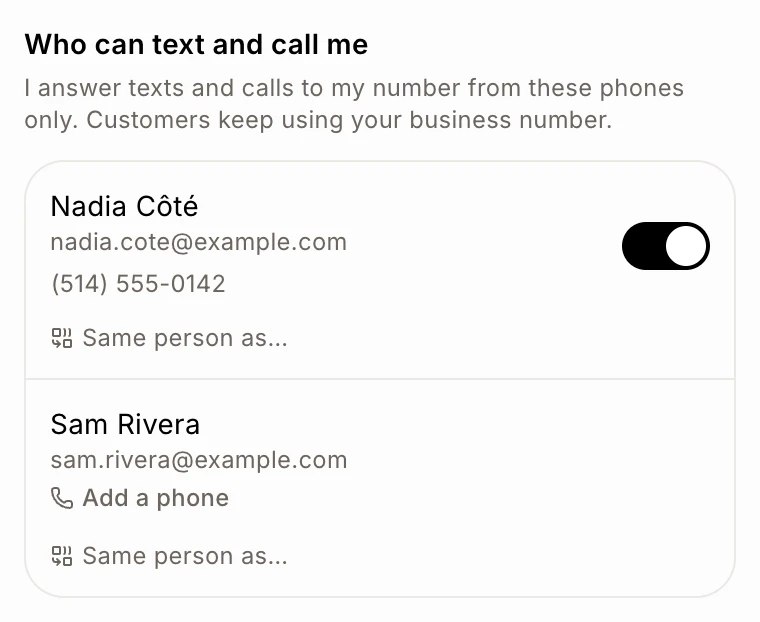
Open Bots and your bot. In the side panel, see Who can text and call me. Each person shows with their email and mobile number. On a small screen, tap Automations and team first.
Click: Bots › your bot › Who can text and call me
Step 2: Add or change a phone
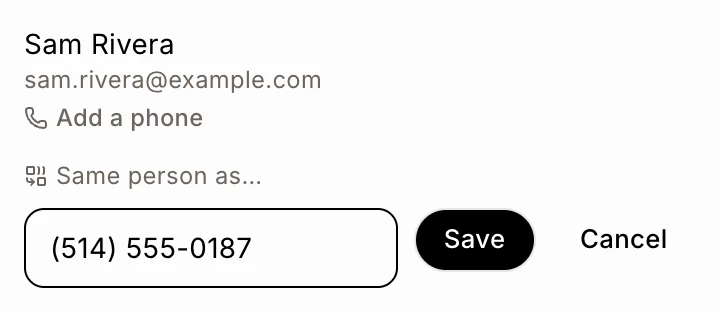
Click Add a phone under a name (or click their number to change it), type their mobile number and click Save.
Click: Add a phone › Save
Step 3: Turn someone on or off
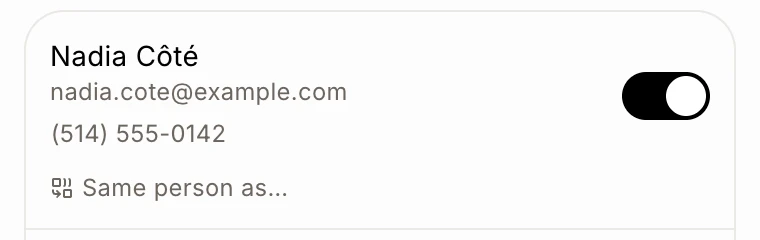
The switch next to each person says whether the bot answers their texts and calls. Turn it off and the bot ignores that phone: the list shows "The bot won't answer their texts or calls". Turn it back on anytime.
Click: the switch next to a name
Step 4: Set a PIN for calls
Some carriers can't confirm who is calling. Click PIN for calls, type a 4-digit PIN and click Save. When the bot can't confirm the caller, it asks for the PIN, said or typed. It then shows PIN set.
Click: PIN for calls › Save
Good to know
Same person twice? Click Same person as…, pick the other row and click Merge.
Wrong PIN. Three wrong tries end the call. After too many wrong PINs, the bot stops answering that phone for an hour.
Teammates have limits. They can make automations only for themselves. See What does the bot do on its own, and when does it ask first?
Slack and Discord work too: see How do I use my bot in Slack or Discord?
If it doesn't work
"That doesn't look like a phone number." Check the number, with its area code.
"Someone else already has that number." Two people can't share a number.
"A PIN is 4 digits." Type exactly 4 numbers.
"These are two different people in Alori." Both have their own Alori sign-in, so they can't be merged.
"That didn't save. Try again." Wait a moment and save again.
No PIN for calls button. It shows once your bot has its own number and the person has a phone.