How do I add someone to my team and choose their role?
Open Users in Alori's menu, type their email, pick a role and click Invite. Change a role or remove someone on the same page.
Everyone on your team signs in with their own account, and their role decides what they see and change. Open Users in Alori's menu on the left to invite someone, change their role or remove them. It's the one Users page: your CRM opens it too.
Also called: team members, teammates, staff, permissions, access, invite, utilisateurs, rôles, accès, inviter
Step 1: Invite someone
In Users, under Invite by email, type their email. Pick their role in the list beside it, then click Invite.
Click: Users › Invite by email › a role › Invite
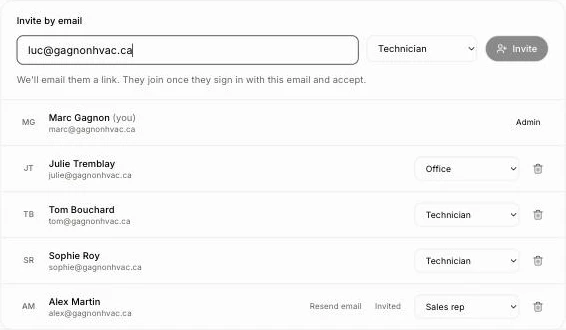
We email them a link. They join once they sign in with that email and accept: with Google, Microsoft or their own password. Until then they show as Invited, with Resend email beside them.
Step 2: Change someone's role
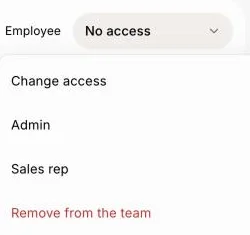
Each person has their role beside their name. Pick another one in that list: their access changes right away. Nobody changes their own role, and the owner stays Admin.
Click: Users › the role beside a name › another role
Step 3: Remove someone
Click the trash can at the end of their line, then Remove user. They're signed out and lose access right away. Their records stay, and you can invite them again later. For an invitation, the link stops working.
Click: Users › the trash can › Remove user
Good to know
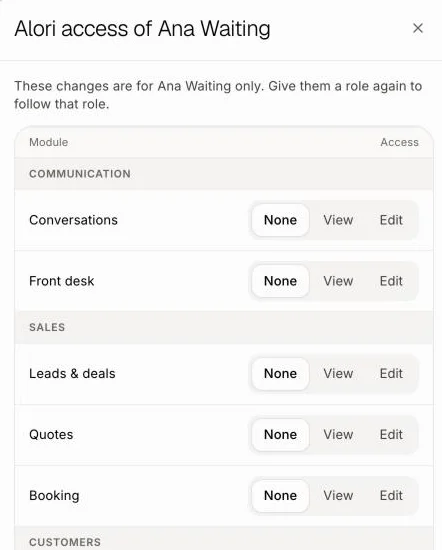
Your team starts with roles like Admin, Office, Sales rep, Technician and No access. To see or change what each one allows, open the Roles tab.
Roles that build (like Admin) can also change your app and use your credits.
Ask Alori can give a role, change one person's access, or draft an invitation or a removal (you confirm first).
A team holds up to 50 users.
If it doesn't work
"Enter a valid email address." Check for typos.
"That's your own email." You're on the team already.
"That email is already invited." Find them in the list and click Resend email.
"That person already has their own account with projects or users." Invite another email they use.
"You've reached the limit of 50 users." Remove someone who no longer needs access first.
"That role no longer exists. Pick another one." Pick a role again in the list.
"We couldn't send that invite. Try again." Try again in a moment.