How do I book an appointment for a customer?
In Booking › Appointments, click Appointment, pick the customer, the appointment and a free time, then click Book. The customer gets the confirmation email.
In Booking › Appointments, click Appointment. Pick the customer, the appointment and a free time, then click Book …. It's confirmed right away, and the customer gets the confirmation email.
Also called: book for a customer, phone booking, add an appointment, book on behalf, réserver pour un client, prendre un rendez-vous au téléphone, ajouter un rendez-vous
Step 1: Start an appointment
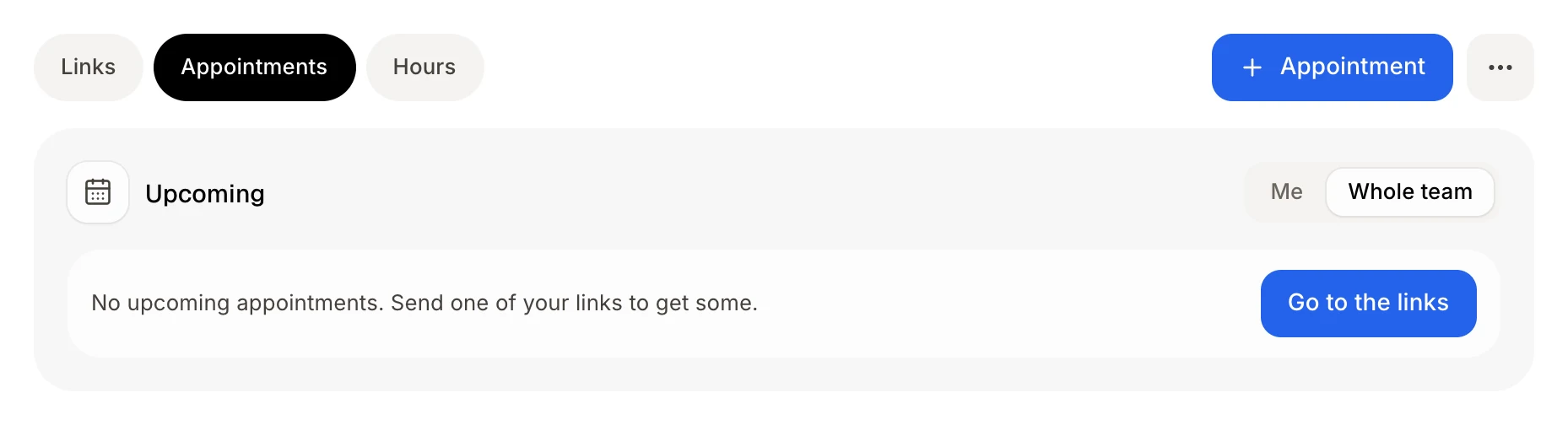
In Booking, open Appointments and click Appointment at the top. Or, on the Links tab, open a link's ⋯ menu and click Book for a customer.
Click: Booking › Appointments › Appointment
Step 2: Pick the customer
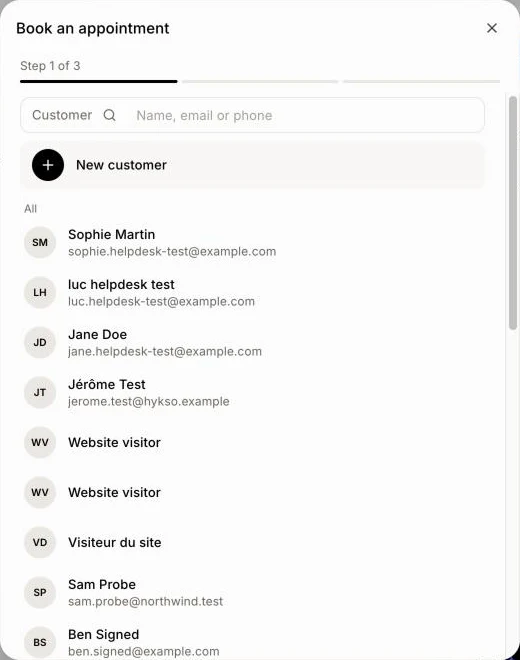
Search by Name, email or phone and click the customer, or click New customer. A customer with no email yet asks for one: the confirmation goes there.
Click: the customer
Step 3: Pick the appointment
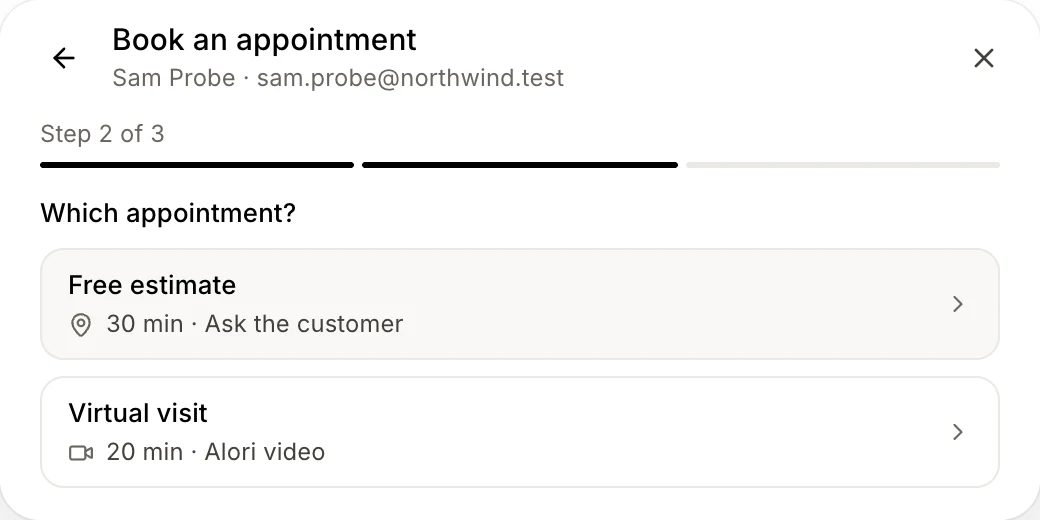
Under Which appointment?, click one. This step is skipped when you started from a link's menu.
Step 4: Pick a time and book
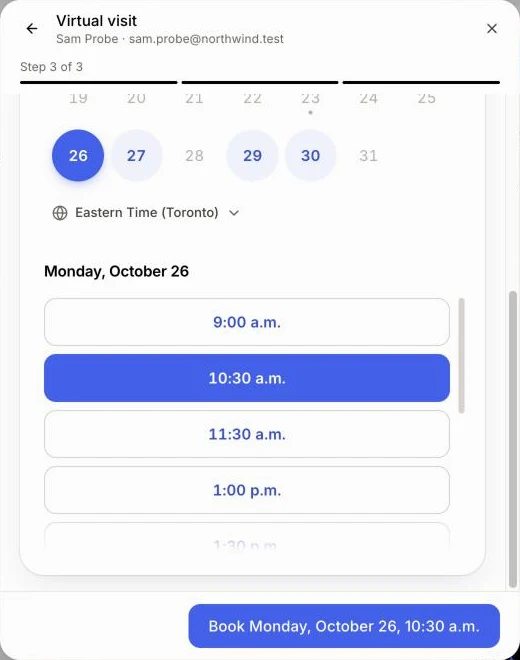
If the link asks where, answer Where?. Pick a day, then a time. Click Book …. You see Appointment booked for … and "A confirmation email went out."
Click: a time › Book …
Good to know
Only the times customers would see are offered: your hours, jobs, appointments and connected calendars count.
After booking, click See the appointment or Book another.
To change the time later, open the appointment and click Move. The customer gets an email.
Ask Alori can book it too: "Book Sarah Chen a service call Thursday at 10".
If it doesn't work
"… has no email yet. Add one: the confirmation goes there." Type the customer's email.
"Someone just took this time. Choose another one." Pick another time.
"This customer already has this appointment at that time." It's already booked.
"This link offers no time right now. Check that it is open and has hours." Reopen the link, or check your hours.
"This link is closed or has no hours right now." Same: click Reopen in its ⋯ menu in Links, or add hours.