How do I record my calls with Alori Recorder for Mac?
Install Alori Recorder for Mac and connect it once. It records your Zoom, Google Meet and Teams calls by itself and saves them in Meetings with notes.
Install Alori Recorder for Mac and connect it once. When a Zoom, Google Meet or Teams call starts on your Mac, it records by itself. Hang up and the call lands in Meetings, linked to the customer, and Alori writes its transcript, summary and next steps.
Also called: record Zoom, record Google Meet, record Teams, call recorder, Mac app, auto record, meeting notes, note taker, desktop widget, enregistrer un appel, enregistreur, enregistrer Zoom, enregistrer Teams, widget
Step 1: Install it
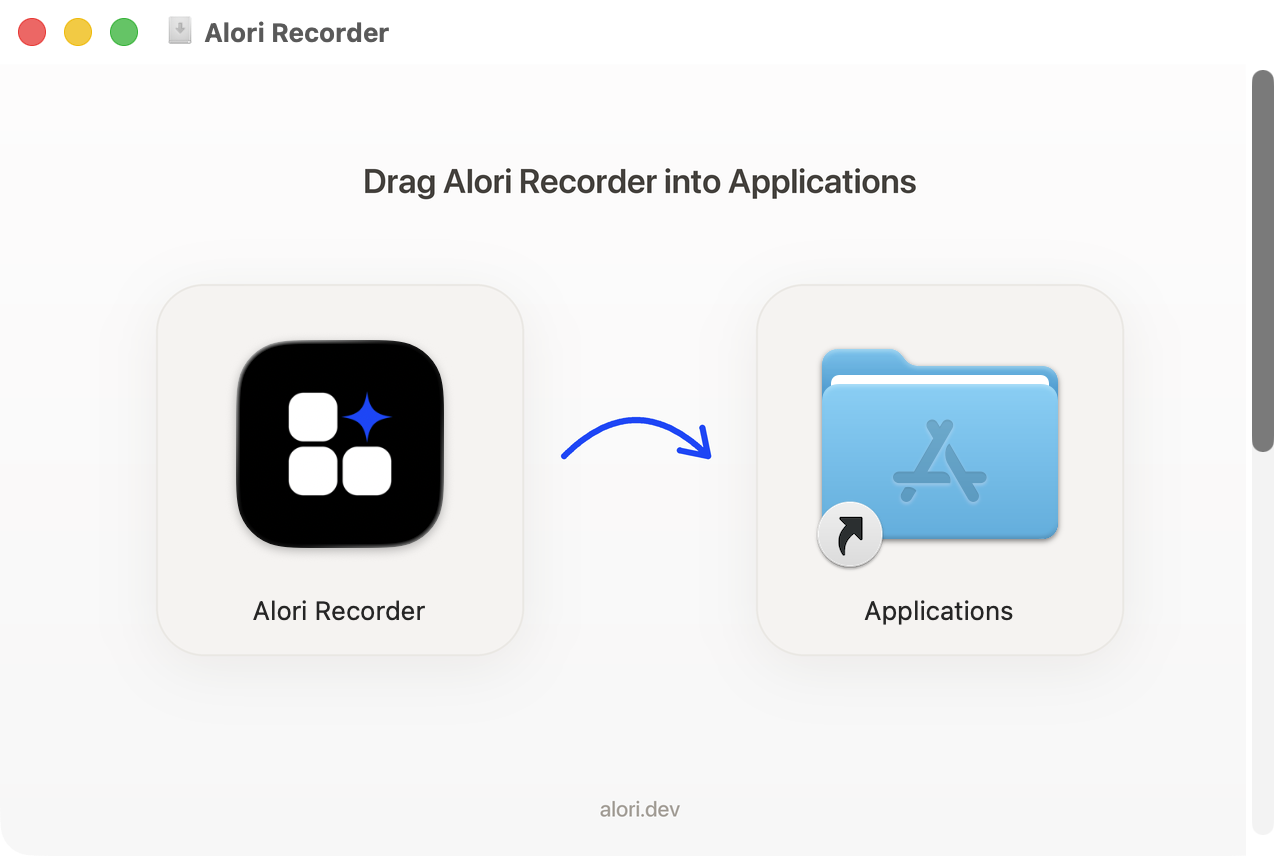
Download https://www.alori.dev/downloads/AloriRecorder.dmg. Open it, drag Alori Recorder into Applications, then open it. It needs macOS 15 or later. It lives in the menu bar, at the top of your screen.
Click: AloriRecorder.dmg › drag to Applications › open Alori Recorder
Step 2: Set it up
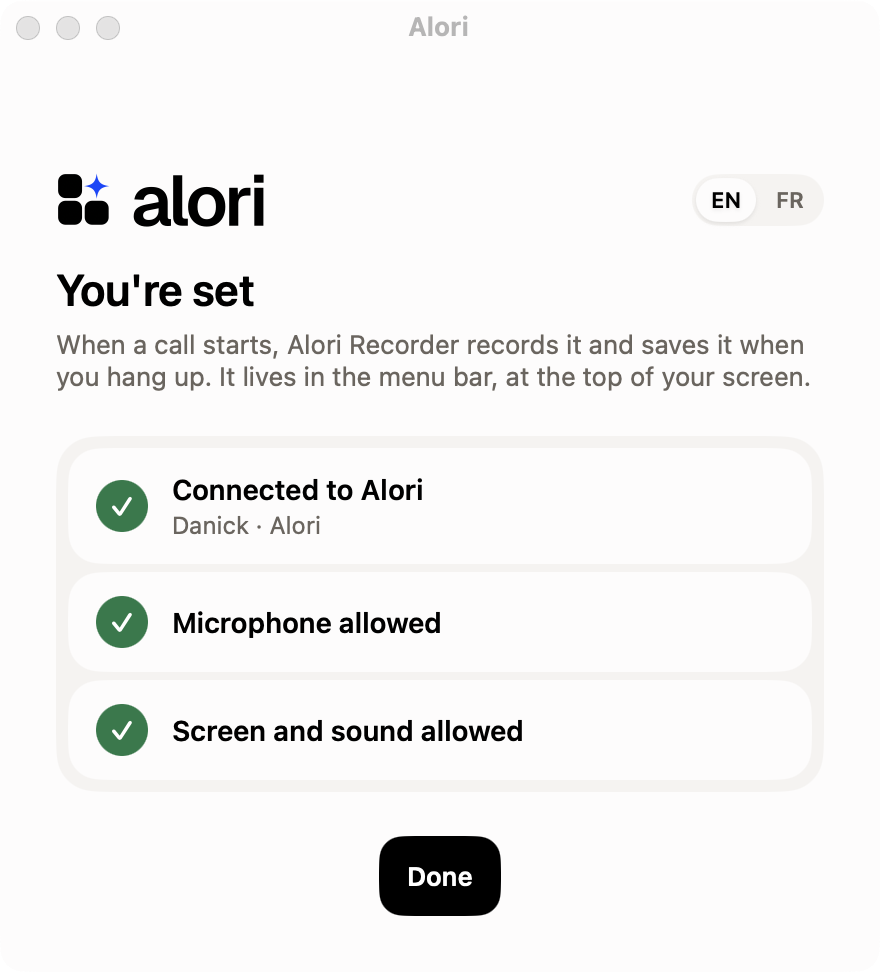
The Record your calls into Alori window has three steps:
Connect to Alori: click Connect. Your browser opens Alori: click Allow.
Allow the microphone: click Allow, so your words are in the recording.
Allow screen and sound recording: click Allow. In System Settings, switch on Alori Recorder in the list, then click Reopen. Click Allow when macOS asks one last question.
When it says You're set, click Done.
Click: Connect › Allow › Allow › Allow › Reopen
Step 3: Join your call
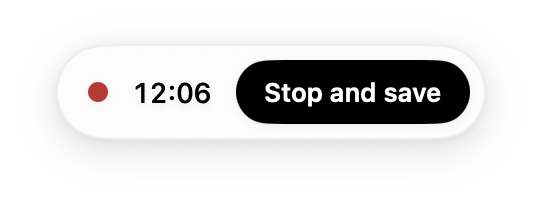
Join the call as usual: in the Zoom or Teams app, or in any browser (Google Meet, Zoom, Teams, Webex, Whereby). Recording starts by itself and a bar shows Stop and save. When it isn't sure a call started, it asks Record this call?: click Record. You can also click Record now in the menu bar.
While you present your screen, it records the screen you present from, then goes back to the call when you stop.
Step 4: Hang up
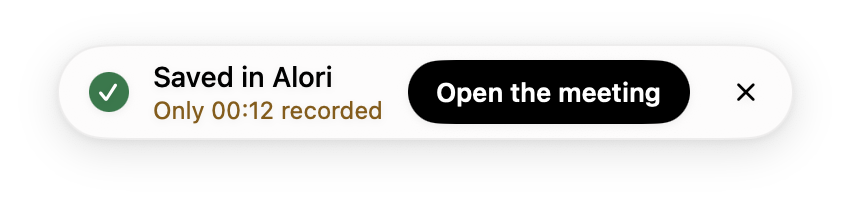
Leave the call or click Stop and save. It shows Saved in Alori, then Open the meeting goes straight to it. It's in Meetings, with the customer if the call matches a booking or calendar event. The transcript and summary come in a few minutes.
Click: Stop and save › Open the meeting
Step 5: Open it any time
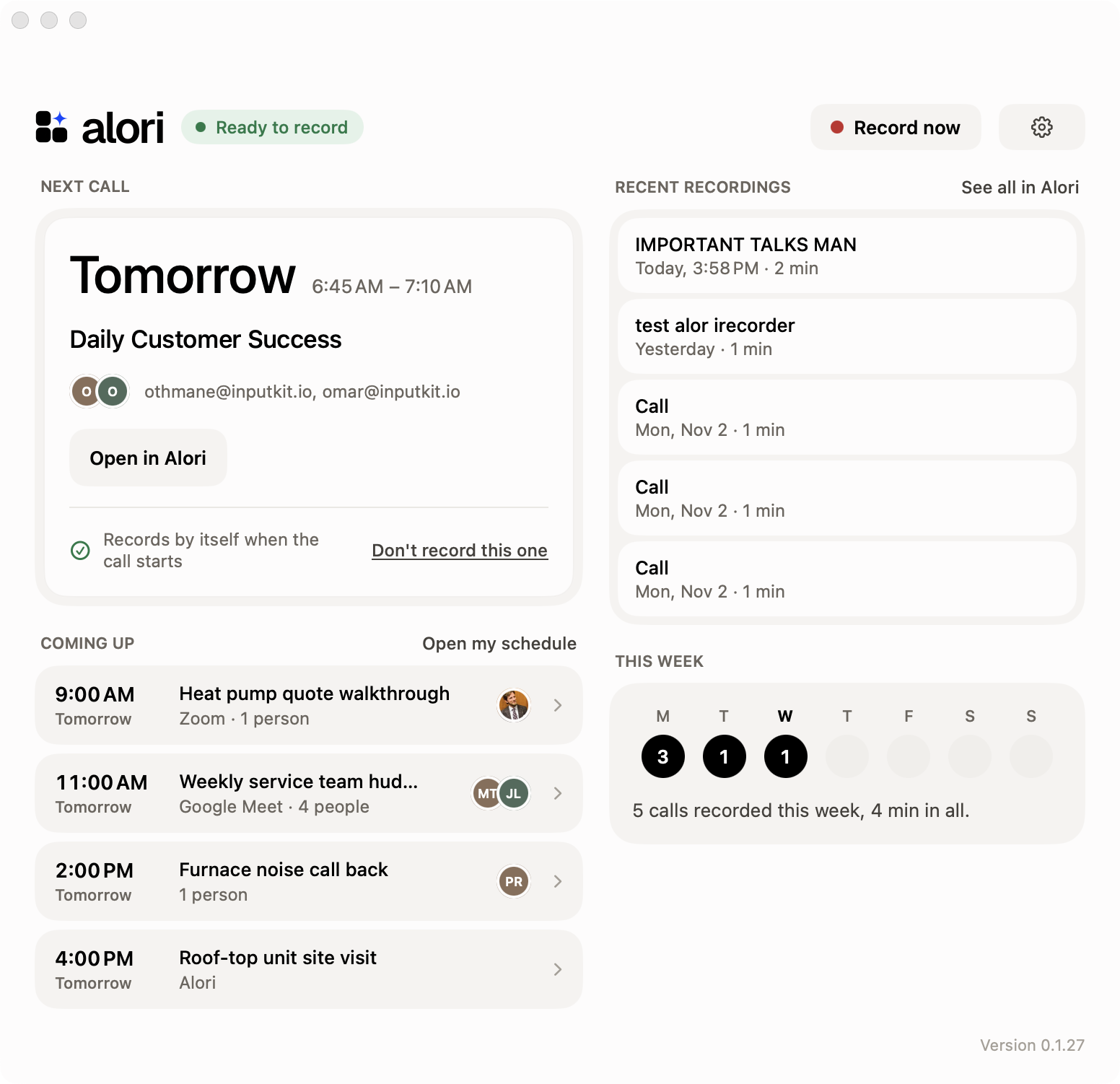
Click Alori Recorder in your Dock, or click its icon in the menu bar › Open Alori Recorder. You see:
Next call: how long until it starts, who's in it, Join Google Meet (or Zoom, Teams, the Alori call) and Open in Alori. Click Don't record this one for a call you'd rather keep off the record.
Coming up: your next meetings today and tomorrow. Click one to open it in Alori.
Recent recordings: your last calls, with Notes ready and how many next steps. Click one to open it.
This week: how many calls were recorded each day.
Click: Alori Recorder in the Dock › Join Google Meet
Step 6: Put it on your desktop
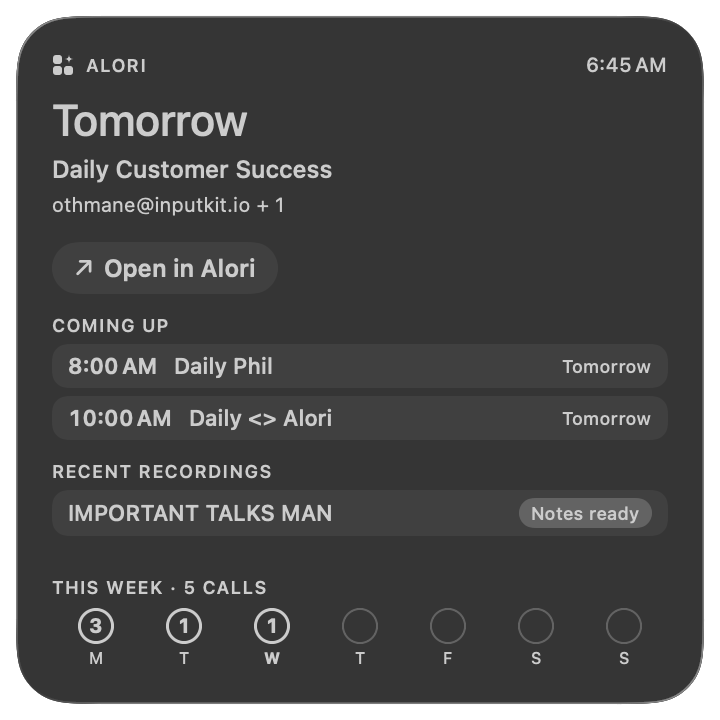
Right-click an empty spot on your desktop › Edit Widgets…, search Alori, then drag Alori Recorder onto your desktop in the size you want and click Done. It shows your next call with Join, what's coming up, your last recordings and your week. While a call records, it shows the clock and Stop and save.
Click: right-click the desktop › Edit Widgets… › Alori Recorder › Done
Good to know
Only you see your recordings at first. You choose who else can.
Not every call? In the menu bar, click Settings… and turn off Record calls automatically, then use Record now.
Turn off Record the call's window to keep only the sound.
The menu bar shows your next meeting, with Join the meeting.
Your menu bar is full and the icon is hidden? Open Alori Recorder from the Dock: it still records your calls.
Change the language with EN | FR in Settings.
The transcript and notes use credits, and the video is stored, like a recorded meeting's. 8 hours at most.
Wrong or no customer? Change it on the meeting's page.
If it doesn't work
"No internet. It's kept on this Mac to save later." Check your internet, then click it under Not saved yet in the menu bar.
"The video didn't reach Alori. It's kept on this Mac." Click Try again.
"Connect to Alori again to save this call." Click Connect, then Allow.
"Your app needs an update first: click Upgrade my app in Alori." Click Upgrade my app in Alori, then Try again.
"Not enough credits to write this call's notes." Add credits, then save it under Not saved yet.
"Your email isn't on this app's team." Ask your admin to add you.
Set-up not done? Click Finish setting up… in the menu bar.
The widget isn't in Edit Widgets? Open Alori Recorder once, then look again.