How do I resell Alori to my clients?
Start your agency from alori.dev/partners, add each client in one window, invite them as owner, and follow what you earn on everything they pay.
Click Start your agency on alori.dev/partners. A short setup builds your own CRM and opens Agency: its menu has Overview (what you earn), Clients, Payouts and Settings. Add each client in one window, with its business and its tools, or as a copy of an app, invite them as its owner, and earn a percent on top of everything Alori charges them.
Also called: agency, reseller, resell, partner, client accounts, white label, own brand, support for clients, agence, revendeur, revente, comptes clients, marque blanche, soutien des clients
Step 1: Start your agency
On alori.dev/partners, click Start your agency (Lancer mon agence in French). You create your account at the end, just before your CRM is built. Alori asks a few short questions, one per screen:
What's your agency called? Search Google for it, or type its name. Then add your website, pick what kind of agency you are, and what takes most of your time.
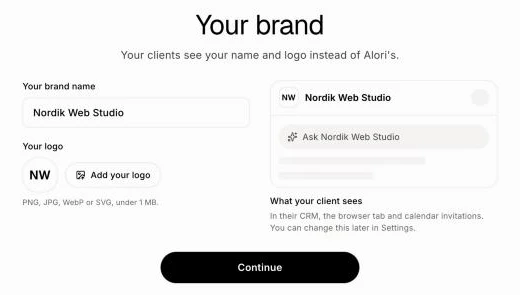
Your brand: your clients see your name and logo instead of Alori's. Your brand name starts as your agency's name; change it if you like. Under Your logo, your website's icon comes in: click Change to pick another picture (PNG, JPG, WebP or SVG, under 1 MB), or Add your logo when there's none. The drawing beside it shows what your client sees in their CRM. Click Continue. You can change both later in Settings.
How big your team is, and which email you use.
Your agency CRM's tools: tap a tool to remove or add it, then click Build my app.
Create your account: with Google in one click, or an email and a password. Your CRM starts building right after, with nothing else to click.
Once it's built, Your bots are ready shows your bots: click Open my agency and Agency opens. Your markup is 20% until you change it. No need for a CRM of your own? On the first screen, click Just manage my clients.
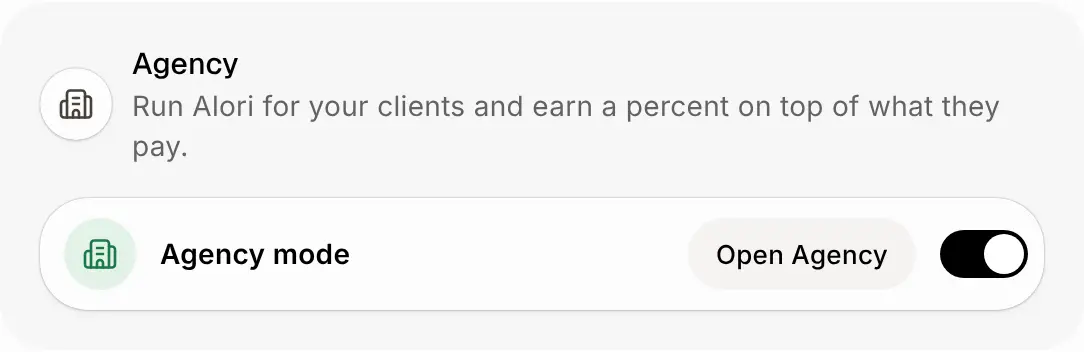
Already have an Alori app? Start your agency turns Agency mode on and keeps your app as it is. Any admin on your team can do it. You can also switch it on in Settings › Agency mode, and it stays on while you still manage clients.
Click: alori.dev/partners › Start your agency
Step 2: Follow Get started
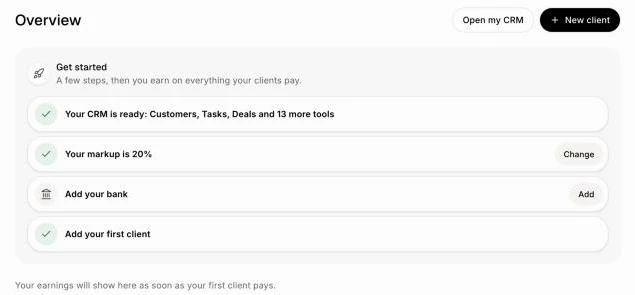
On Overview, Get started lists your next steps until you have a client and a bank: Your CRM is ready (with its first tools; Your CRM is getting ready while it is built, and Setting up your CRM failed with Open if something went wrong), Your markup is 20% (click Change), Add your bank and Add your first client (click Add). If you haven't saved your account yet, a form asks you to create it first, since clients and earnings need one. Open my CRM opens your own CRM.
If you chose Just manage my clients, the list ends with Build your CRM: click Start to make one later.
Click: Agency › Overview › Get started
Step 3: Add a new client
On Overview or Clients, click New client. One window opens, and you stay on your pages:
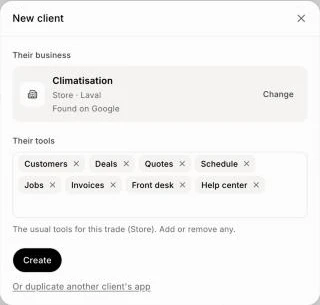
Their business: search Google for it and pick it, which shows "Found on Google". Or type its name and click the Use "…" row. Then answer What do they do?, since Google doesn't know the business.
Their tools: the tools most businesses in their trade start with are already ticked. Add or remove any.
Click Create. It turns on once the business is chosen. The window closes and you stay on Clients, with a note that their app is being set up and an Open button. It is ready in a few minutes.
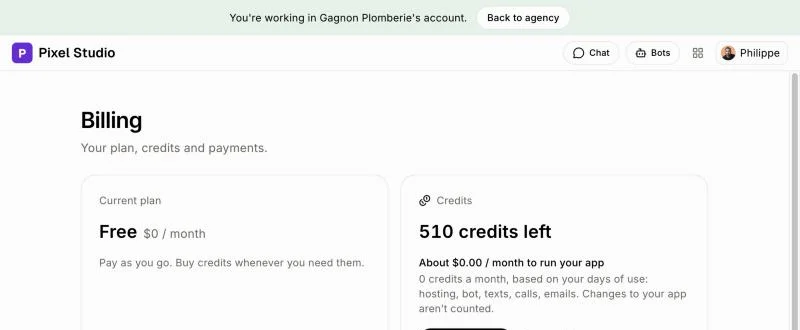
Or click Or duplicate another client's app to copy an app instead. Under App to duplicate, pick your own app or any client's live app. The new client gets the same screens, pipelines, fields, templates, price list and Help center, with none of the data: no customers, deals, jobs, quotes or invoices. You land in their account right away, with a green bar at the top. Back to agency returns to your pages.
Click: Agency › New client › Create
Step 4: Invite the owner
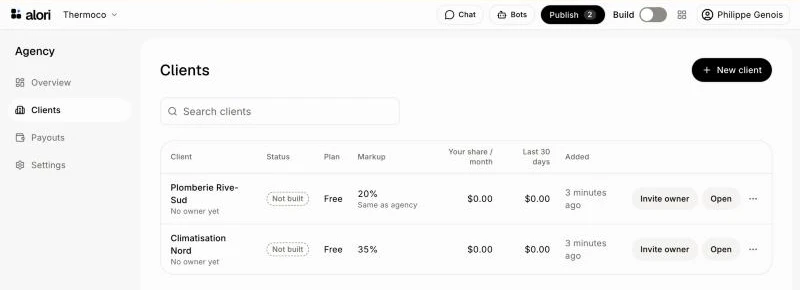
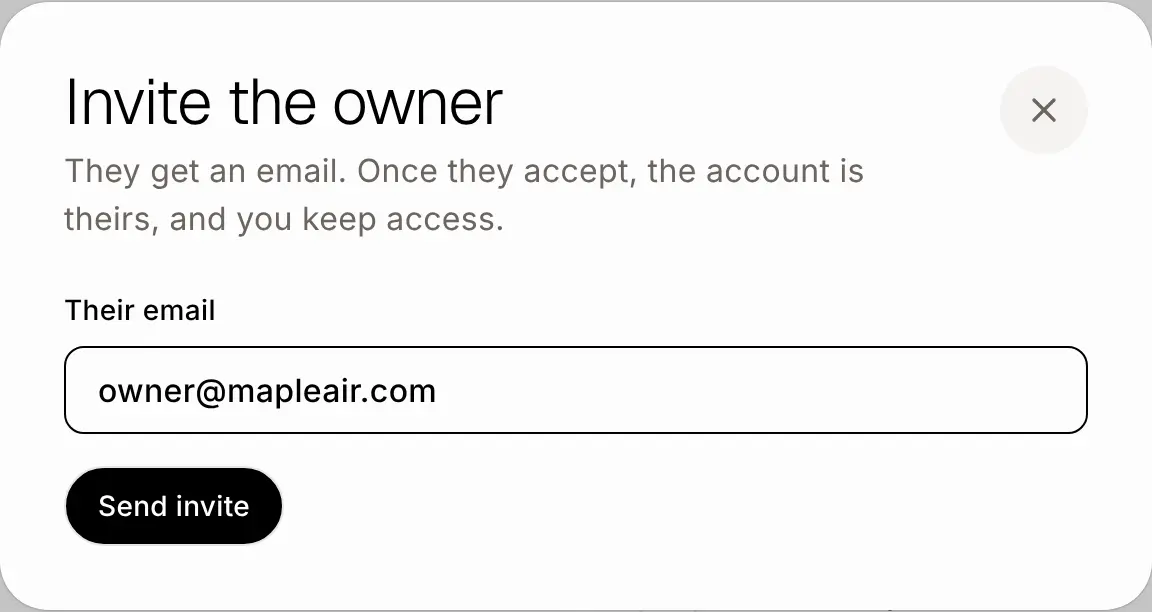
Clients lists every client with its status, plan, markup, your share each month and what it earned you in the last 30 days. Click Invite owner beside a client and type their email. Once they accept, the account is theirs, and you keep access. Open works in their account any time, and the copy icon (Duplicate) starts a new client from a live one.
Click: Agency › Clients › Invite owner › Send invite
Step 5: Change or release a client
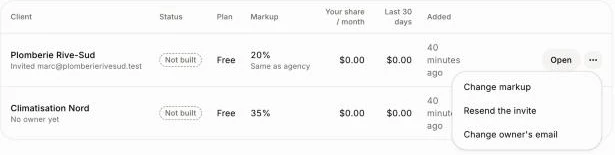
Each client row on Clients ends with a ⋯ button. Click it for that client's actions:
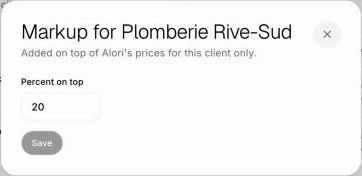
Change markup: set a percent for this client only. Click Same as my agency to use yours again. You can also click the percent in the Markup column. A client that uses yours shows Same as agency under it.
Resend the invite and Change owner's email: shown until the owner accepts. Use the second one if you typed the wrong email.
Release this client: shown once the client has an owner. The client keeps its app and data, its prices go back to Alori's at their next renewal, and you stop earning your share. You lose access to their account.
Only the account owner can change a client's markup or release a client. Everyone on your team can resend or change the invite.
Click: Agency › Clients › ⋯ › Change markup
Step 6: Set your markup
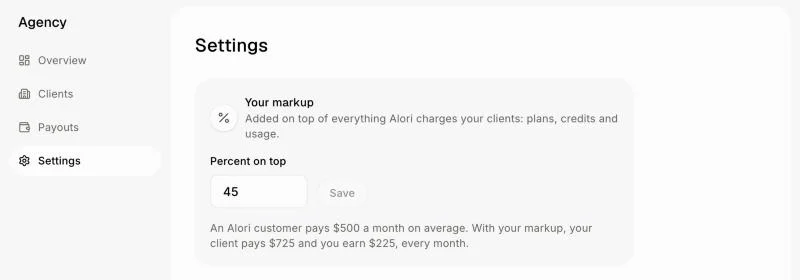
Type the percent added on top of everything your clients pay: plans, credits and usage, then click Save. The page shows what it means on a customer's average month of $500. Plans change at their next renewal.
For example, with 20%, a client who buys credits Alori sells for $150 pays $180, and you earn $30.
Click: Agency › Settings › Save
Step 7: Add your bank
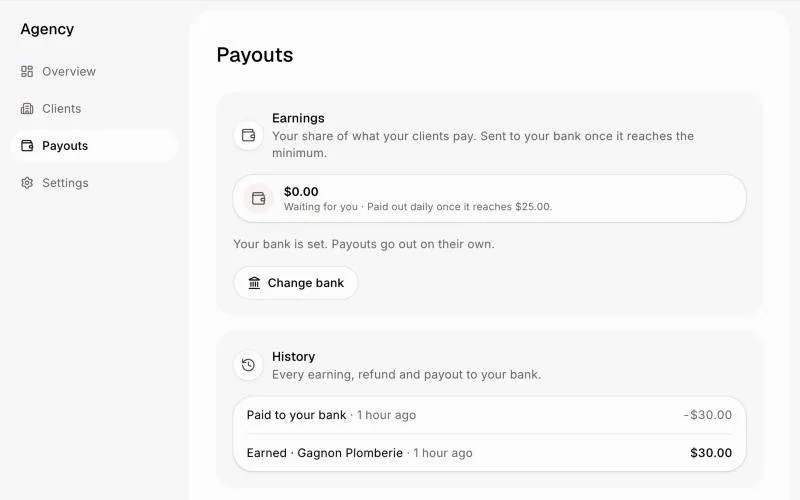
Click Add your bank and fill in Stripe's short form. Your share is paid out daily once it reaches $25, in Canadian dollars at the day's rate. To use another bank later, click Change bank and edit it in the same form. History lists every earning, refund and payout.
Click: Agency › Payouts › Add your bank (or Change bank)
Step 8: Follow what you earn
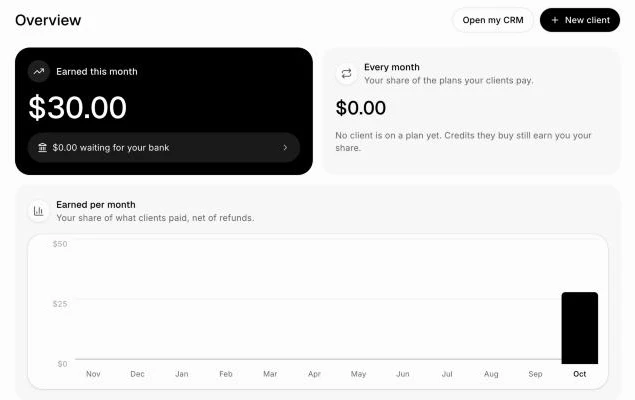
Once you have a client on a plan or your first earning, Overview shows what you earned this month against last month, your share of your clients' plans every month, a chart of the last 12 months and your top clients this month. It always shows the clients waiting on you (no owner yet, not built, a failed setup).
Click: Agency › Overview
Step 9: Put your brand in Alori's place
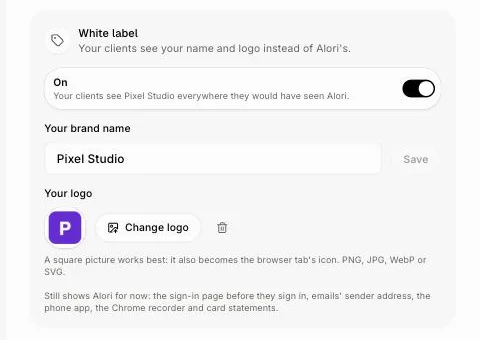
Turn on White label, type Your brand name and add Your logo (a square picture works best). Your clients then see your name and logo wherever they would have seen Alori: the top bar, the browser tab, every page's wording, their CRM (the assistant becomes "Ask" plus your name), their calendar invitations and every email we send them (invitations, password codes, "your website is ready", credit and import notices): your logo and name on top, your name as the sender, and their replies go to you. The "Built with Alori" badge goes from their website and emails, and "Sent with Alori" from the bottom of their email campaigns. A client's CRM switches at its next update. Your own Agency pages keep Alori's look. If you picked My name at the start, it is already on: change the name or logo here any time.
Their payment page shows your name and logo too, and once your bank is added, their receipts and card statements show your name: see What do my clients see when they pay?.
For now, a few places still show Alori: the sign-in page before they sign in, the address emails come from (your name shows, the address is still @mail.alori.dev), the phone app, the Chrome recorder and plan names on the payment page.
Click: Agency › Settings › White label
Step 10: Answer your clients' questions
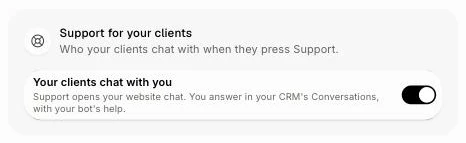
When your clients click Support, they chat with you, not with Alori. The chat is your own website chat, so your bot answers first and you pick up in your CRM's Conversations, where you already know who is writing. This is on by default. To send your clients to Alori's team instead, turn off Support for your clients. You and your team still reach Alori when you click Support, even while working in a client.
Click: Agency › Settings › Support for your clients
If it doesn't work
Only the account owner can change this.: the markup, white label, client support and sign-in address are changed by the person who made your Alori account. Ask them.
Hand over or release your clients before turning this off.: Agency mode stays on while you still manage clients.
Your app isn't in the list: only apps that are ready can be copied. Wait until it is ready, or click Or pick their tools to build the new client from its business and tools instead.
Payments could not load. Try again in a moment.: Stripe's bank form didn't open. Click Add your bank again.
Your clients still reach Alori when they click Support: your own CRM must be built and live. If you chose Just manage my clients, build your CRM first.