Which tools come in my app?
Pick your tools while you build: Customers, Deals, Quotes, Schedule, Jobs, Invoices, Booking, Campaigns, Help center and more. Alori suggests them.
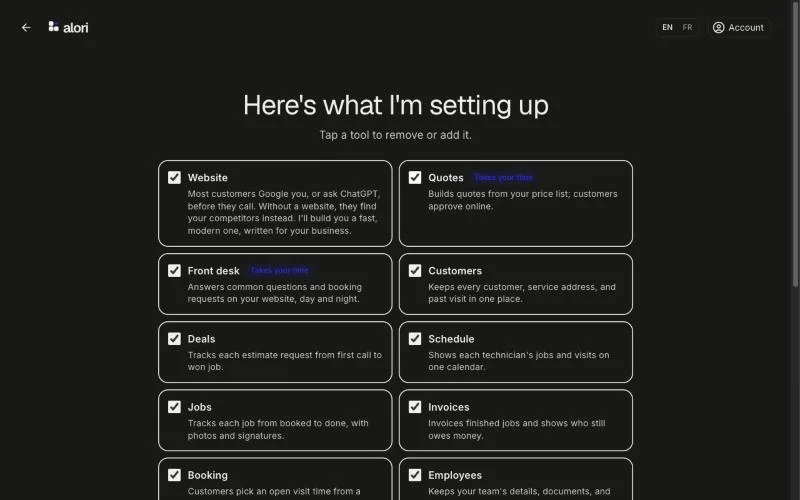
Every app has an Admin panel. You pick the other tools when you build your app, under Here's what I'm setting up, with the Website first. Alori turns on every tool your business could use, starting with what takes your time, and you tap a tool to remove or add it.
Also called: modules, features, outils, modules de l'app, fonctionnalités
The tools
Website: a fast website customers find on Google, built from your current site and made better. It comes first on the list, ticked.
Customers: customers, service addresses, contacts, notes, and email conversations.
Deals: a pipeline from the first website request to a won job. Drag each deal along its stages.
Tasks: the team's to-dos, with priorities, due dates and projects. Alori adds the ones that slip.
Quotes: build quotes from your price list. Customers approve online.
Schedule: a calendar by technician. Drag to reschedule.
Jobs: track each job from booked to done, with photos and signatures.
Invoices: invoice from a finished job and see who still owes you.
Meetings: video visits in the browser, recorded, with an AI summary and transcript of every call.
Employees: your team's details, files and cards in one place. Only you see pay rates.
Booking: share a link and customers pick an open time. You both get an email.
Front desk: a chat on your website. Nora answers visitors and passes the chat to you when she needs a person.
Campaigns: email your customers all at once: seasonal reminders, promos and news, with open and click reports.
Help center: answers for your customers on your website. Import them from Intercom or Zendesk, or write them here.
Admin panel: team members, roles, and the settings for your business. Every app has it.
Step 1: Pick your tools while you build
On the Here's what I'm setting up screen, tap a tool to turn it on or off. A tool tagged Takes your time answers what you said takes your time. Click See the … other tools to see the rest. Then click Build my app.
Click: tap a tool › Build my app
Good to know
Some tools need another one. Deals, Quotes, Schedule, Jobs, Front desk and Campaigns need Customers, and Invoices needs Jobs. Turning one on turns on what it needs. Turning Customers off turns off the tools that need it.
Alori only leaves out the tools that don't fit how you work. For example, a clinic doesn't get Quotes or Jobs, and Employees is only for a business with a team. Tap a tool to turn it off if you don't want it. Nora on Front desk and Campaigns emails use credits when they run.
Picked Help center? Alori asks Already have a help center? Pick Intercom or Zendesk and connect it right there: your articles come over once your app is ready. Zendesk opens beside Alori: add a small OAuth client in Zendesk as Alori shows, then click Connect Zendesk and Allow. Only your help center comes over then. Bring your Zendesk tickets and customers later from Bring your data on Home.
Need a tool later? Ask Alori in the chat to add it.
If it doesn't work
Build my app is grayed out. Pick at least one tool, or wait while Alori is Picking your tools….
A tool turned on by itself. It's needed by a tool you picked. For example, picking Invoices turns on Jobs and Customers.