Why aren't my texts sending?
Check your number in Phone system first: texts need Calls and texts work. Then read the message under the text box. It says what to fix.
Texts go out only when your business number shows Calls and texts work in Phone system. If it does, the message in the conversation tells you what to fix: a landline, a customer who answered STOP, or no credits left.
Also called: SMS not sending, text failed, Not sent, texts blocked, can't text, activate my number, texto pas envoyé, textos bloqués, impossible de texter, message non envoyé, activer mon numéro
Step 1: Check your number
In Alori, open Phone system and look at the badge beside Your business number:
Calls and texts work: your number is fine. Go to Step 2.
Getting it ready: wait a minute.
Calls work: carriers are approving your business, usually in 1 to 2 weeks. Texts turn on after, and Alori emails you.
Texts need your details: click Add the details. See Why do texts need my business details?
Texts need a website fix (US): your website needs the text message consent box on its contact and quote pages, and carriers check it. Click Fix it in chat, send the request, then click Publish. Setup goes on by itself once it's published.
Texts need a fix: click Fix it, and correct what the reason says.
Click: Phone system
Step 2: Read the message in the conversation
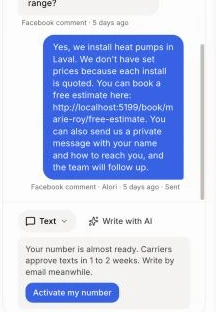
In your team app, open the customer's conversation. A note by the text box says why texts can't go out. While your number isn't ready, the note has a button that opens Phone system to finish it: Get my number, Activate my number or Fix my details. A text that didn't go out shows Not sent. See the list below.
Click: Conversations › the customer
Step 3: Send it again
Once it's fixed, click Try again on the text marked Not sent, or write it again and click Send text. You see "Text sent." If it still fails, a message tells you why.
Click: Try again
If it doesn't work
"Your number is almost ready." Carriers are approving your texts, usually in 1 to 2 weeks. Click Activate my number to see what is left. Write by email meanwhile.
"Get your business number to text customers." Click Get my number.
"Carriers refused your texting details." Click Fix my details and correct what the reason says.
"Create your account to get your business number." Save your app with an account first.
"No phone on this record." Add a mobile number to the customer.
"This number is a landline: a text would not arrive." Add a mobile number.
"This customer answered STOP and no longer gets your texts." Only the customer can turn texts back on, by answering START.
"Out of credits: texts stopped until you add some." Add credits, then send again. See What stops when I run out of credits?
"Too many texts right now. Try again in a few minutes." Wait, then send.
"This phone number doesn't look right." Fix the number on the customer's record.
"Texting isn't set up on this app yet." or "This app has no texting number yet." Get your business number first. See How do I get my business phone number?
"The text didn't go out. Try again." Click Try again.