How do I add files to a ticket?
In the comment box, click the paperclip, or paste or drop files on it, then click Comment. Paste a picture in the description to put it there.
Add photos, PDFs or any other file to a ticket with a comment: click the paperclip under the comment box, or paste or drop the files on it, then click Comment. A picture pasted or dropped into the description shows right there.
Also called: attachment, photo, screenshot, PDF, pièce jointe, joindre un fichier, photo sur un billet
Step 1: Pick the files
Open the ticket. Under Leave a comment…, click the paperclip (Attach files) and pick one or more files. You can also paste a screenshot or drop files on the comment box. Each file shows under the box; the cross takes one back out.
Click: a ticket › Attach files

Step 2: Send them
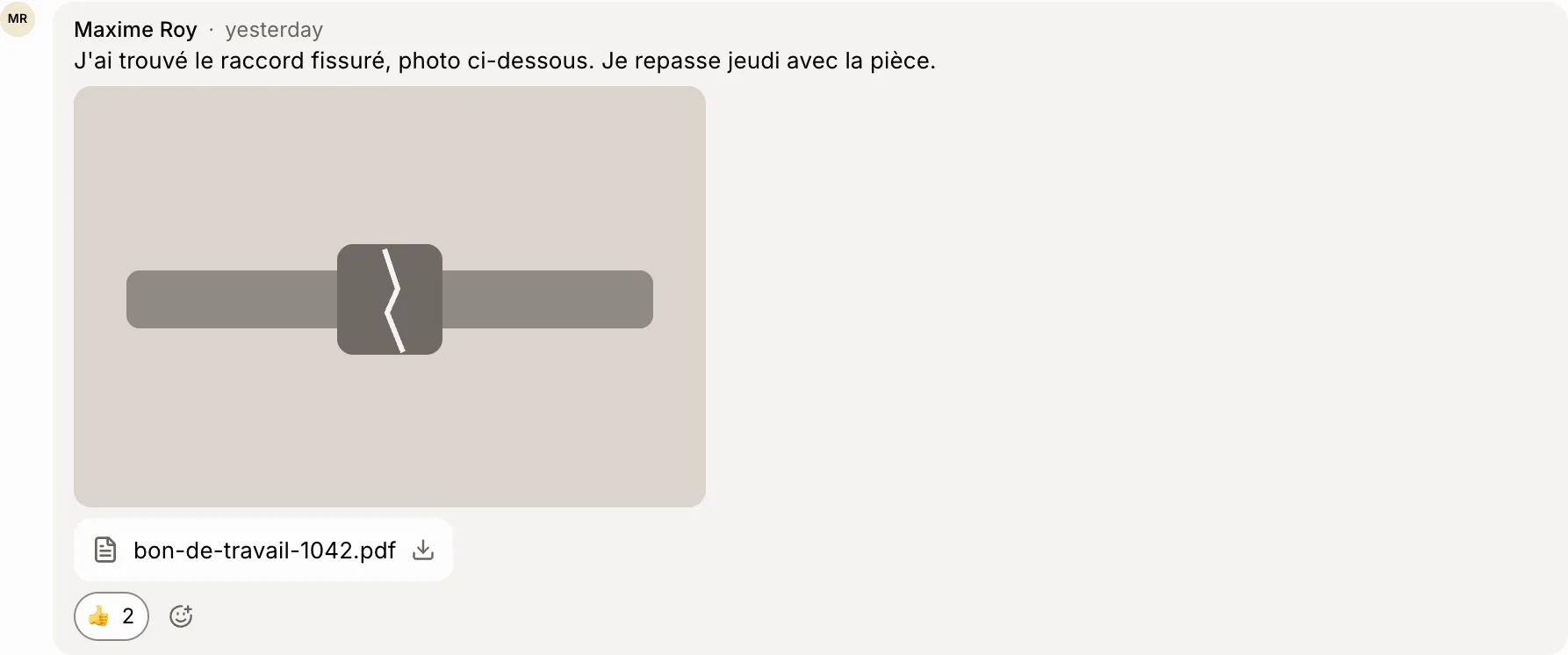
Write a few words if you want, then click Comment. Pictures show in the comment; a click opens them full size. Other files show as a line: click it to download.
Click: Comment
Step 3: Put a picture in the description
Click the description to edit it, then paste or drop a picture where you want it. It's uploaded and saved in the description. Any other file goes in as a link.
Good to know
Any kind of file, up to 100 MB each, and ten per comment.
Also email it to the customer sends the words of your comment, not its files.
Removing your comment removes its files. Deleting the ticket removes all of them.
If it doesn't work
"A file can be up to 100 MB." Send a smaller file, or a link to it.
"Ten files at most per comment." Send the rest in another comment.
"A file didn't upload. Try again." Check your connection and click Comment again.