How do I track the team's work with tickets?
Open Tickets and press New ticket (or C). Each ticket gets a number like SUP-12, moves through your team's steps, and can email its customer as it moves.
Tickets keep track of the team's shared work: a problem to fix, a customer's request, an improvement. Open Tickets and click New ticket (or press C). Each ticket gets a number like SUP-12 and moves through your team's steps until it's Done.
Also called: issue, bug, support request, Jira, Linear, billet, demande de service.
Tasks are each person's own small to-dos. Tickets are the work the team tracks together.
Step 1: File a ticket
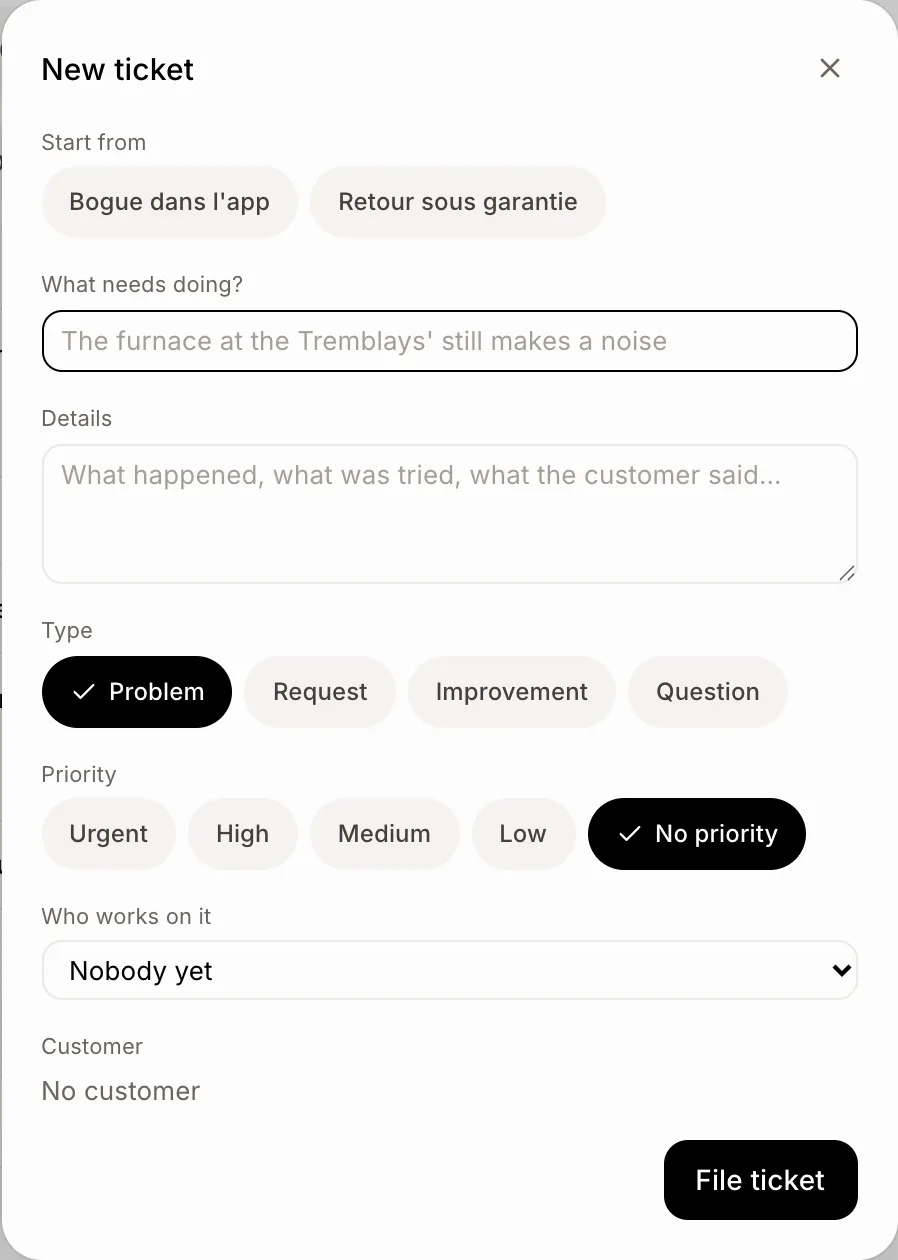
Click New ticket. Write what needs doing, pick a Type and a Priority if it matters. Everything else can wait. A template under Start from fills it in for you.
Click: Tickets › New ticket › File ticket
Step 2: Work it from the list or the board
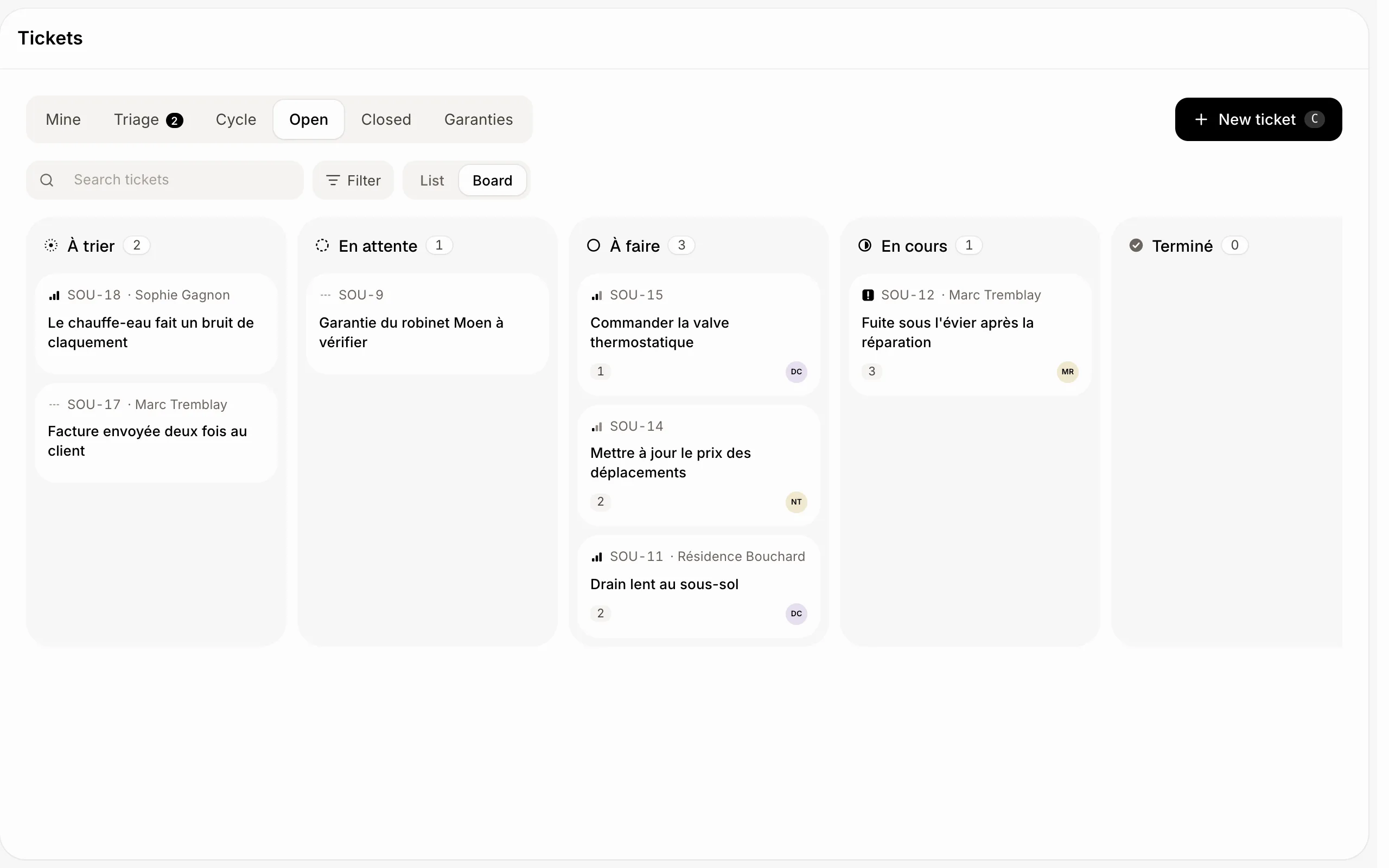
Pick a view at the top: Mine, Triage, Cycle, Open, Closed, or one your team saved. Switch between List and Board; on the board, drag a card to another step. On the list, J and K move, X ticks, Enter opens. Filter narrows the list and Display groups and orders it.
Click: Tickets › Board
Step 3: Open a ticket
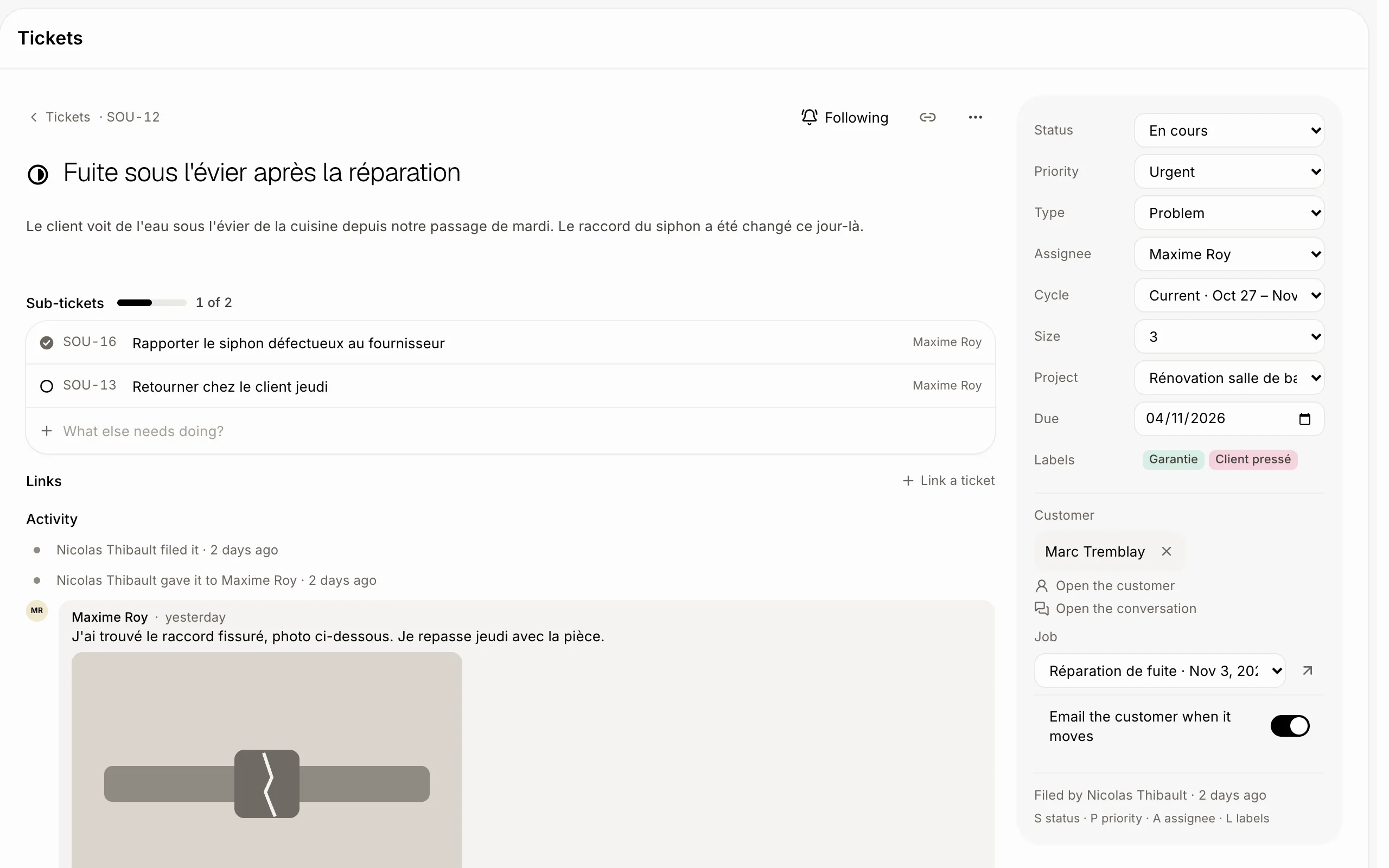
On the right, change its Status, Assignee, Priority, Cycle, Project or Labels (on a computer, S, P, A and L open them). Add Sub-tickets and Links (Blocks, Related, Duplicate of). Comment below, with files if you want; @ and a name tells a teammate. Follow at the top tells you of new comments and moves.
Step 4: Keep the customer in the loop
Add a Customer. When the ticket moves to in progress, done or closed, Alori emails them in their conversation; turn off Email the customer when it moves to stop that. To write to them yourself, turn on Also email it to the customer under your comment. Pick a Job to tie the ticket to one: it then shows on that job's page.
Step 5: Set up teams, cycles and response times
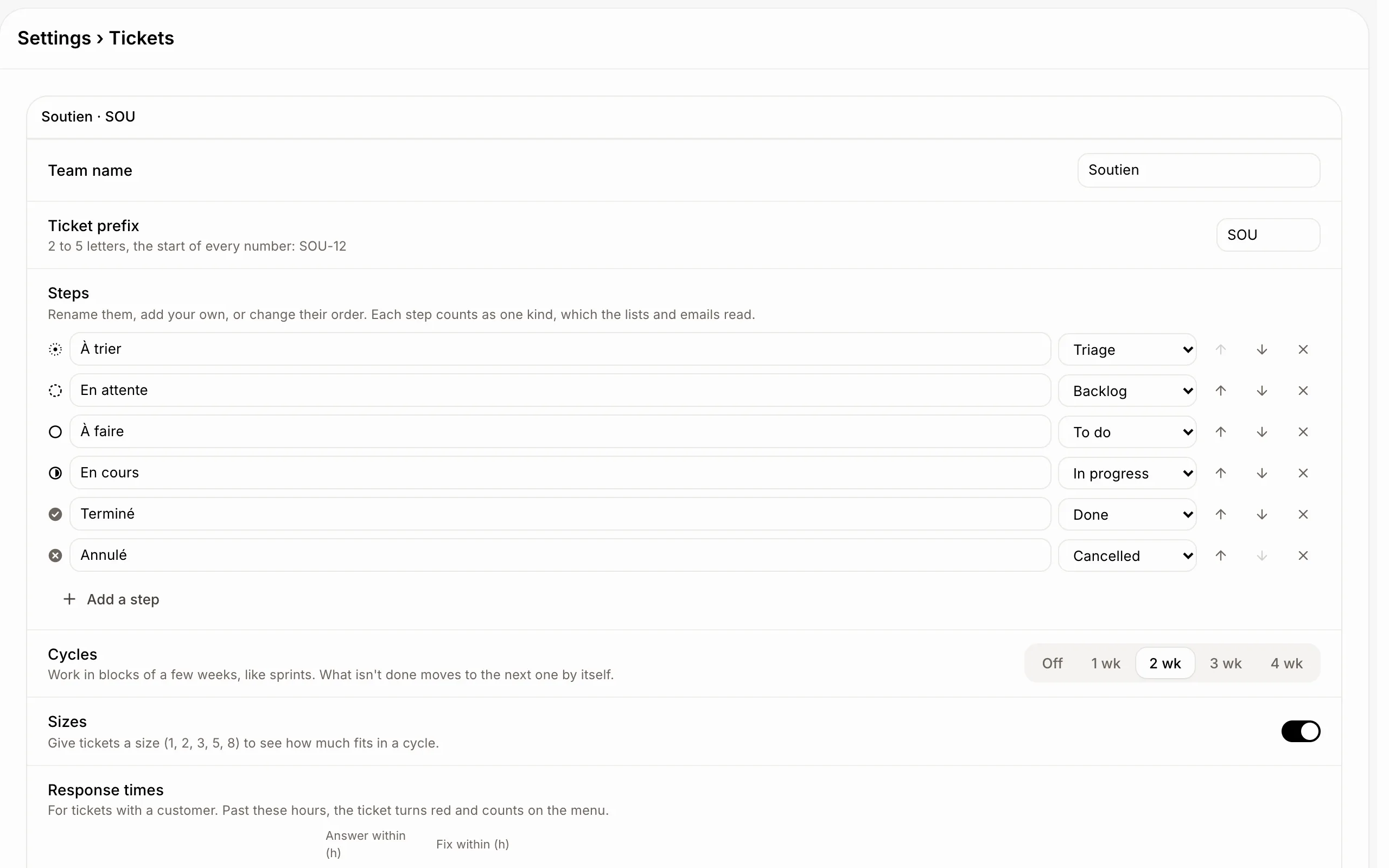
In Settings › Tickets, each team has a Ticket prefix, its Steps, Cycles (1 to 4 weeks; what isn't done moves on), Sizes and Response times per priority. A customer's ticket past its time turns red. Labels and templates are set there too.
Click: Settings › Tickets
If it doesn't work
Another team already uses that prefix. Pick other letters.
This team still has tickets. Move them to another team first.
Keep at least one open step, one Done and one Cancelled. Add the missing step back.
Add a customer first. A comment can only be emailed on a ticket with a customer.
No Tickets in your menu? Ask the owner to add it and to turn it on in your role.