How do I save a view of my tickets?
Pick filters on the Tickets list, click Save view, name it and choose who sees it. It becomes a tab after Closed.
A view keeps the filters, display and layout you use often, like "Urgent warranty tickets", as a tab on the Tickets page. Pick your filters, click Save view, give it a name and choose who sees it.
Also called: custom view, saved filter, favorite, Linear view, vue enregistrée, filtre enregistré
Step 1: Pick what the view shows
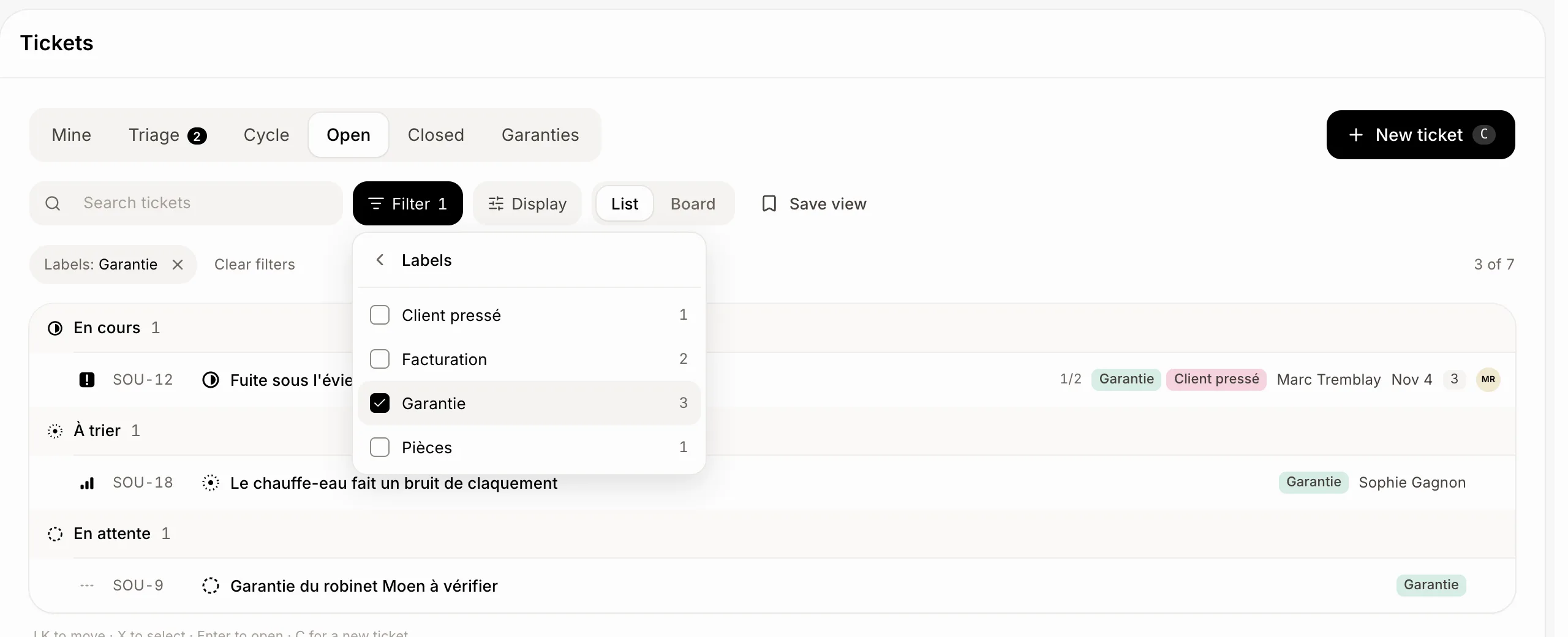
On Tickets, click Filter and pick what you want, like a label or a priority. Click Display to group or order the list your way, and choose List or Board.
Click: Tickets › Filter
Step 2: Save it
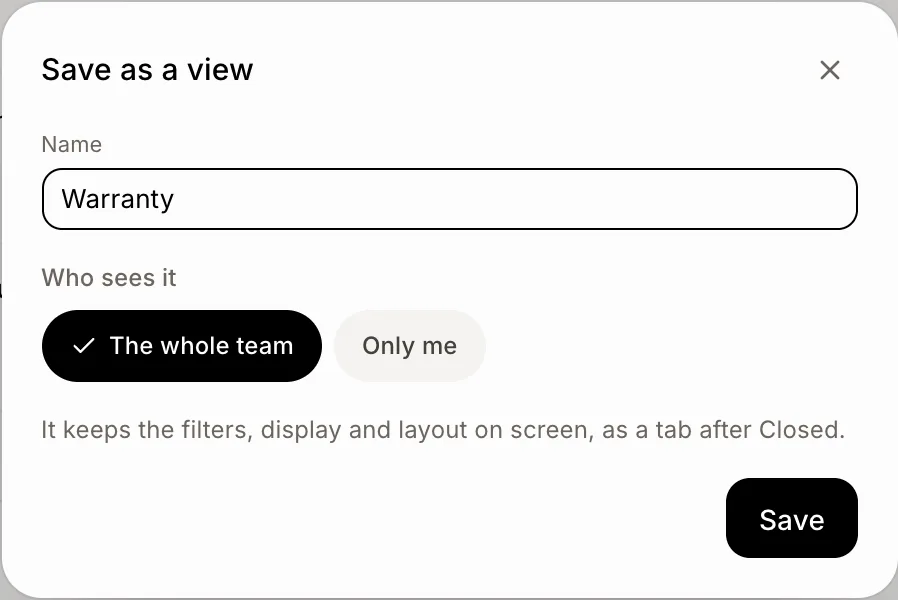
Click Save view, beside the filters. Type a Name. Under Who sees it, pick The whole team or Only me. Click Save. The view opens as a new tab after Closed.
Click: Save view › Save
Step 3: Change it later
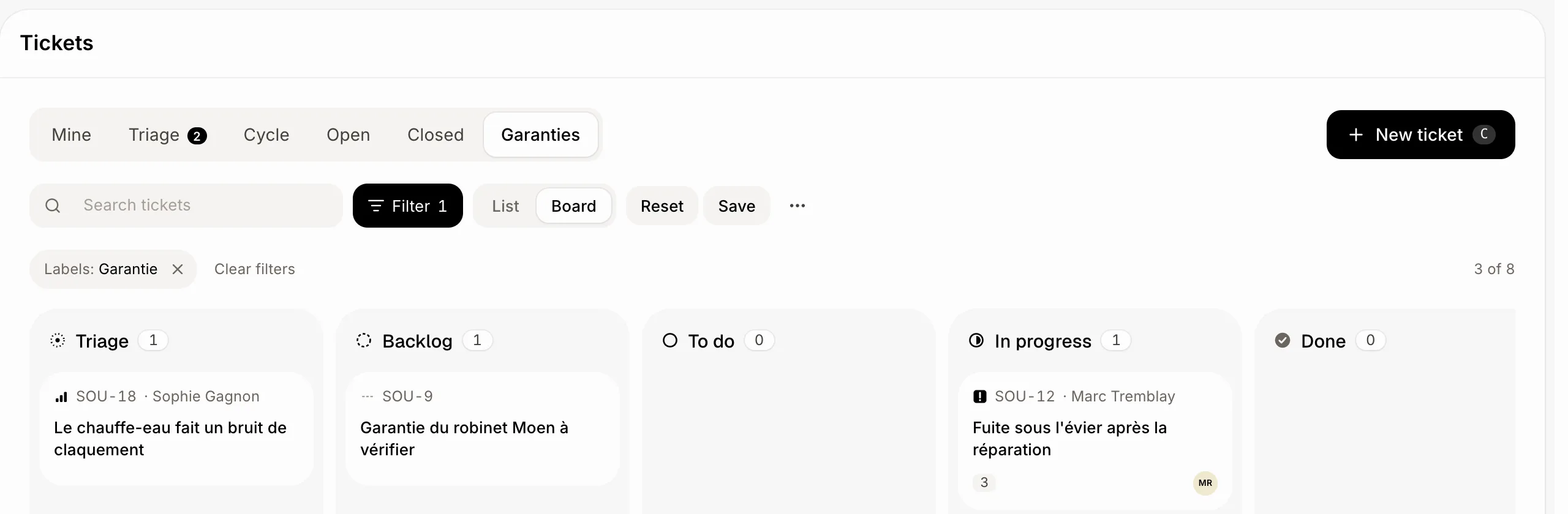
Open the view's tab and change its filters, display or layout. Reset and Save show up: click Save to keep the change for everyone who sees the view, or Reset to go back. To rename it, change who sees it or delete it, click the … (View options) beside the filters.
Click: the view's tab › View options › Rename
Good to know
A view shows the open tickets and the latest closed ones of its team (or of every team).
A view for The whole team needs the right to edit tickets. Anyone who sees tickets can make one for Only me.
You can ask Ask Sam: "make a view of the urgent warranty tickets, just for me".
If it doesn't work
"You have the most views there can be. Delete one first." Delete a view you no longer use.
No Save view button? Pick at least one filter first.
No Save after a change? Someone else made that view for themselves, or you can't edit tickets. Use Save view to keep your own copy.