How do I change many tickets at once?
Tick the tickets on the list (or press X on each), then pick a status, priority, assignee, label, project or cycle in the bar at the bottom.
Tick the tickets you want to change, then use the bar at the bottom of the screen to change all of them together: their status, priority, assignee, a label, the project or the cycle. You can delete them there too.
Also called: bulk edit, multi-select, select several tickets, modifier plusieurs billets, sélection multiple
Step 1: Tick the tickets
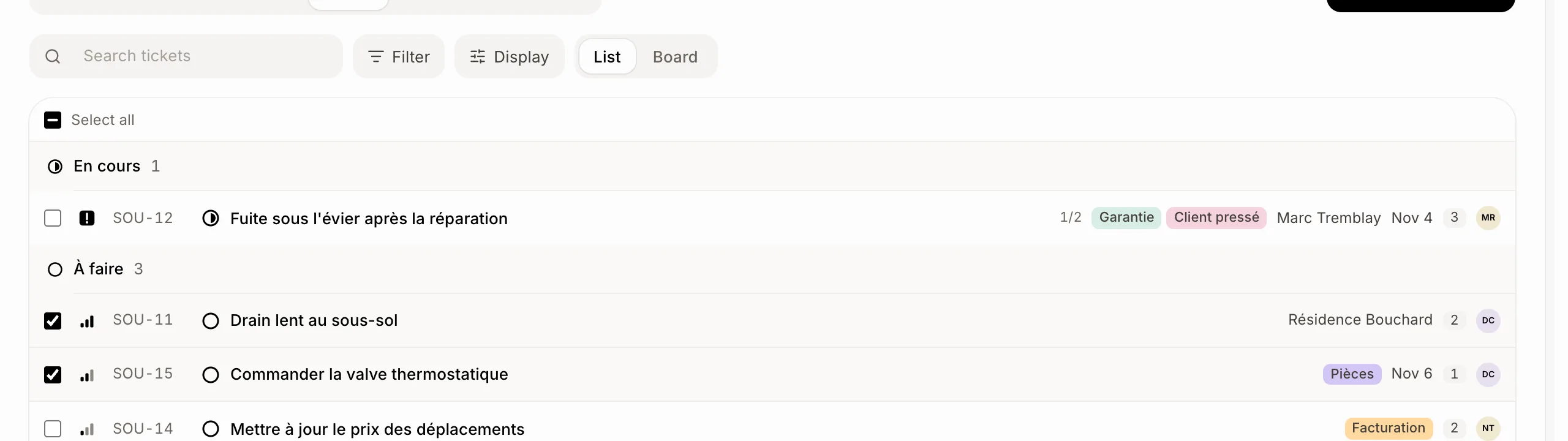
On Tickets, in the List layout, point at a ticket and tick its box. On a computer you can also move with J and K and press X to tick. On a phone, tap Select above the list first. Select all ticks every ticket on screen.
Click: Tickets › the box beside each ticket
Step 2: Change them together
The bar at the bottom says how many are selected. Pick a Status, Priority, Assignee, Add label, Project or Cycle: every ticked ticket changes at once. Clear unticks them.
Click: Status › In progress

Step 3: Delete them
Click Delete in the bar. They go at once, with Undo on the message for a few seconds.
Good to know
Tickets from several teams take each team's own step of that kind (its In progress, its Done).
Cycle shows when every ticked ticket is in one team that works in cycles.
Add label adds one label and keeps the ones each ticket already has.
If it doesn't work
No boxes? You may only see tickets: ask the owner to let your role edit them.
No bar on the Board? Ticking works on the List.