How do I sort new tickets in Triage?
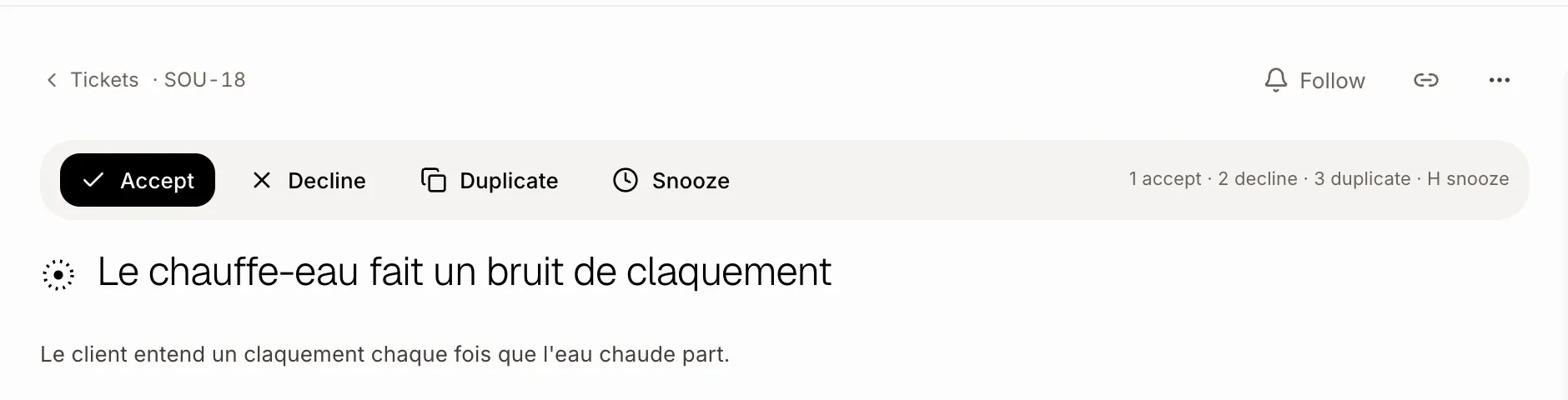
Open a ticket in Triage and click Accept, Decline, Duplicate or Snooze (or press 1, 2, 3 or H).
New tickets from customers, the bot and the website chat wait in Triage until someone looks at them. Open one and answer it: Accept, Decline, Duplicate or Snooze.
Also called: inbox, new requests, sort tickets, à trier, trier les billets, demandes reçues
Step 1: Open Triage
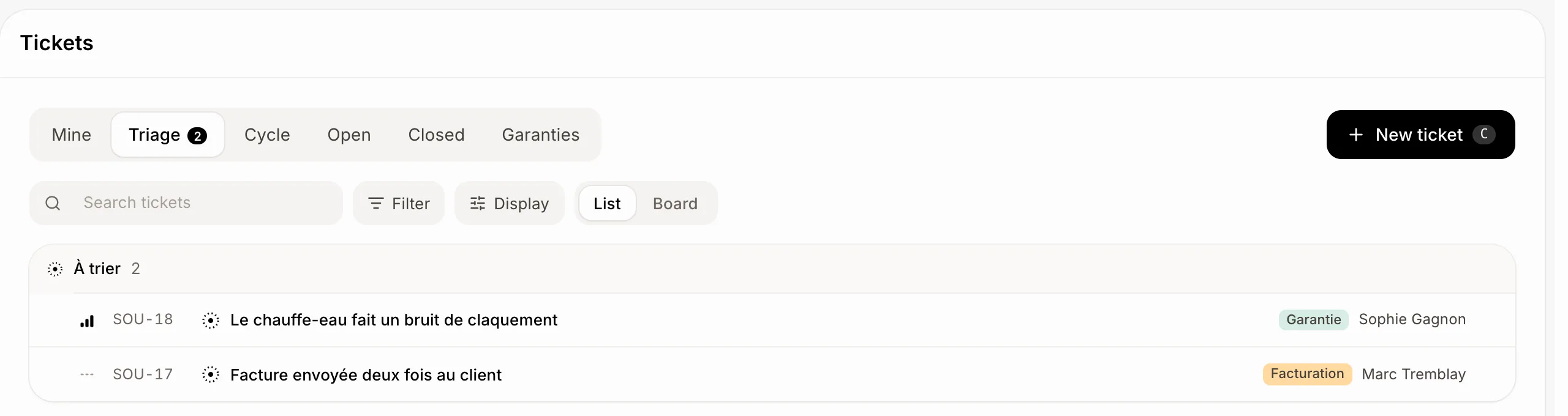
On Tickets, click the Triage tab. Its number says how many tickets wait. Open the first one.
Click: Tickets › Triage
Step 2: Answer the ticket
Above the title, pick one:
Accept (or 1): it moves to the team's To do.
Decline (or 2): it moves to Cancelled. A customer on it hears that it was closed, unless the team turned that off on the ticket.
Duplicate (or 3): pick the ticket it repeats. It closes as a duplicate of that one.
Snooze (or H for tomorrow): pick Until tomorrow or Until next week.
Step 3: Bring a snoozed ticket back
A snoozed ticket leaves the Triage tab and comes back on its own at 8 a.m. on the day you picked, or as soon as someone comments on it or moves it. To bring it back now, open it and click Bring back.
Click: the ticket › Bring back
Good to know
You can ask Ask Sam: "accept SUP-18" or "snooze SUP-17 until Monday".
To write to the customer why a ticket is declined, leave a comment with Also email it to the customer turned on.
If it doesn't work
No buttons above the title? The ticket isn't in Triage anymore, or you may only see tickets.
Decline asks for a Cancelled step: keep one in Settings › Tickets › Steps.